Quick answer
Build the 4x4x4 V2 LED Cube Kit by soldering the through-hole components in the correct order: first the resistors and IC socket, then the LEDs layer by layer, checking each joint as you go.
Why the build order matters
The kit uses only through-hole parts, which makes it beginner-friendly, but the order of assembly still determines whether the cube lights up evenly. Soldering the LEDs out of sequence can make later layers hard to reach and increase the risk of cold joints.
Choosing your LED color
The kit is available in blue, white, and red LEDs. Blue and white LEDs have a slightly higher forward voltage than red, so the cube will appear a bit dimmer at the same current. Pick the color that matches your project's mood—blue for a cool tech look, red for classic indicators, white for neutral brightness.
Assembly steps
- 1. Prepare your tools and workspace: Gather a soldering iron with a fine tip, solder (0.8mm or thinner), flush cutters, needle-nose pliers, and a small Phillips screwdriver. Work in a well-ventilated area on a heat-proof mat. A dirty or oxidized iron tip will cause cold joints; clean it with a damp sponge before each joint.
- 2. Solder the resistors and IC socket: Insert the resistors into the PCB according to the silkscreen markings (check the values printed on them). Then place the 8-pin IC socket in its footprint. Solder and trim the leads flush. Double-check resistor orientation—they are not polarized, but the wrong value can prevent the cube from lighting properly.
- 3. Build the LED layers one at a time: Start with the bottom layer (closest to the PCB). Insert the 16 LEDs for that layer, making sure the flat side of the LED (cathode) aligns with the flat side of the silk screen. Solder all 16, then bend the leads to form a stable grid. Repeat for each of the four layers. Do not solder more than one layer at once—you need access to the leads of lower layers to bend and connect them.
- 4. Connect the layers together: After soldering all four layers, use the provided spacer or a small ruler to ensure the layers are evenly spaced. Solder the vertical column wires (the long LED leads) to the corresponding pads on the PCB. Check continuity with a multimeter if possible. A short between two column wires will cause a whole row to light up incorrectly; inspect each joint with a magnifier.
- 5. Insert the microcontroller and test: Place the pre-programmed microcontroller (ATtiny or similar) into the IC socket, observing the notch orientation. Connect a 5V power source (USB or battery) and watch the cube cycle through its 13 built-in animations. If nothing lights up, check power polarity and reflow any suspicious joints—most first-build issues are solder-related.
Kit options at a glance
-
4x4x4 V2 LED Cube Kit (Blue): 4x4x4 V2 LED Cube Kit (Blue) uses through-hole components and comes pre-flashed with 13 animations. You don't need to write any code—just solder and power it up to see the animations immediately.
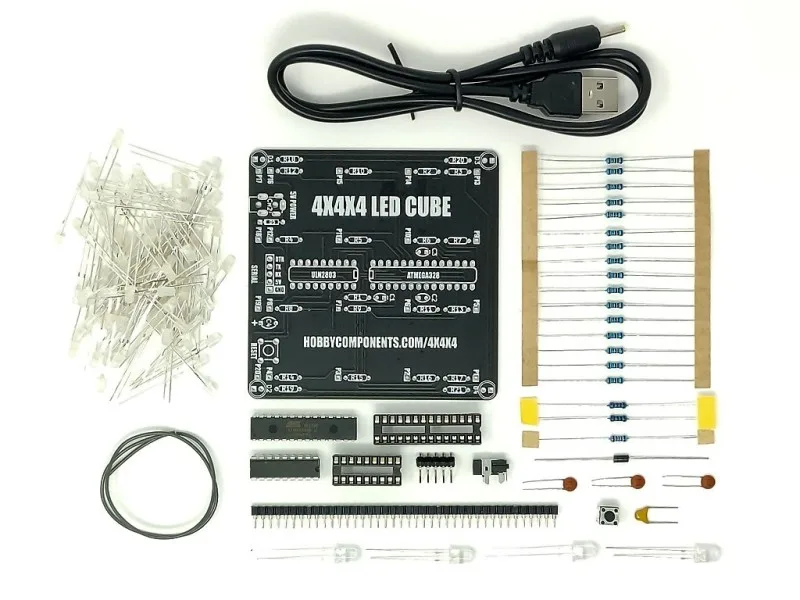
4x4x4 V2 LED Cube Kit (Blue)
-
4x4x4 V2 LED Cube Kit (White): 4x4x4 V2 LED Cube Kit (White) uses through-hole components and comes pre-flashed with 13 animations. White LEDs give a neutral, bright look that works well in ambient lighting or as a desk accent.
4x4x4 V2 LED Cube Kit (White)
-
4x4x4 V2 LED Cube Kit (Red): 4x4x4 V2 LED Cube Kit (Red) uses through-hole components and comes pre-flashed with 13 animations. Red LEDs are slightly more efficient and produce a classic indicator glow that many hobbyists prefer.