Quick Answer
The 70mai RC06 rear camera works with the A510, A800S, A500S, and A200 dash cams, but you cannot connect an interior camera at the same time. Follow the steps below to install it for reliable dual-channel recording.
Check Your Dash Cam Compatibility First
Before you start, confirm that your dash cam model is listed as compatible with the RC06. The RC06 works with the 70mai A510, A800S, A500S, and A200. If you own a different model, check your dash cam's manual or product page to see if it supports a rear camera input.
A common oversight is assuming any rear camera works with any dash cam. The RC06 uses a specific port and protocol, so mixing models may not power the camera or record video.
Understand the Single-Channel Trade-off
70mai dash cams support only two channels total. If you connect the RC06 rear camera, you cannot also connect an interior camera at the same time. This is a hardware limitation, not a setup error.
Plan your recording priorities before installation. If you need both rear and interior views, you will need to choose one or consider a different dash cam model that supports three channels.
Step-by-Step Installation Guide
- Mount the Rear Camera: Clean the rear window or license plate area with a microfiber cloth. Peel the adhesive backing from the RC06 mount and press firmly onto the glass or plastic surface. Angle the camera so it points straight back and has a clear view of the road. Do not mount the camera behind tinted film or metalized window coatings—these can block the lens or interfere with video quality.
- Route the Cable to the Dash Cam: Run the RC06's cable along the edge of the headliner, down the A-pillar, and toward your dash cam's rear camera port. Use the included cable clips or adhesive cable guides to keep the wire tidy and out of the way of side curtain airbags. Avoid pinching the cable in door seals or under seat rails, as this can damage the wire over time.
- Connect and Enable Dual-Channel Mode: Plug the RC06 cable into the rear camera port on your 70mai dash cam. Power on the dash cam and navigate to the settings menu. Look for a dual-channel or rear camera option and enable it. The dash cam should display a live feed from the RC06 within a few seconds. If no image appears, check that the cable is fully inserted and that you have not already connected an interior camera—only one accessory camera is supported at a time.
- Test the Recording and Adjust Settings: Take a short test drive and review the recorded footage on the dash cam screen or via the 70mai app. Adjust the camera angle if the image is tilted or shows too much of the bumper. You can also set the rear camera resolution and recording mode in the dash cam settings. Make sure the rear camera timestamp and date are synced with the front camera—if they differ, the evidence may be less useful in an incident.
Product Details
-
70mai Rear Camera RC06 for Dash Cam A510/ A800S/ A500S/ A200: Compatible with 70mai Dash Cam A510, A800S, A500S, and A200 for front and rear car camera driving experiences. You can confidently buy the RC06 knowing it will pair with your specific dash cam model without needing adapters.
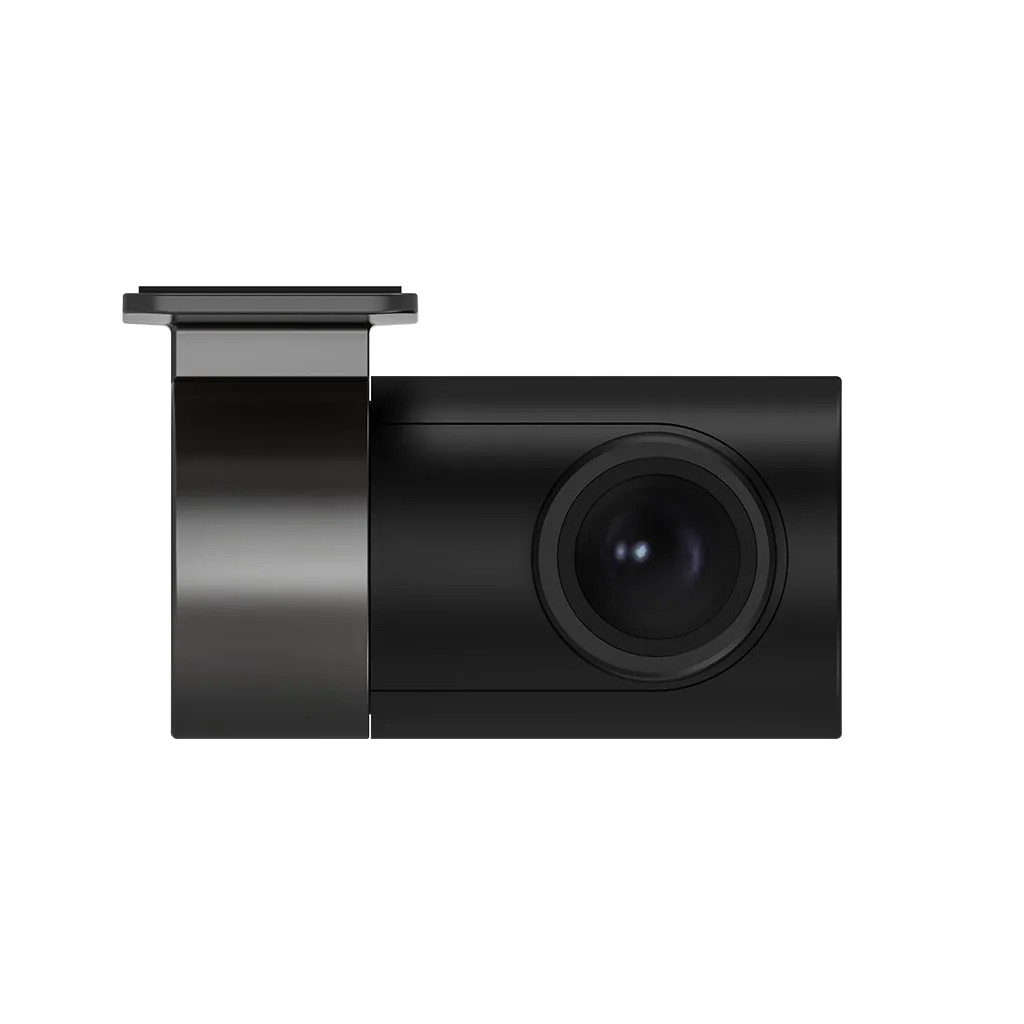
70mai Rear Camera RC06 for Dash Cam A510/ A800S/ A500S/ A200
-
70mai Rear Camera RC06 for Dash Cam A510/ A800S/ A500S/ A200: 1080P resolution and 130° field of view for recording scenery and collecting evidence. The 1080P capture provides clear license plates and road details, while the 130° angle covers enough of the rear view without extreme distortion.