Quick Answer
Plug the 8BitDo Ultimate 2C Wired Controller into a USB port on your Windows PC. It works as a standard Xbox 360 controller, so Windows installs the driver automatically and the controller is ready to use in most games without additional software.
What to Know Before You Start
The 8BitDo Ultimate 2C Wired Controller uses a USB-A connection and is designed for Windows 10 and Android devices. It does not support macOS, Linux, or game consoles out of the box. If you plan to use it on Android, you'll need an OTG adapter.
The controller features hall effect triggers and joysticks, which are resistant to drift over time. It also includes extra bumpers (R4 and L4) and a turbo function, but these are not required for basic setup.
Troubleshooting Common Issues
If the controller is not recognized, try a different USB port or cable. Avoid USB hubs if possible, as they may not provide enough power or data bandwidth. Restarting your PC can also resolve driver conflicts.
Some older games may not natively support the controller. In that case, you can use Steam's controller configuration or third-party tools like JoyToKey to map keyboard inputs to the controller's buttons.
Step-by-Step Setup
- Connect the Controller: Plug the USB-A cable of the 8BitDo Ultimate 2C into an available USB port on your Windows PC. Use a port directly on the motherboard rather than a front-panel or hub port for best reliability. A common mistake is using a damaged cable or a low-power USB hub. If the controller doesn't power on, try a different cable or port.
- Wait for Driver Installation: Windows 10 automatically detects the controller and installs the necessary driver. You'll see a notification that the device is ready. No manual driver download is required. If you see a 'Device not recognized' error, unplug and re-plug the controller. If the issue persists, check Windows Update for driver updates.
- Test the Controller: Open the 'Game Controllers' settings by searching for 'joy.cpl' in the Start menu. Select '8BitDo Ultimate 2C' and click 'Properties' to test all buttons, triggers, and joysticks. If a button or axis doesn't respond, the controller may need a firmware update. Visit the 8BitDo support site for the latest firmware tool.
- Configure In-Game Controls: Launch your game and navigate to its controller settings. Most modern titles recognize the controller as an Xbox 360 controller and map buttons automatically. If not, manually assign each button. For games that don't support controllers, use Steam's controller configuration or a tool like JoyToKey to map keyboard keys to the controller.
- Customize Button Mapping (Optional): The 8BitDo Ultimate 2C supports custom button mapping without software. Press and hold the star button for 3 seconds to enter mapping mode, then press the button you want to remap followed by the new function. Press the star button again to save. You can reset to default by holding the star button for 8 seconds. Note that this feature is independent of the turbo and rumble settings.
Product Highlights
-
8BitDo Ultimate 2C Wired Controller -Purple: 1000Hz polling rate and hall effect triggers and joysticks This means lower input lag and improved durability compared to traditional potentiometer-based controllers, making it a solid choice for competitive gaming.
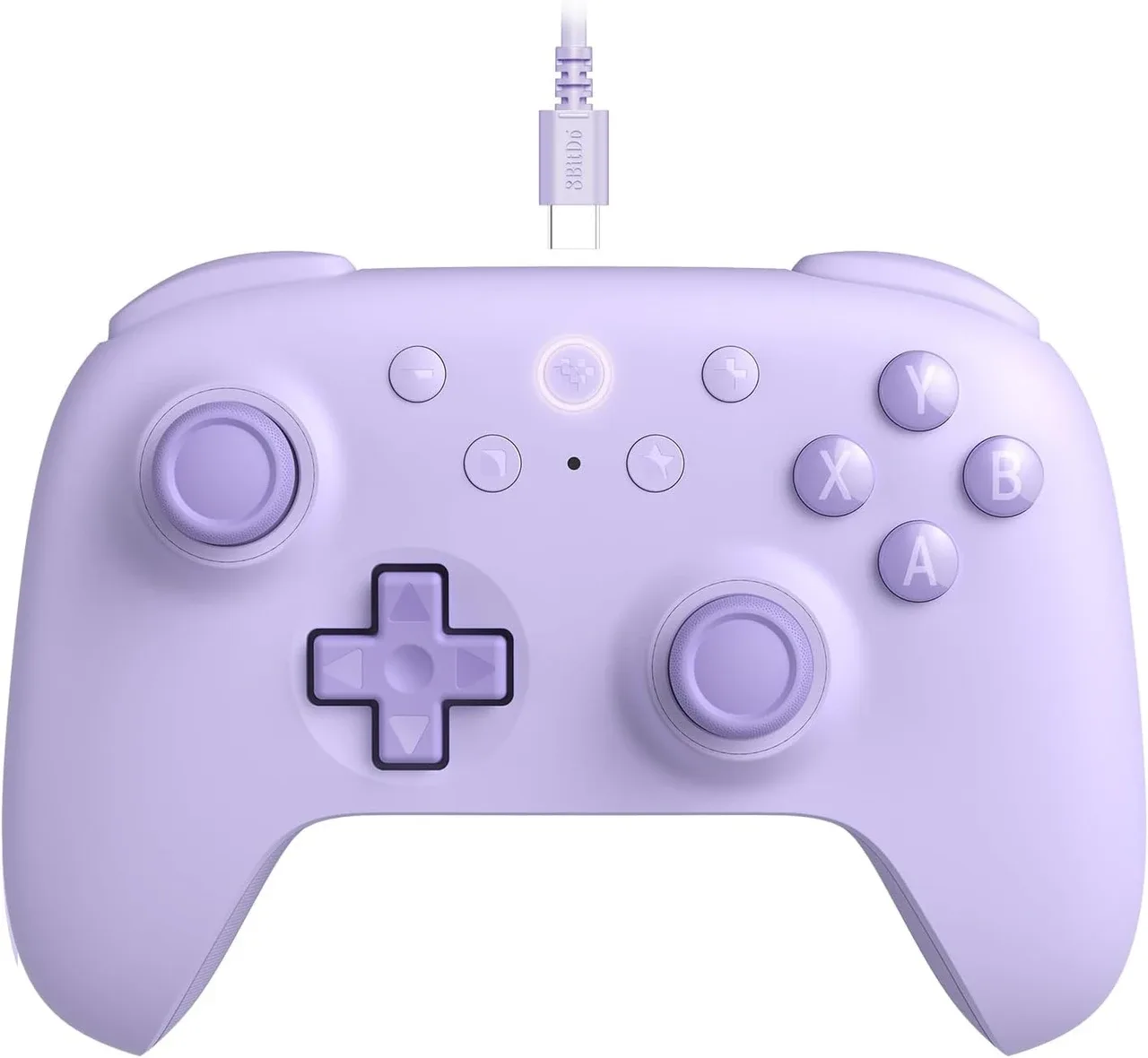
8BitDo Ultimate 2C Wired Controller -Purple