Quick answer
To manage users on your August Smart Lock, open the August app, go to the lock's settings, and use the 'Users' or 'Guest Access' section to invite or remove people. For keypad entry, assign unique codes to each user so you can track who comes and goes. Always remove access promptly when it's no longer needed.
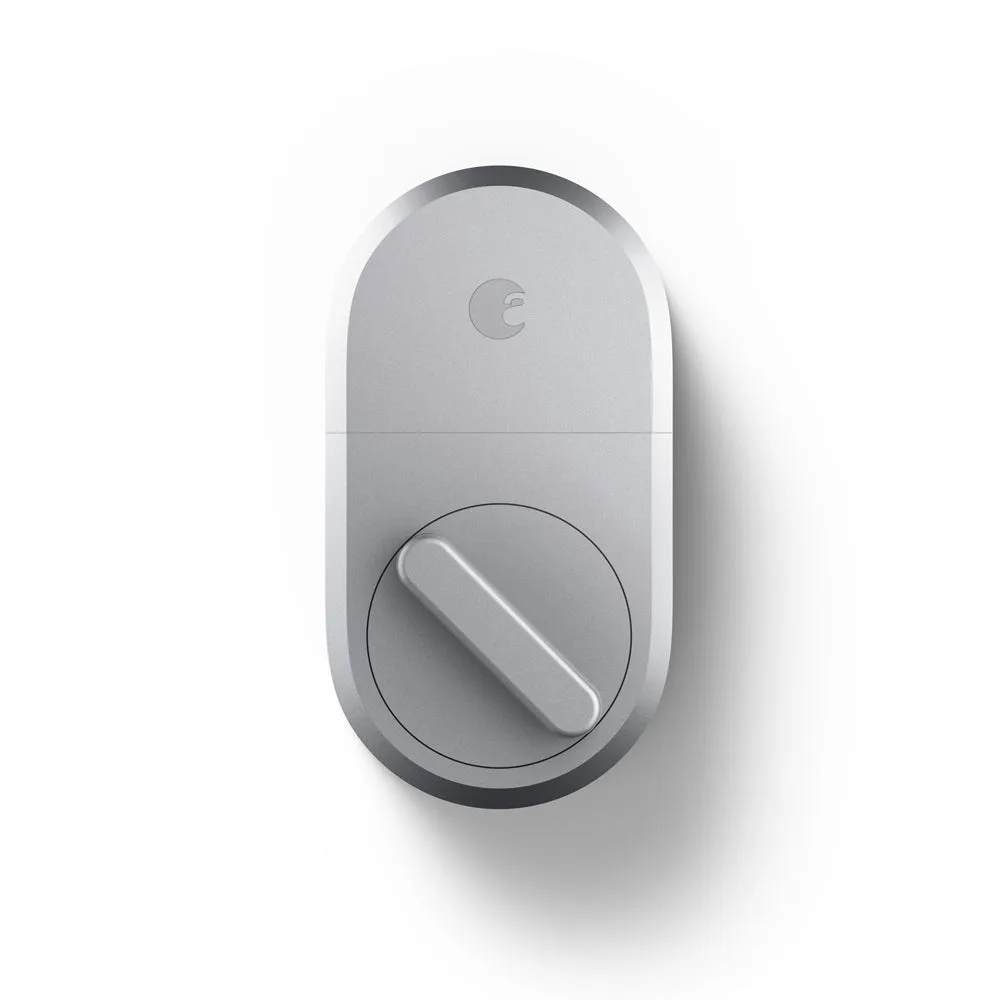
August Smart Lock
Before you start: what you'll need
Make sure your August Smart Lock is installed and connected to the August app. You'll need the app installed on your smartphone and be logged in as the owner or admin. If you have a keypad, ensure it's paired with your lock. For Wi-Fi features like remote access, confirm your lock is connected to your home network via the August Connect or built-in Wi-Fi.
Step-by-step: adding and removing users
Follow these steps to manage access for family members, guests, or service providers. Each step includes a common mistake to avoid.
Managing keypad codes for guests and family
If you have an August Smart Lock with Keypad, you can create unique codes for each user. This is ideal for small kids who may not have a smartphone or for one-time visitors like a dog walker. In the August app, go to the keypad settings and add a new code, assigning it a name and schedule if needed. Avoid sharing codes; instead, create individual codes so you can revoke access without affecting others.
Sharing access with guests and service providers
The August app lets you grant guest access with time-limited or recurring schedules. For example, you can give a cleaner access every Tuesday from 9 AM to 11 AM. Use the 'Guest' feature to send an invite via email or text. The guest will need to download the August app and create an account. Always set an expiration date for temporary guests to avoid forgetting to revoke access later.
User management steps with checkpoints
- Open the August app and select your lock: From the home screen, tap on your lock to access its settings. Then navigate to the 'Users' or 'Guest Access' section. Checkpoint: Ensure you are logged in as the owner or admin; otherwise, you won't see these options.
- Invite a new user: Tap 'Add User' or 'Invite Guest' and enter the person's name and email or phone number. Choose their access level (e.g., owner, guest) and set a schedule if desired. Mistake to avoid: Sending an invite to the wrong contact—double-check the email or phone number before sending.
- Assign a keypad code (if applicable): For keypad access, go to the keypad settings and create a unique code for the user. You can also set a schedule for when the code is active. Checkpoint: Test the code yourself to ensure it works before relying on it for guests.
- Remove a user: In the Users list, select the user you want to remove and tap 'Remove User' or 'Revoke Access'. Confirm the action. Mistake to avoid: Forgetting to remove temporary guests—set a reminder to revoke access after their stay.
- Review access regularly: Periodically check the user list and keypad codes to ensure only current, authorized people have access. Remove any outdated entries. Checkpoint: Do this every few months or after any change in household members or service providers.
Which August lock fits your user management needs?
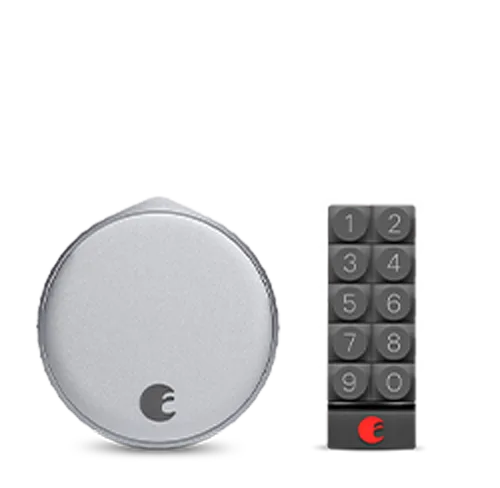
- August Wi-Fi Smart Lock + Keypad: August Wi-Fi Smart Lock + Keypad bundles the Wi-Fi Smart Lock with a Smart Keypad for convenient code entry, great for small kids and one-time visitors. If you need to give access to people without smartphones, the keypad provides a simple solution with unique codes you can manage in the app.
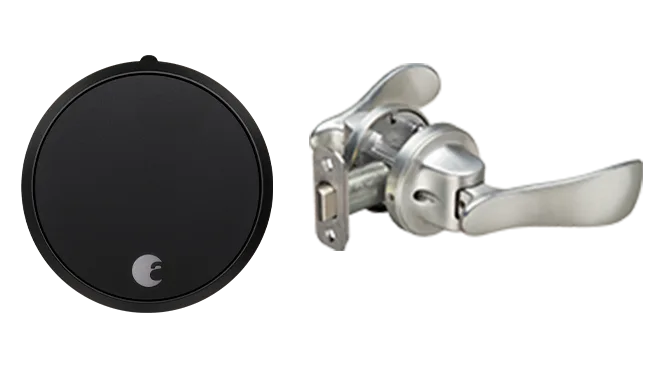
- August Smart Lock Pro + Connect with Navis Paddle in Satin Nickel: August Smart Lock Pro + Connect with Navis Paddle in Satin Nickel includes the Smart Lock Pro + Connect and a Navis paddle for a coordinated keyless entry setup. The Connect bridge enables remote access and management of users from anywhere, so you can add or remove guests even when you're not home.