Quick answer
Press the DPI button on the bottom of your TECKNET BASICS wireless mouse to cycle through five sensitivity levels (800–2600 DPI). Choose a lower DPI for precise tasks and a higher DPI for fast cursor movement.
Why adjust DPI?
DPI (dots per inch) controls how far the cursor moves when you move the mouse. A lower DPI (e.g., 800) gives finer control for tasks like photo editing or selecting small UI elements, while a higher DPI (e.g., 2600) speeds up cursor movement across large screens or multiple monitors.
Know your model
This guide applies to the TECKNET BASICS Wireless Mouse, which has a dedicated DPI button on its underside. Not all TECKNET mice have this hardware button—check your model's bottom panel for a small button labeled "DPI" before proceeding.
Steps to adjust DPI on your TECKNET BASICS mouse
- Locate the DPI button: Turn the mouse over. Find the small button labeled "DPI" near the bottom edge. It is slightly recessed to prevent accidental presses. Common mistake: pressing the ON/OFF switch instead. The DPI button is smaller and marked.
- Press the DPI button once: Press and release the button. The cursor speed will change to the next DPI level. The mouse does not provide an on-screen indicator, so move the mouse slightly to feel the difference. Checkpoint: If the cursor jumps or feels too fast, press again to cycle to a lower level.
- Cycle through all 5 levels: Each press moves to the next level in order: 800, 1200, 1600, 2000, 2600 DPI. After the highest level, the next press returns to 800 DPI. Common mistake: pressing too quickly and skipping a level. Press slowly and test after each change.
- Test on your surface: Move the mouse on your actual desk or mouse pad. The DPI setting affects tracking on different surfaces—a lower DPI may feel sluggish on a textured pad, while a higher DPI can overshoot on a glossy desk. Checkpoint: If tracking feels inconsistent, adjust DPI rather than changing your mouse pad.
- Fine-tune with OS settings (optional): After setting the hardware DPI, you can further adjust pointer speed in your operating system's mouse settings. This is useful if you need a speed between the preset levels. Common mistake: adjusting OS settings first and then pressing the DPI button, which doubles the effect. Always set hardware DPI first.
Product facts
-
TECKNET BASICS Wireless Mouse,2.4GHz with USB Receiver,Computer Mouse for Laptop,PC,Computer,Chromebook,Notebook,2600 DPI,5 Adjustment Levels: Adjustable DPI with 5 precision levels (800–2600 DPI) for accurate tracking on most surfaces. You can match cursor speed to your task without changing system settings, which is useful when switching between detailed editing and general browsing.
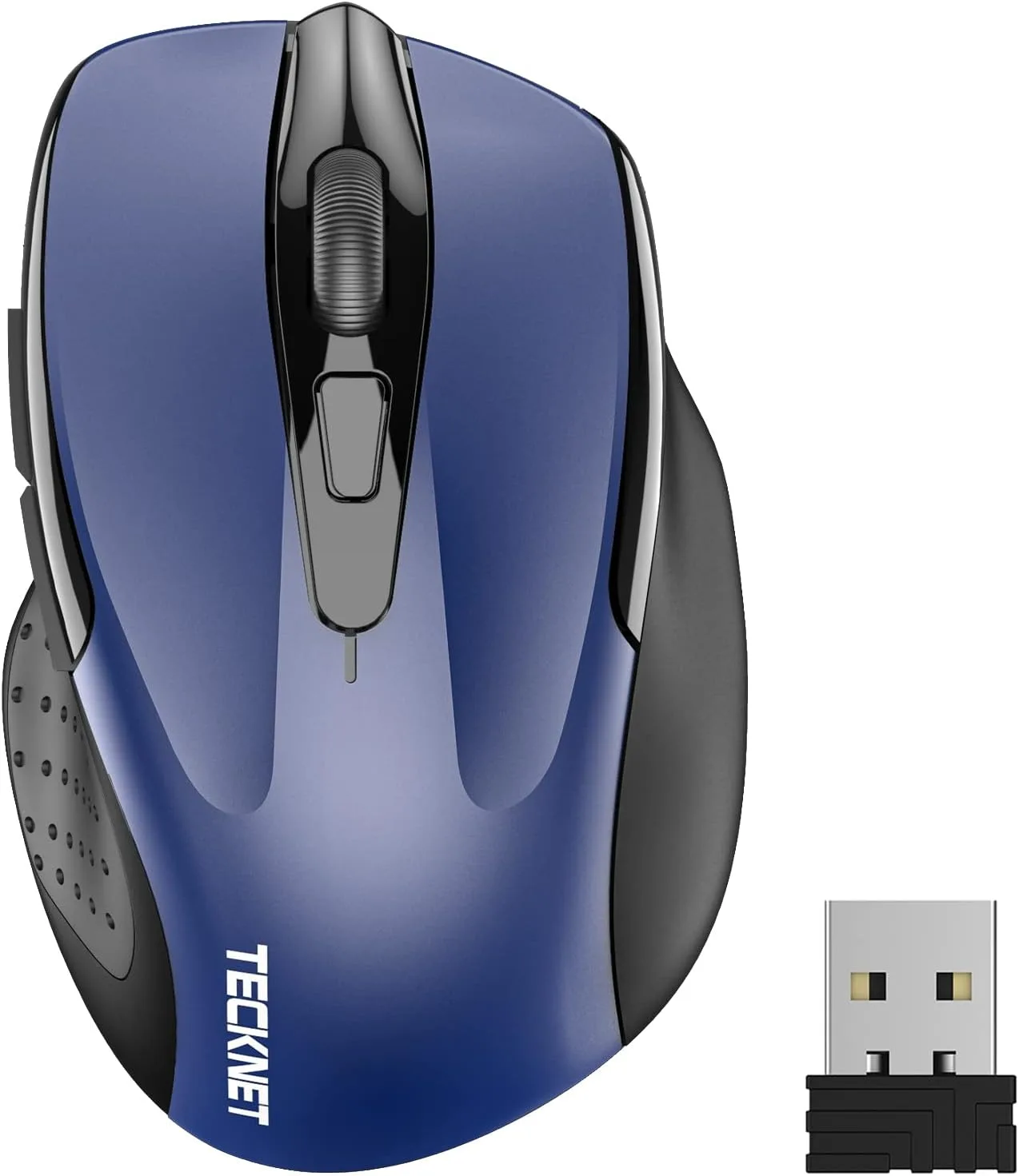
TECKNET BASICS Wireless Mouse,2.4GHz with USB Receiver,Computer Mouse for Laptop,PC,Computer,Chromebook,Notebook,2600 DPI,5 Adjustment Levels