Quick Answer
Plug the USB-C end into your laptop or tablet, then connect your USB-A device to the adapter. No drivers or setup needed.
Why Use a Dedicated Adapter Instead of a Cable?
A compact adapter like the Satechi Aluminum USB-C to USB-A 3.0 Adapter stays attached to your existing USB-A cable, letting you keep using your favorite peripherals without buying new cables. The aluminum body also helps dissipate heat during extended file transfers.
Compatibility Considerations
This adapter is designed for USB-C host devices (laptops, tablets, phones) and standard USB-A peripherals (flash drives, mice, keyboards, external drives). It supports USB 3.0 speeds up to 5 Gbps when both the host and device support it. Note: It does not support video output or power delivery beyond basic charging.
How to Use the Adapter
- 1. Insert the USB-C end into your host device: Orient the adapter so the USB-C connector aligns with the port on your laptop, tablet, or phone. Push gently until it clicks or seats fully. Common mistake: Forcing the adapter in the wrong orientation can damage the port. USB-C is reversible but should slide in smoothly.
- 2. Connect your USB-A device to the adapter: Plug your USB-A flash drive, external drive, mouse, keyboard, or other peripheral into the USB-A port on the adapter. Ensure the connection is firm.
- 3. Verify the connection and start using your device: Your operating system should recognize the connected device automatically. If not, check that the device is powered on and the cable is fully seated. Common mistake: Some older USB-A devices may require external power. If the device isn't recognized, try a different USB-A cable or a powered USB hub.
Product Facts
-
Aluminum USB-C to USB-A 3.0 Adapter: Converts a Type-C USB port to a standard USB 3.0 port, allowing use of old USB peripherals. You don't need to replace your existing USB-A devices—just plug in this adapter and keep using them.
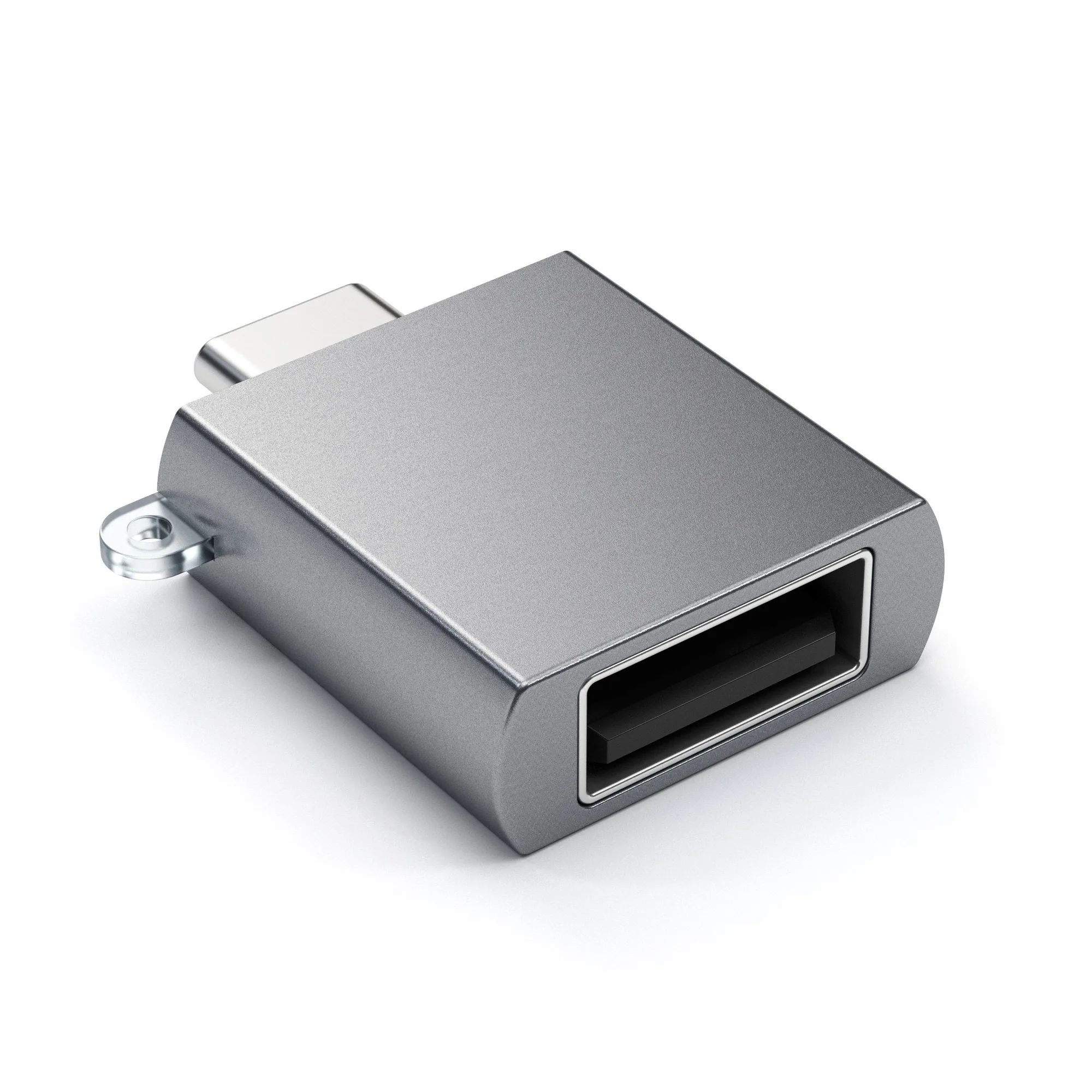
Aluminum USB-C to USB-A 3.0 Adapter