Quick answer
The Arduino Sensor Expansion Shield V5.0 simplifies wiring by breaking out all pins into labeled 3-pin headers. This guide walks you through mounting, power selection, and connecting sensors without shorting your board.
Why use a sensor expansion shield?
Breadboard wiring gets messy fast when you add more than two sensors. The V5.0 shield gives you dedicated 3-pin headers (VCC, GND, signal) for every digital and analog pin on the UNO or MEGA, so you can plug sensor modules directly without soldering or jumper spaghetti.
It also includes an onboard power bus with a jumper that lets you select 5V or 3.3V for the VCC pins. This is useful when mixing 5V and 3.3V sensors on the same project, but be careful: the jumper sets the voltage for all VCC headers at once, so you cannot mix voltages on different pins without external regulation.
UNO vs MEGA: What changes?
The shield works on both Arduino UNO R3 and MEGA 2560 boards, but the pin layout differs. On UNO, the shield uses the standard 6-pin ICSP header and the outer rows of headers. On MEGA, the shield extends over the extra pins, giving you access to more analog and digital ports.
If you use a MEGA, double-check that the shield's pin headers align with the board's extra rows. Some V5.0 shields have a slightly shorter PCB that may leave a few MEGA pins uncovered. The Kunkune V5.0 shield is designed to match both footprints, but it's worth a visual check before powering on.
Step-by-step setup
- 1. Power off and align the shield: Disconnect USB or barrel power from your Arduino. Place the V5.0 shield on top of the UNO or MEGA, ensuring the pin headers line up with the female headers on the board. Press down gently but firmly until the shield sits flush. Common mistake: forcing the shield onto misaligned pins can bend or break headers. If it doesn't slide on easily, lift and realign.
- 2. Set the VCC voltage jumper: Locate the small jumper (usually labeled VCC or 5V/3.3V) near the power section of the shield. Place it on the 5V position for most 5V sensors, or on the 3.3V position if all your sensors are 3.3V tolerant. Checkpoint: this jumper sets the voltage for all VCC pins on the shield. If you need both voltages, keep the jumper on 5V and use a separate 3.3V regulator for individual sensors.
- 3. Connect sensors to the headers: Plug each sensor module's 3-pin cable (VCC, GND, signal) into the corresponding 3-pin header on the shield. Match the pin order printed on the PCB. For example, connect a DHT11 to a digital pin header like D2. Common mistake: reversing VCC and GND can damage the sensor or the Arduino. Always verify the pinout of your sensor module before inserting.
- 4. Wire additional components to the prototyping area: The V5.0 shield includes a small prototyping area with power and ground rails. Use it for pull-up resistors, voltage dividers, or extra through-hole components. Solder if needed, or use jumper wires for temporary connections. Checkpoint: keep signal wires short in the prototyping area to reduce noise, especially for analog sensors like photoresistors.
- 5. Power on and test with a blink sketch: Connect USB power to the Arduino. Upload a simple blink sketch to verify the board and shield are communicating. Then upload a sensor read sketch (e.g., analog read on A0) to confirm your sensor wiring works. Common mistake: if the Arduino doesn't power on or the sketch fails, remove the shield and test the bare board first. A short on the shield can pull the 5V rail low.
Product details
-
Arduino UNO R3, MEGA Sensor Expansion Board V5.0: Sensor Shield for Arduino UNO R3 V5.0 Sensor Expansion Board DIY Module Board It breaks out every pin into labeled 3-pin headers, so you can connect sensors and modules without soldering or messy breadboard wiring.
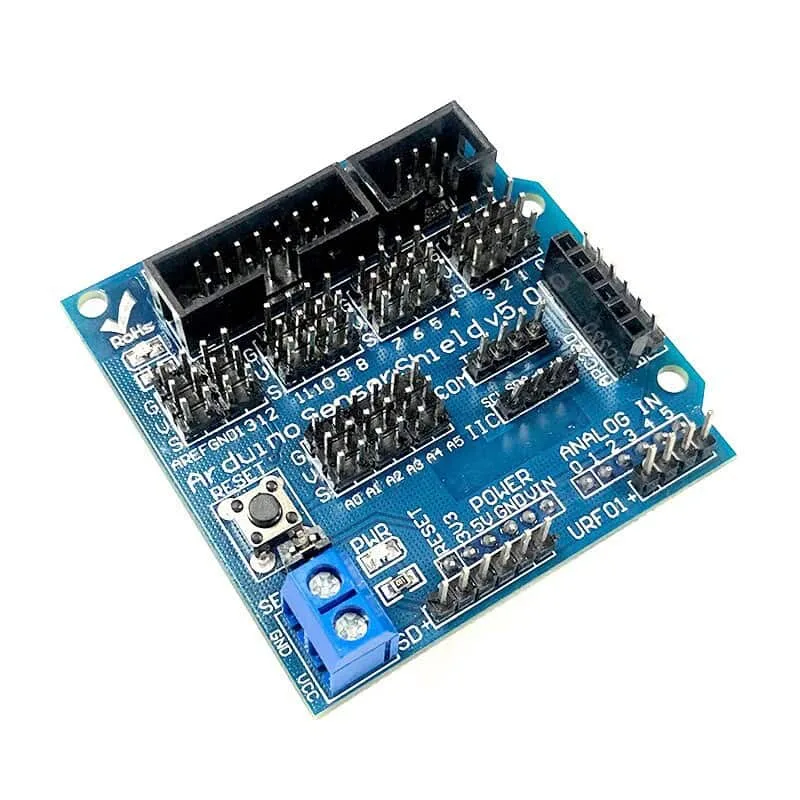
Arduino UNO R3, MEGA Sensor Expansion Board V5.0