Quick answer
Mount the BDH H1 rigidly to your aluminum rig, connect it directly to a powered USB port, and calibrate it in your sim's software before driving. Skipping any of these steps leads to missed shifts or inconsistent feedback.
Why the BDH H1 needs a solid mounting plan
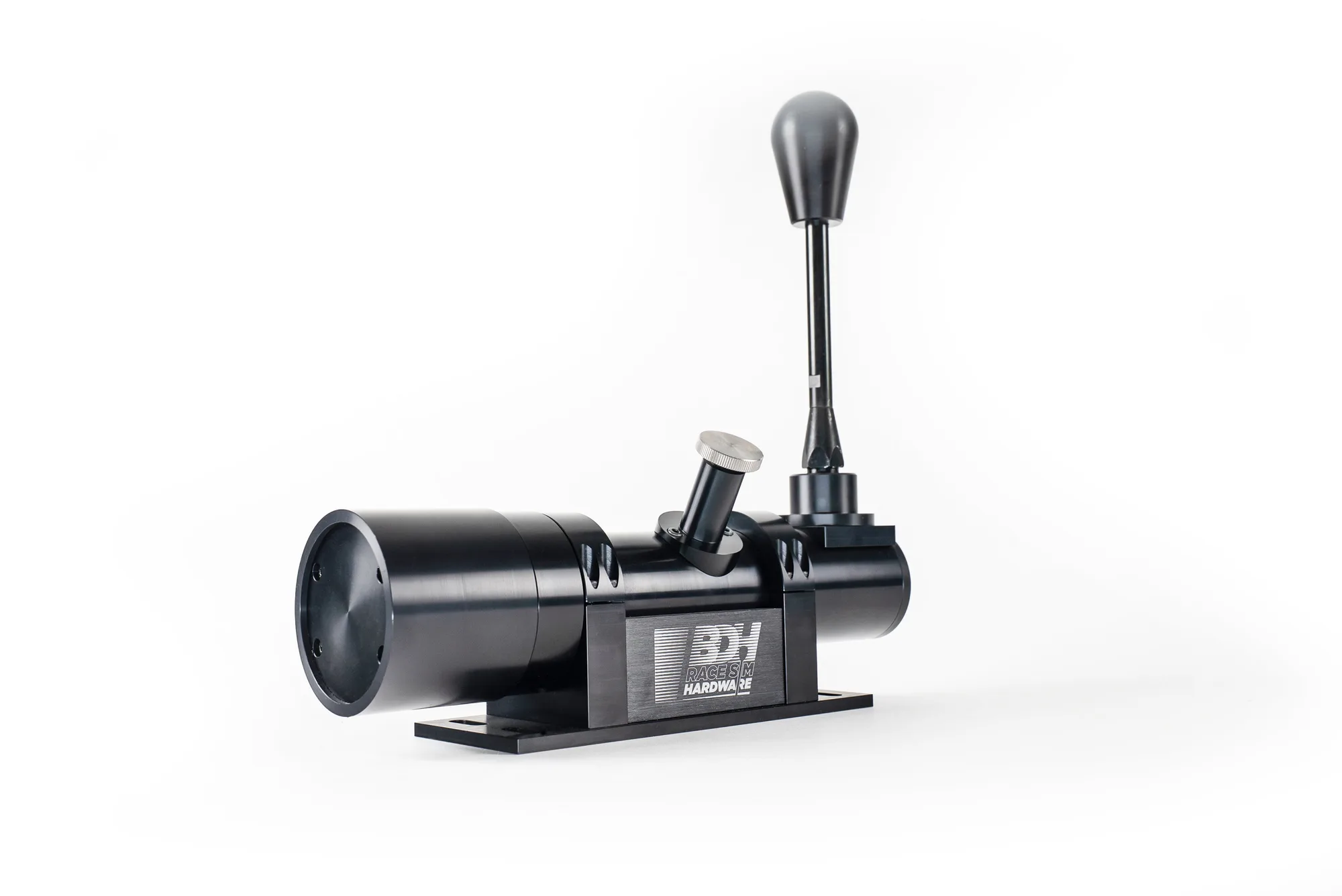
The BDH H1 is a 3.5kg mechanical H-pattern shifter with a dedicated design inspired by rally car shifting. Its weight and mechanical feel mean that a flexy mount will absorb force and dull the shift action. Before you install, check that your rig's shifter arm or plate can handle the load without bending. If you use a wheel stand, consider adding a support brace.
Also plan for reach: the shifter should sit where your hand falls naturally when your shoulder is relaxed. Placing it too far forward or too high forces you to stretch, which makes quick shifts harder.
USB connection: keep it simple and direct
The H1 connects via USB, so you don't need to wire it into your wheel base. Plug it directly into a USB port on your PC or a powered hub—avoid unpowered hubs that may drop the connection mid-session. If your rig has a USB extension, use a powered one to maintain signal integrity.
Once connected, the shifter should appear as a separate game controller in Windows. If it doesn't, try a different port before assuming the unit is faulty.
Installation steps for the BDH H1 shifter
- Choose and prepare the mounting location: Position the shifter on your rig's shifter arm or plate so it sits at a comfortable height and reach. Use the supplied mounting hardware or appropriate bolts for your rig's profile. Common mistake: mounting too far forward, causing shoulder strain. Checkpoint: with your hand on the knob, your elbow should be bent about 90 degrees. Test reach before tightening bolts fully.
- Bolt the shifter securely: Tighten all mounting bolts firmly, but avoid over-torquing that could crack the base. If your rig uses T-nuts, ensure they are seated correctly. Common mistake: leaving one bolt loose, which causes rattle and inconsistent shifts. Checkpoint: try to wiggle the shifter—it should not move independently of the rig. Use a torque wrench if available; otherwise tighten evenly in a cross pattern.
- Connect the USB cable: Plug the H1's USB cable directly into a PC USB port or a powered hub. Route the cable away from moving parts and secure it with zip ties. Common mistake: using an unpowered hub, leading to disconnects. Checkpoint: open Windows Game Controllers and confirm the shifter appears and responds to gear changes. If not detected, try a different USB port before troubleshooting further.
- Calibrate in your sim: Open your racing sim's control settings and assign each gear position. Move through the H-pattern slowly to ensure each gear registers. Common mistake: skipping calibration, resulting in missed gears. Checkpoint: test each gear in the sim's input viewer—every position should light up reliably. Recalibrate after any rig adjustment.
- Test and refine: Drive a few laps, focusing on shift consistency. If you notice missed shifts, recheck mounting rigidity and USB connection. Common mistake: ignoring slight flex that worsens over time. Checkpoint: after 10 minutes of driving, re-tighten any bolts that may have loosened. Periodically check bolt tightness as part of rig maintenance.
Product facts
-
BDH H1 SHIFTER: BDH H1: specialized mechanical H-pattern shifter with a 3.5kg premium build and race-spec materials. The substantial weight and mechanical design mean your mounting point must be rigid to preserve shift feel and avoid flex.
BDH H1 SHIFTER