Quick answer
Mount the CarTablet Pro Max screen where it does not block your view, plug it into a 12V power outlet, pair your phone over Bluetooth, and confirm both CarPlay and the dash cam are recording before you drive. The whole process takes about 20 minutes and does not require replacing your factory radio.
Why wireless CarPlay changes your daily routine
With wireless Apple CarPlay, your phone connects automatically when you start the car, so you can leave it in your pocket or bag. That means no cable to plug in every trip, and no mount for your phone. The trade-off is that your phone's battery drains faster on longer drives, so keep a charging cable in the car for road trips.
The CarTablet Pro Max also includes a 4K dashcam and a 32GB SD card, so you get navigation, music, and video recording from one device. That simplifies your dashboard compared with running a separate dash cam and phone mount.
Setup steps
- Mount the screen safely: Attach the mount to your dashboard or windshield so the screen sits below your sightline and does not block airbags or controls. Clean the surface with the included alcohol wipe before sticking the mount. Common mistake: mounting too high or over a passenger airbag panel. Sit in your normal driving position and check that the screen does not obstruct your view of the road.
- Connect power: Plug the power cable into your vehicle's 12V outlet, then route the cable behind trim or under the floor mat so it does not cross pedals or the steering column. Common mistake: leaving the cable loose near the driver's feet. Turn the ignition on and confirm the screen powers up before you continue.
- Pair your phone: Turn on Bluetooth and Wi-Fi on your iPhone, then open the CarTablet's settings menu and select the wireless CarPlay option. Choose your phone from the list and accept the pairing prompts on both devices. Common mistake: pairing only Bluetooth and skipping the Wi-Fi step, which prevents wireless CarPlay from launching. After pairing, the CarPlay icon should appear on the screen within a few seconds.
- Set up the dash cam: Insert the included 32GB SD card into the dash cam slot, then open the camera app and format the card if prompted. Adjust the camera angle so the hood and horizon are visible, and confirm the recording indicator turns on. Common mistake: forgetting to format the card, which can cause recording errors. Check that the dash cam starts recording automatically each time you turn on the car.
- Test before you drive: With the car parked, open Maps, play music, and make a test call through CarPlay. Then review a short dash cam clip to confirm the angle and audio. Common mistake: skipping the test and discovering a problem while driving. If CarPlay does not connect, toggle your phone's Wi-Fi off and on, then reselect the CarTablet from the CarPlay list.
Product facts
-
CarTablet Pro Max Wireless Apple CarPlay + Dash Cam & 32GB SD Card Bundle: The CarTablet Pro Max bundle includes wireless Apple CarPlay, Android Auto, a 4K dashcam, and a 32GB SD card. One device covers infotainment and recording, so you do not need to buy or install a separate dash cam.
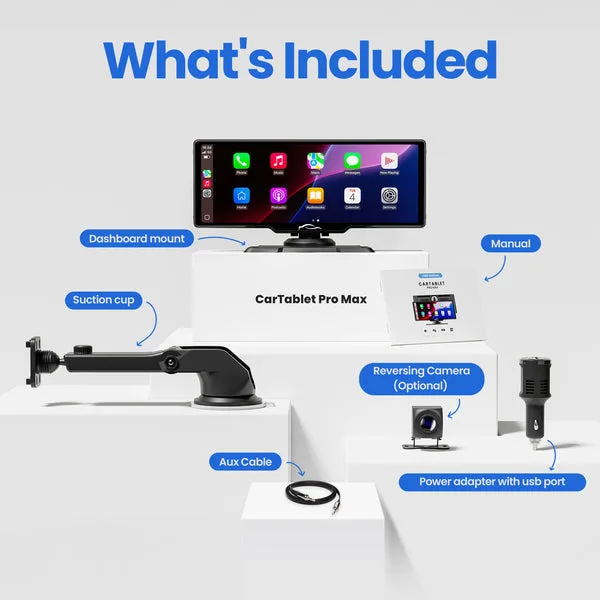
CarTablet Pro Max Wireless Apple CarPlay + Dash Cam & 32GB SD Card Bundle