Quick Answer
Plug the Charge Link Micro-USB cable into your Xbox One controller and a USB power source. If it doesn't charge, check the connection at both ends and try a different USB port.
Why Use a Dedicated Charging Cable?
The Charge Link for Xbox One is designed for simultaneous play and charge, so you never have to pause a game to swap batteries. Its 9-foot length gives you plenty of room to sit back while staying powered up.
Common Setup Mistakes
Many users plug the cable into a USB port that doesn't supply enough power, like some TV ports or unpowered hubs. Always use the Xbox One console USB port or a wall adapter rated at 5V/1A or higher for reliable charging.
Step-by-Step Setup and Troubleshooting
- Connect the cable to your controller: Insert the Micro-USB end firmly into the port on the bottom of your Xbox One wireless controller. You should feel a slight click when it's fully seated. A loose connection here is the most common cause of no charge. Push until it clicks.
- Plug into a power source: Connect the standard USB end to a powered USB port on your Xbox One console, a wall charger, or a computer. Avoid unpowered USB hubs or TV ports. If the controller doesn't show a charging indicator, switch to a different USB port.
- Verify charging status: Press the Xbox button on your controller. The guide button will pulse slowly while charging and stay solid when fully charged. If it doesn't pulse, check the connections. No pulsing light usually means a poor connection or insufficient power.
- Test with another device: If charging still fails, plug the cable into a different device like a phone or tablet. If that device charges, the issue is with the controller battery or port. A cable that works elsewhere isolates the problem to the controller.
Product Facts
-
Charge Link™ for use with Xbox One: The Charge Link Micro-USB Power Cable allows you to recharge your Xbox One wireless controller while you stay in the action. You can keep playing without interruption, even during long sessions.
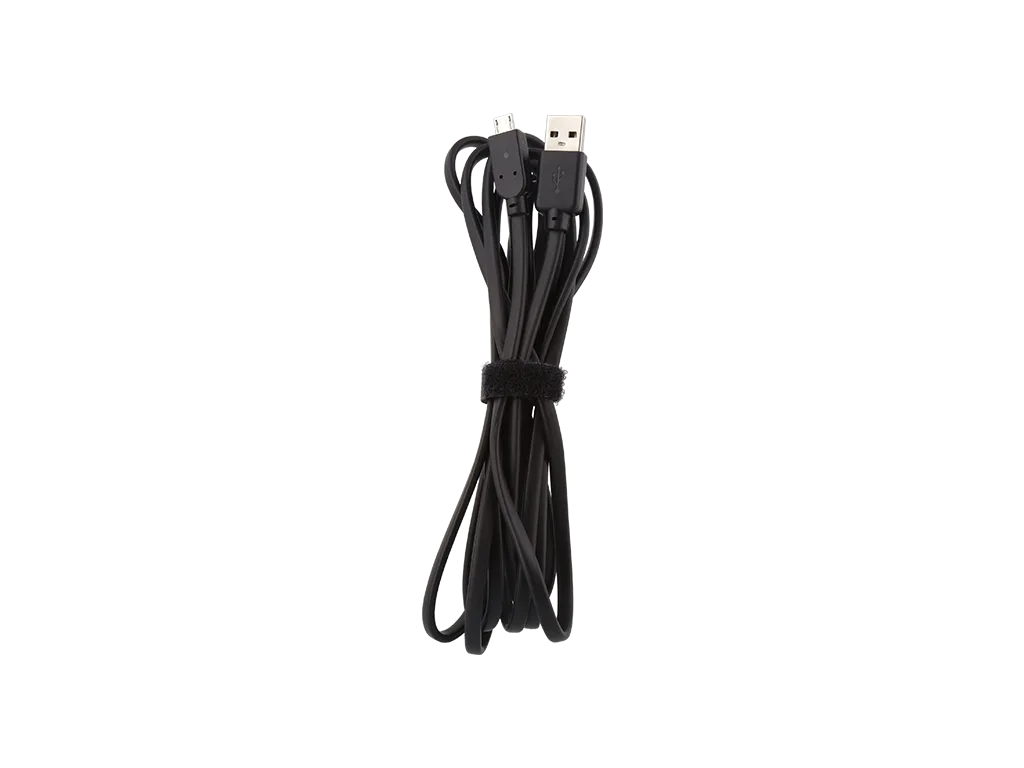
Charge Link™ for use with Xbox One