Quick answer
Start by placing the Classic MG-1 Diamond on a hard, ventilated surface, connecting your monitor to the graphics card (not the motherboard), and plugging in power before pressing the power button. Then complete Windows setup, install the latest AMD drivers, and verify your display refresh rate.
Why the first boot sequence matters more than you think
A pre-configured PC like the Classic MG-1 Diamond is assembled and tested before shipping, but the first boot is still your responsibility. Connecting the monitor to the wrong port, skipping driver updates, or missing the refresh rate setting can make a capable system feel slow or look blurry. Taking ten extra minutes now avoids hours of troubleshooting later.
Also, keep the original packaging until you've confirmed everything works. If a component needs service, the box and inserts make returns simpler.
The one cable mistake that trips up most new PC owners
The Classic MG-1 Diamond has video outputs on both the motherboard and the graphics card. Always connect your monitor to the graphics card's ports (usually lower on the back of the case). Using the motherboard port can bypass the AMD Radeon RX 9070 XT entirely, leaving you with weak integrated graphics and wondering why games stutter.
Your step-by-step first boot checklist
- Unbox and position the PC: Remove the Classic MG-1 Diamond from its packaging and place it on a hard, flat surface with at least a few inches of clearance around the vents. Avoid carpet or soft surfaces that block airflow. Check that no cables are kinked or trapped under the case before moving on.
- Connect the monitor to the graphics card: Plug your monitor's DisplayPort or HDMI cable into the lower video ports on the back of the case—these belong to the AMD Radeon RX 9070 XT. Do not use the motherboard's video outputs. If you see no signal on first boot, recheck this connection first.
- Plug in power and peripherals: Connect the power supply cable firmly, then plug in your keyboard and mouse. Use the rear USB ports for a more reliable connection during setup. Make sure the power switch on the back of the power supply is in the 'on' position (if present).
- Power on and complete Windows setup: Press the power button and follow the on-screen Windows prompts. Connect to Wi-Fi or Ethernet when asked, and sign in with your Microsoft account or create a local account. Don't skip the network connection—Windows will need it to download updates and drivers.
- Install the latest AMD graphics drivers: Download the latest Radeon drivers from AMD's website or use the included driver utility. Install them and restart the PC when prompted. After restart, open Device Manager and confirm the RX 9070 XT is listed without warning icons.
- Set your monitor's refresh rate: Right-click the desktop, open Display settings, then Advanced display settings, and set the refresh rate to the highest available (e.g., 144Hz or 165Hz). If the highest rate isn't listed, check that you're using a DisplayPort cable and the correct port.
- Run Windows Update and install remaining drivers: Go to Settings > Windows Update and install all available updates, including optional driver updates. Restart as needed. Reboot once more after all updates are installed to finalize changes.
What's inside your Classic MG-1 Diamond
-
Classic MG-1 | Diamond: AMD Radeon RX 9070 XT graphics and AMD Ryzen 7 7800X3D processor. This combination is built for high-refresh 1440p gaming, so make sure your monitor is connected to the graphics card and set to its highest refresh rate.
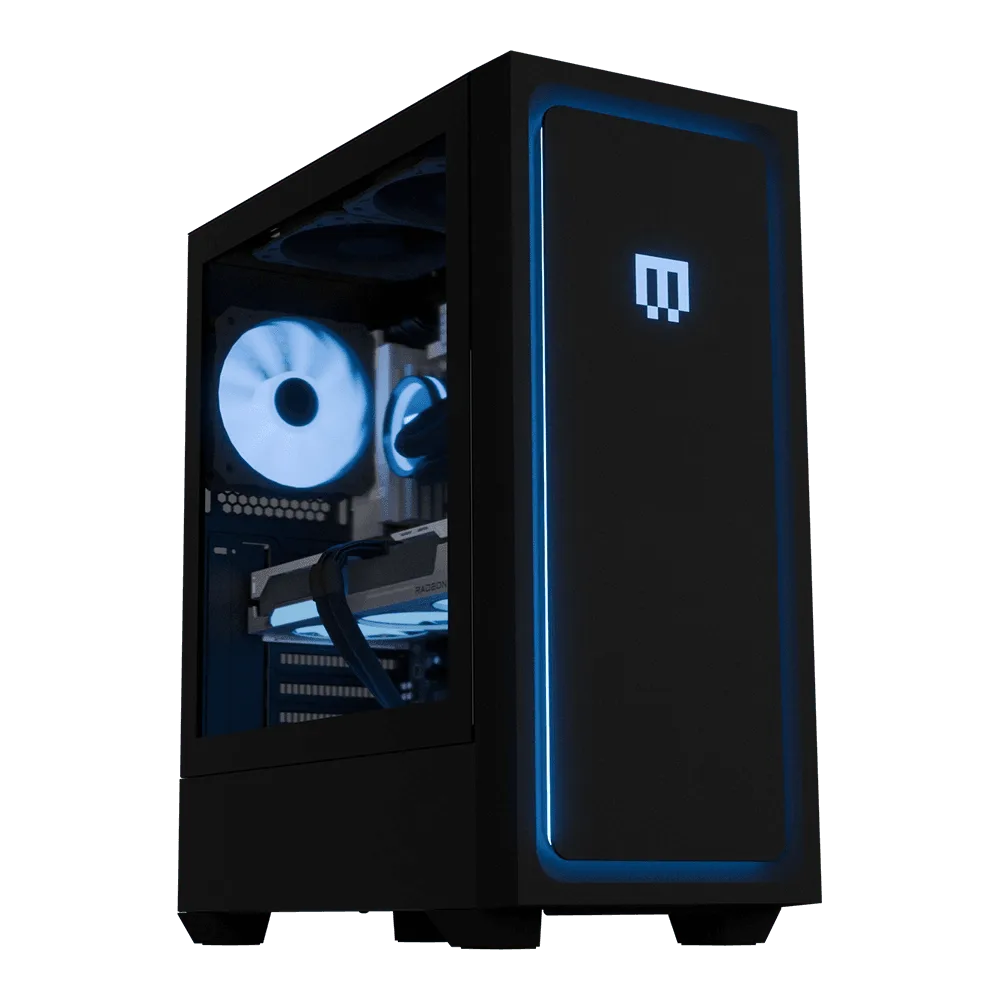
Classic MG-1 | Diamond
-
Classic MG-1 | Diamond: 32GB RGB DDR5 memory and 2TB storage. You have enough memory for heavy multitasking and space for a large game library, so you won't need to upgrade immediately.