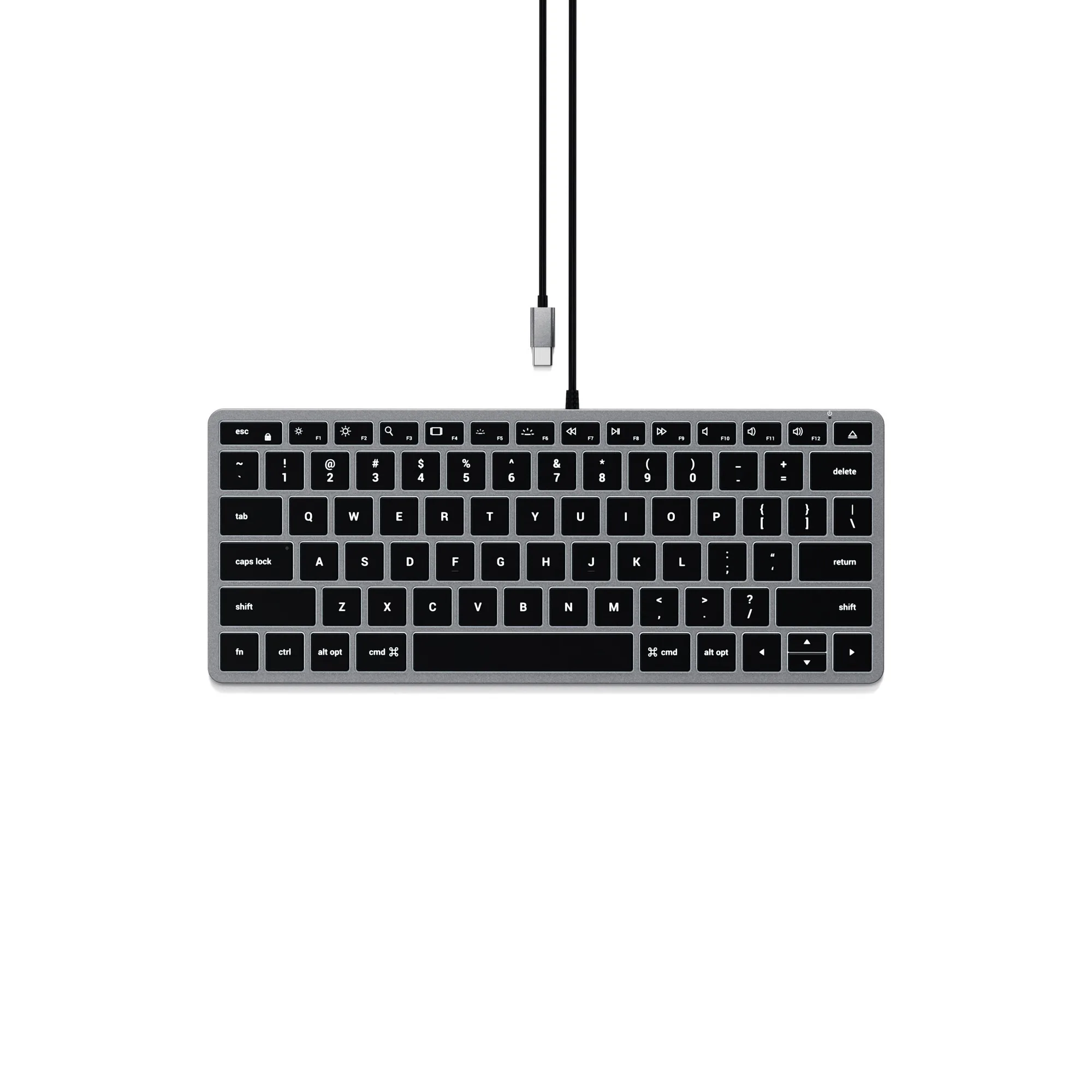
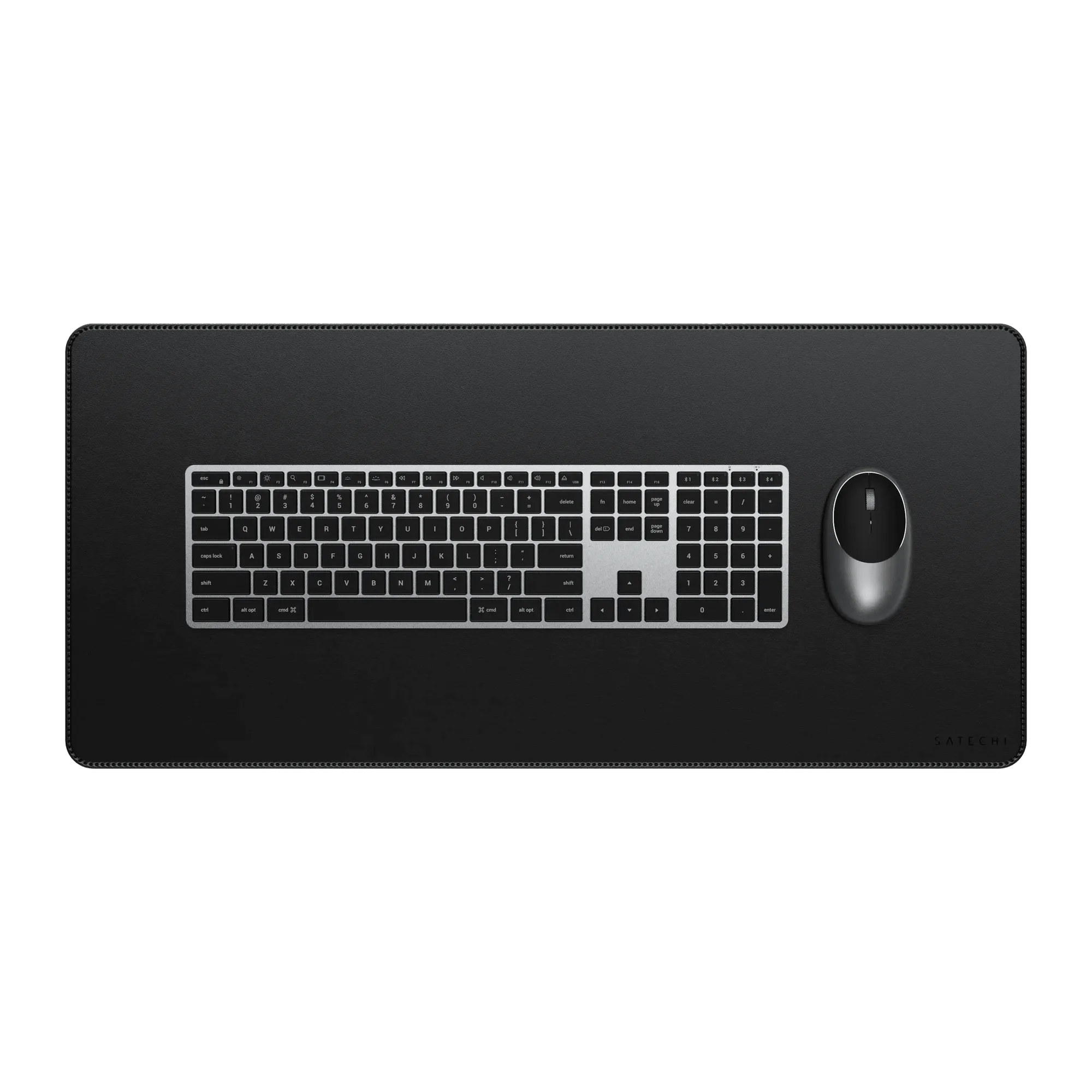
Start with the W3's wired, backlit design
The Satechi Slim W3 Wired Backlit Keyboard is built for Mac devices, with an extended layout, a numeric pad, Mac and iOS shortcut keys, adjustable backlit keys, and a wired USB-C connection. That combination shapes how you should clean it: there is no battery compartment to worry about, but the backlight and the USB-C port both deserve gentle handling.
The goal is simple: remove dust and fingerprints before they work into the key gaps, and keep the USB-C connection free of debris. The steps below stay within what the supplied product information supports, so treat any deeper disassembly or liquid cleaning as something to avoid unless you have specific guidance from the manufacturer.
What you are caring for
-
Slim W3 Wired Backlit Keyboard: Designed for Mac devices with an extended layout, numeric pad, and Mac/iOS shortcut keys. Knowing the layout helps you clean around the numeric pad and shortcut keys without disturbing key positions.
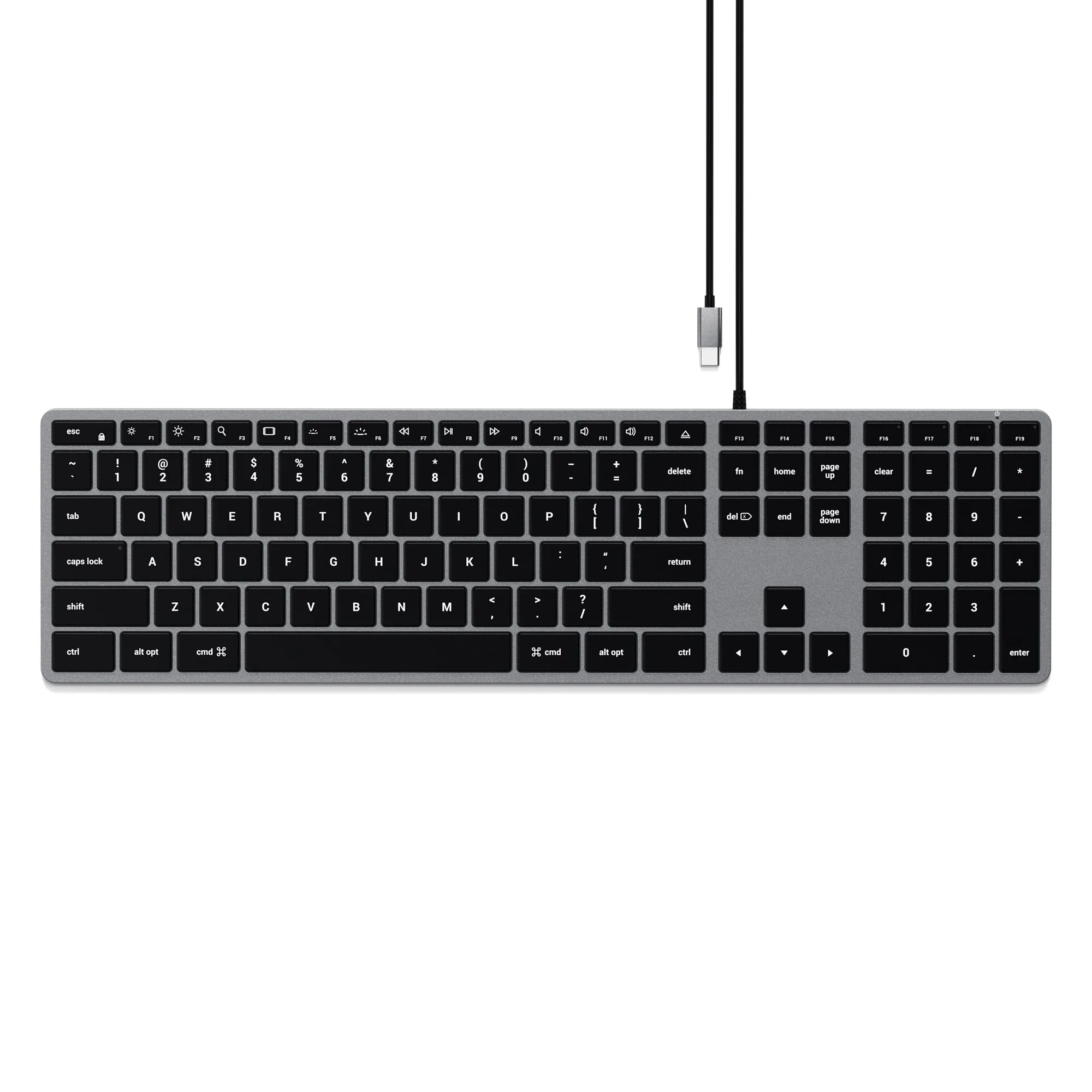
Slim W3 Wired Backlit Keyboard
-
Slim W3 Wired Backlit Keyboard: Equipped with adjustable backlit keys and a wired USB-C connection. The backlight and USB-C port are the two features that need the most careful, dry handling during cleaning.
A safe cleaning routine for the Slim W3
Work with the keyboard unplugged and the backlight off. These steps focus on dry removal of dust and light surface marks; they do not require opening the keyboard.
- Unplug the USB-C cable: Disconnect the wired USB-C connection before cleaning so you are not pressing keys or handling the port while the keyboard is active.
- Dust the key gaps first: Use a soft dry brush or a burst of air to lift loose dust from between the keys. Work gently around the backlit keys and the numeric pad rather than pressing down hard.
- Wipe the surface with a dry or barely damp cloth: A soft microfiber cloth is the safest choice for the keycaps and the ultra-slim body. Avoid spraying cleaner directly onto the keyboard or letting liquid run toward the USB-C port.
- Check the USB-C port: Look for lint or dust in the port and remove it gently with dry air or a soft brush. Do not insert sharp tools, which can damage the connector.
- Let everything dry before reconnecting: Make sure the surface and port are completely dry before plugging the USB-C cable back in and turning the backlight on.
Habits that keep a wired backlit keyboard cleaner
- Keep drinks away from the keybed: Liquids are the main risk for a wired keyboard with a backlight. Use a lidded cup or place drinks well away from the keyboard.
- Dust regularly rather than deeply: A quick dry brush of the key gaps is easier on the keyboard than letting dust build up and then trying to remove it all at once.
- Handle the USB-C cable by the plug: Pulling the cable by the cord can stress the connector. Grip the plug body when unplugging the keyboard.
- Store it flat when not in use: If you move the keyboard between desks, keep it flat and avoid stacking items on the keys, which can trap dust and press the backlit keys.
What to avoid
Skip harsh solvents, abrasive pads, and any cleaner that leaves residue on the keycaps or the slim body. Avoid soaking the keyboard or letting liquid pool around the USB-C port. The supplied product information does not include a recommended cleaning solution or a disassembly procedure, so keep your routine to dry dusting and a gentle wipe rather than opening the case or submerging any part of it.
If a key feels sticky or the backlight behaves unexpectedly, contact Satechi support for guidance instead of prying off keycaps or applying liquid. That protects the adjustable backlight and the wired connection you rely on every day.