Quick Answer
An RS232-RJ9 cable lets you connect your iOptron mount to a computer or wireless adapter for GoTo control and firmware updates. This guide walks you through the connection process step by step.
Why Use an RS232-RJ9 Cable
Most iOptron mounts use an RJ9 (phone-style) port for serial communication. A standard USB-to-serial adapter won't fit directly because the mount end requires the smaller RJ9 connector. Using the correct RS232-RJ9 cable avoids bent pins and ensures reliable data transfer.
This cable converts RS232 signals to the RJ9 form factor. If your computer lacks a serial port, you will also need a USB-to-serial adapter (such as a USB to RS232 converter). The iOptron RS232-RJ9 cable is designed specifically for iOptron mounts and may not work with other brands.
Step-by-Step Connection Guide
- Check Your Mount Model: Confirm your mount has an RJ9 port labeled 'RS232' or 'Hand Controller'. The RS232-RJ9 cable works with iOptron mounts listed in the product description. Using it on non-iOptron mounts may damage the electronics. Common mistake: Plugging the cable into a port labeled 'Autoguide' or 'USB'—those are not serial ports.
- Connect the RJ9 End to the Mount: Insert the RJ9 plug into the mount's serial port. Listen for a soft click—the latch should snap into place. Do not force it; the connector is keyed and should slide in smoothly. Checkpoint: If the plug doesn't fit, rotate it 180°—RJ9 connectors are symmetrical but the locking tab orientation matters.
- Connect the RS232 End to Your Computer: Plug the RS232 (DB9) end into an available serial port on your PC or into a USB-to-serial adapter. Tighten the thumbscrews finger-tight—over-tightening can strip the threads. Common mistake: Forgetting to install the USB-to-serial driver before connecting—Windows may not recognize the adapter.
- Configure Software and Test Communication: Open your astronomy software (e.g., ASCOM, Stellarium, or the manufacturer's utility). Select the correct COM port—usually the highest-numbered COM port in device manager. Set baud rate to 9600 or 19200 as recommended by your mount manual. Checkpoint: If no COM port appears, reinstall the USB-to-serial driver or try a different USB port. Use Device Manager to verify the port number.
- Verify Connection with a Simple Command: Click 'Connect' in the software and try a basic command such as slewing to a known star (e.g., Polaris). A successful response confirms the cable and settings are correct. Common mistake: Assuming the cable is faulty if the mount doesn't respond—double-check baud rate and COM port first.
Recommended Product
-
RS232-RJ9 cable (8412): The iOptron RS232 to RJ9 serial cable connects iOptron mounts (CEM60, iEQ45 Pro, iEQ30 Pro, CEM25, ZEQ25, SmartEQ/SmartEQ Pro) to a computer or wireless adapter. Using the correct cable avoids compatibility issues—generic RJ9 cables often have different pinouts and won't work.
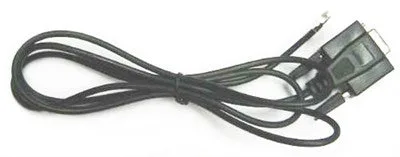
RS232-RJ9 cable (8412)