Quick Answer
Use Fifth Avenue SVG files to add precise, professional embellishments to your bag making projects. These cut files work with Cricut, Silhouette, and Brother ScanNCut machines, letting you create custom labels, decorative panels, and hardware accents.
Why SVG Files for Bag Making?
SVG files give you the freedom to cut intricate shapes from materials like faux leather, cork, and heat transfer vinyl. The Fifth Avenue SVG set is designed specifically to complement the Fifth Avenue sewing pattern, but you can use the individual elements on any bag project that needs a polished, branded look.
Because the files are separate from the sewing pattern, you get to choose exactly which pieces to cut and where to place them. This flexibility means you can scale, rotate, or mirror elements without affecting the pattern's original layout.
Step-by-Step: Using Fifth Avenue SVG Files for Bag Making
- Choose Your Materials: Select a material compatible with your cutting machine. Faux leather, cork fabric, and heat transfer vinyl all work well. For a first project, start with a medium-weight faux leather that is easy to weed and transfer. Avoid ultra-thin materials that may tear during weeding. Test a small cut first.
- Upload and Prepare the SVG in Your Design Software: Open Cricut Design Space, Silhouette Studio, or Brother CanvasWorkspace. Upload the Fifth Avenue SVG file and ungroup the elements. Resize the design to fit your bag panel or pocket, keeping the proportions locked to avoid distortion. A common mistake is forgetting to ungroup before resizing. Always ungroup first, then adjust individual pieces as needed.
- Set Cut Settings and Mirror for Heat Transfer Vinyl: Choose the correct material setting in your software. If using heat transfer vinyl, mirror the design before cutting. For adhesive vinyl or faux leather, do not mirror. Place the material on the cutting mat with the shiny or adhesive side up. Forgetting to mirror heat transfer vinyl will result in a backward design. Double-check this step before pressing 'Go'.
- Weed the Design: After cutting, remove the excess material around your design using a weeding tool. Work slowly to avoid lifting small details like letters or thin lines. A bright light or weeding mat can help you see the cut lines clearly. If small pieces lift with the excess, pause and use a new blade or adjust the cut pressure slightly.
- Apply the Design to Your Bag: For heat transfer vinyl, press with a heat press or household iron at the recommended temperature and time. For adhesive vinyl or faux leather, use transfer tape to position the design and burnish firmly. Sew or glue the panel onto your bag as planned. Allow the material to cool completely before peeling the carrier sheet to avoid lifting the design.
Product Details
-
Fifth Avenue SVG Files: Make precise, professional cuts for the Fifth Avenue pattern with these convenient SVG's - perfect for use with electronic cutting machines like Cricut, Silhouette, and Brother ScanNCut. You can cut these designs from a wide range of materials, including faux leather, cork, and heat transfer vinyl, giving you creative control over the finished look of your bag.
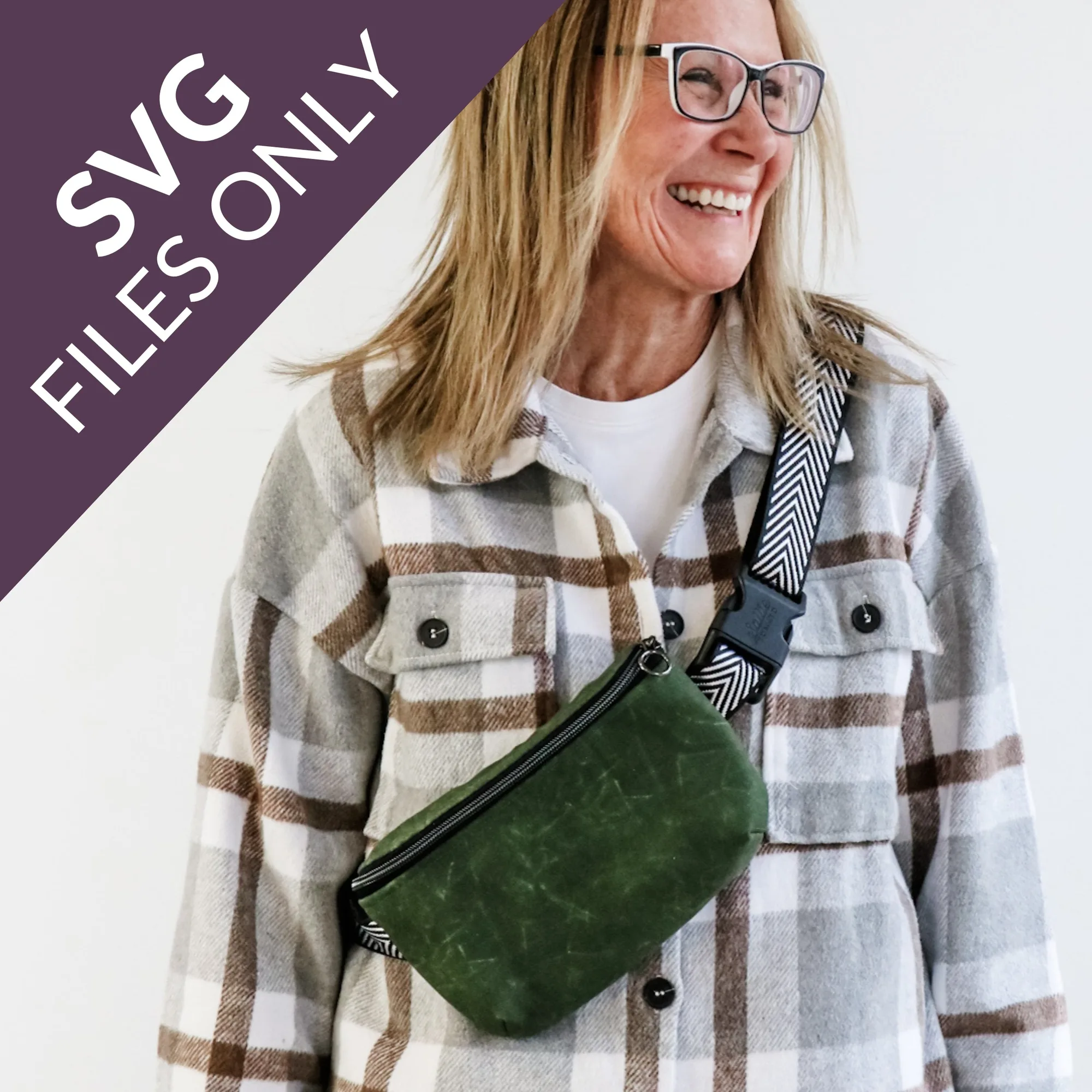
Fifth Avenue SVG Files