Quick answer
Plug the CRKD USB-C to HDMI Adapter into your controller's USB-C port, then connect an HDMI cable from the adapter to your TV. This lets you play in Docked Mode without removing the console from the Nitro Deck+.
Why use the adapter instead of removing the console?
The CRKD USB-C to HDMI Adapter is designed specifically for the Nitro Deck+. It lets you switch to Docked Mode while the console stays inside the Deck, so you don't have to take it out and reinsert it every time. This saves time and reduces wear on the USB-C port.
How to connect your controller to the TV
- 1. Insert the adapter into the controller: Plug the CRKD USB-C to HDMI Adapter firmly into the USB-C port on your Nitro Deck+ controller. Make sure it's fully seated to avoid a loose connection. A common mistake is not pushing the adapter in all the way, which can cause signal loss.
- 2. Connect an HDMI cable: Attach one end of a standard HDMI cable to the adapter's HDMI port. Connect the other end to an available HDMI input on your TV. Use an HDMI 2.0 or higher cable for reliable 1080p output.
- 3. Select the correct TV input: Turn on your TV and use the remote to select the HDMI input that matches the port you used. The controller screen should appear on the TV within seconds. If you see no signal, double-check the input selection and that the adapter is fully inserted.
- 4. Enjoy Docked Mode: Your Nitro Deck+ is now in Docked Mode. You can play games on the big screen while the console stays safely in the Deck. To switch back, simply unplug the adapter. The adapter does not charge the console; keep the Deck's USB-C charging cable connected separately.
Product facts
-
CRKD USB-C to HDMI Adapter: The CRKD USB-C to HDMI Adapter lets you switch your Nitro Deck+ into Docked Mode without removing the console. You can keep the console securely in the Deck at all times, making the transition between handheld and TV play seamless.
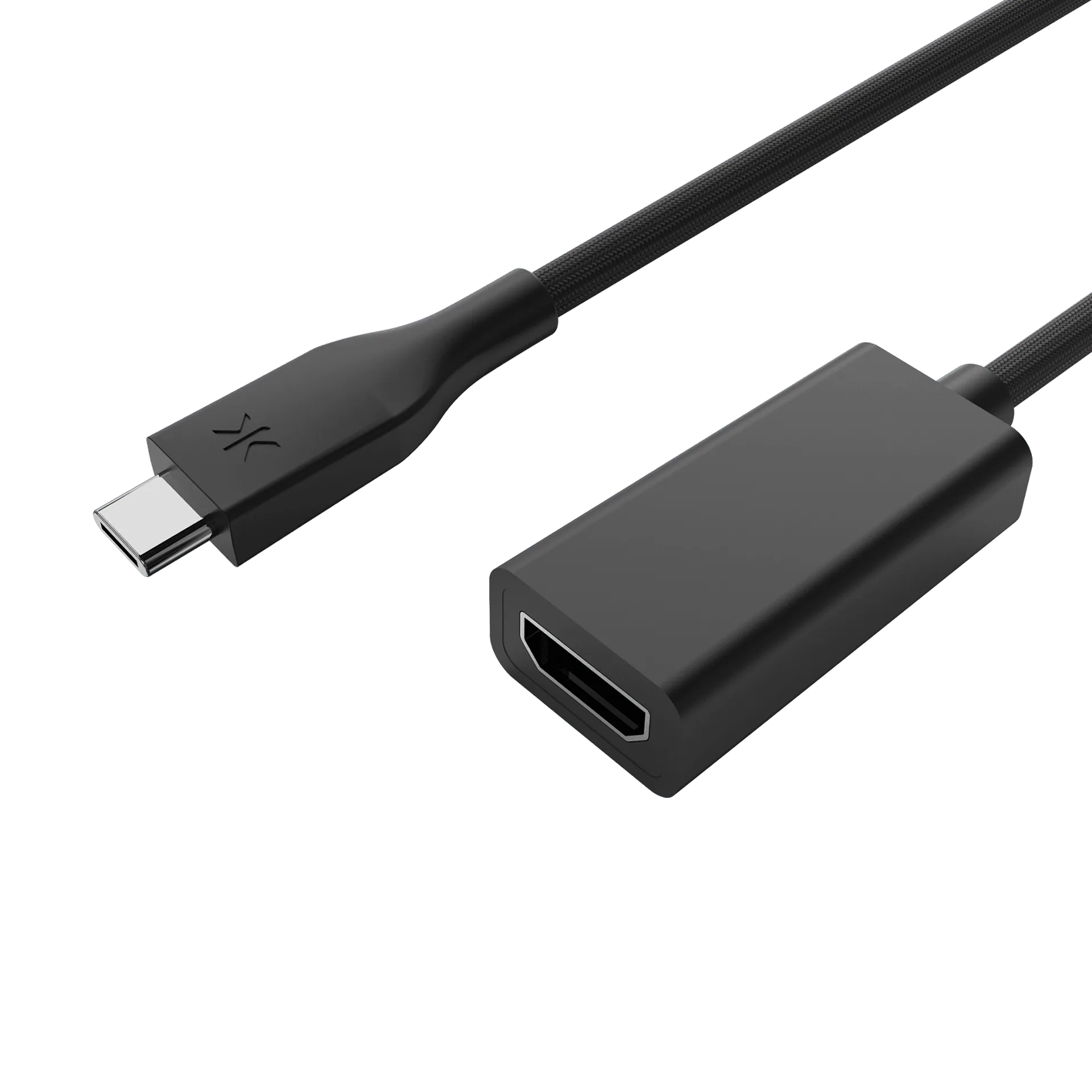
CRKD USB-C to HDMI Adapter