Quick answer
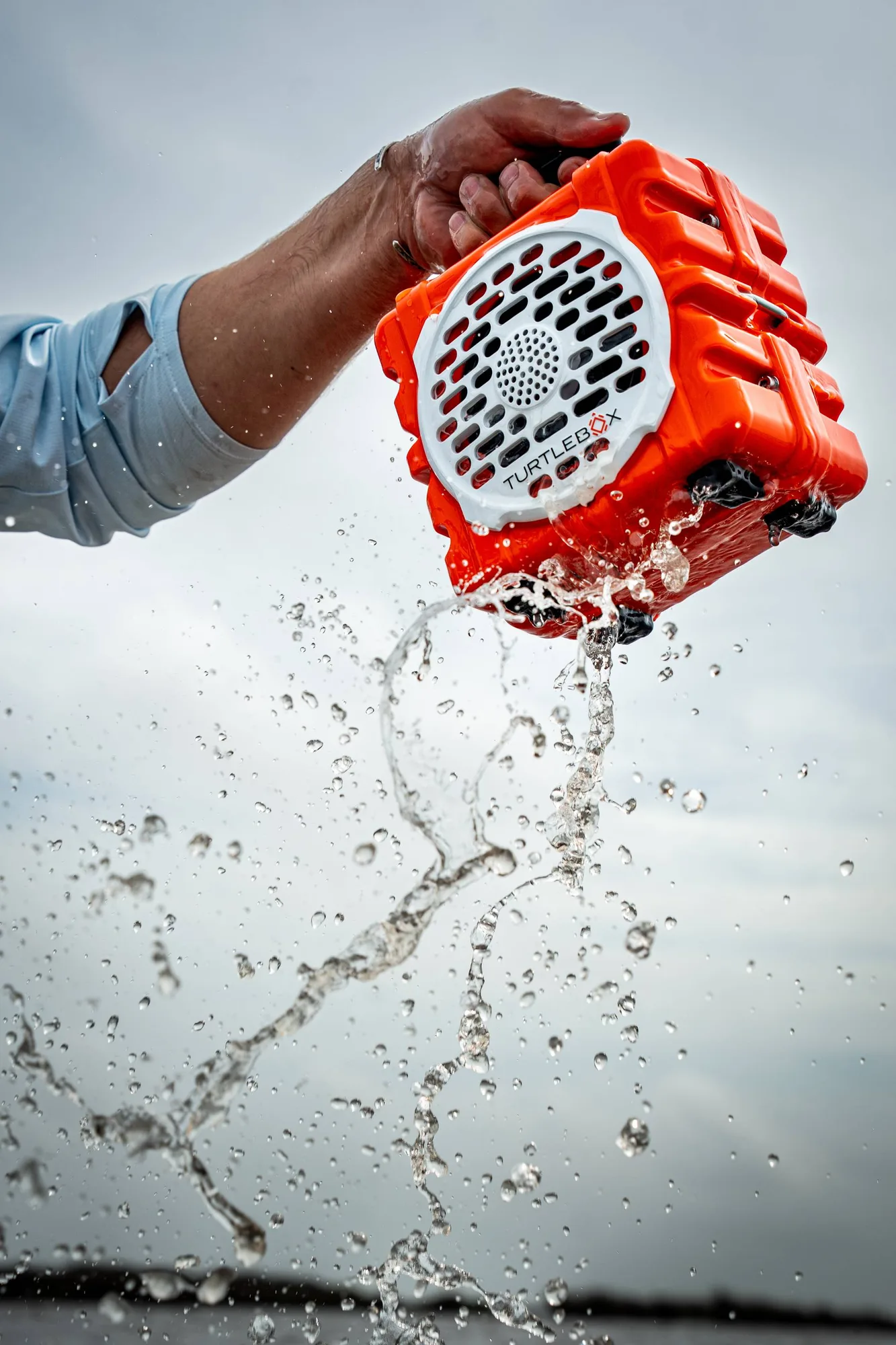
Unbox your Turtlebox Cub, charge it fully using the included USB-C cable, then press and hold the power button to turn it on. Open your phone's Bluetooth settings, select "Cub" from the list, and you're ready to play. For best outdoor performance, place the speaker on a stable surface and keep it away from direct water spray during the first charge cycle.
What's in the box
Your Turtlebox Cub arrives with the speaker unit, a USB-C charging cable, and a quick-start guide. The cube-shaped design is compact and capable, delivering big sound in a package built for everyday outdoor pursuits. There are no extra adapters or mounting hardware included, so you can start using it right away.
Charging your Cub for the first time
Before your first use, charge the Cub fully. Connect the USB-C cable to the port on the back of the speaker and plug it into a standard USB power adapter (not included). A full charge takes about 3-4 hours. The LED indicator will turn solid when charging is complete. Common mistake: using a low-power USB port (like a laptop) can slow charging significantly, so use a wall adapter for best results.
Bluetooth pairing and party mode
After charging, press and hold the power button until you hear a tone and see the LED flash. On your device, go to Bluetooth settings and select "Cub." Once paired, the speaker will remember your device for future connections. The Cub also features party mode, which lets you link multiple Turtlebox speakers for synchronized audio. To activate, press the party mode button on each speaker—they'll find each other automatically. Note: party mode works best when speakers are within 30 feet of each other.
Step-by-step setup guide
- Unbox and inspect: Remove the Cub from the box and check for the USB-C cable and quick-start guide. Ensure the speaker is clean and free of packing materials. Checkpoint: confirm the speaker is not damaged and all accessories are present.
- Charge fully: Connect the USB-C cable to the speaker and a wall adapter. Allow 3-4 hours for a full charge. The LED turns solid when done. Common mistake: using a computer USB port can underpower the charge—use a wall adapter for faster, reliable charging.
- Power on and pair: Press and hold the power button until the LED flashes. On your phone or tablet, open Bluetooth settings and select "Cub." Checkpoint: if the speaker doesn't appear, ensure it's in pairing mode (LED flashing) and restart your device's Bluetooth.
- Adjust volume and test sound: Play a test track at low volume first, then gradually increase. The Cub delivers big sound, but avoid max volume during the first few hours to protect the driver. Common mistake: cranking volume immediately can cause distortion—let the speaker break in at moderate levels.
- Explore party mode: Press the party mode button on your Cub and on any other Turtlebox speaker within range. They will sync automatically for multi-speaker audio. Checkpoint: keep speakers within 30 feet of each other for reliable party mode connection.
Product spotlight
- Cub: Compact & capable, Cub delivers big sound in a cube-shaped design built for everyday pursuits. Engineered for the outdoors, featuring party mode. The Cub's compact size makes it easy to carry on hikes or toss in a backpack, while party mode lets you expand the sound for group gatherings without extra gear.