Quick answer
Your VMU batteries are dead because the Dreamcast only powers the memory card while the console is switched on, so the two coin cells drain within weeks of normal use. Back up anything you care about to a second VMU or a controller first, then fit two fresh CR2032 cells and keep the old ones out of the bin until you have confirmed the new set holds a charge.
Why the VMU battery dies so fast
The VMU uses two replaceable coin cells to run its LCD screen, clock, and mini-games when it is unplugged from the controller. The Dreamcast does not trickle-charge those cells, so every hour the VMU spends out of the controller is an hour of battery drain. A fresh set typically lasts a few weeks of regular use, which is why so many second-hand VMUs arrive with a blank screen and a dead clock.
A blank LCD is not proof that the memory is gone. Save data lives in flash memory that does not need the batteries, so the card can still hold your files even when the screen shows nothing. Treat the batteries as a screen-and-clock feature, not as the thing keeping your saves alive.
What you need before you start
You need two CR2032 coin cells, a small flathead screwdriver, and a second VMU or a Dreamcast controller with a free slot. Work on a clean, well-lit surface because the battery cover is small and easy to lose. If your VMU has never been opened, the cover may be stiff; press down slightly before turning the screwdriver so you do not strip the plastic tab.
How to back up VMU saves without a PC
The simplest backup is a second VMU. Put both cards in the same controller, open the Dreamcast's file manager, and copy each save from one card to the other. If you only have one VMU, copy the files to a spare controller slot or a second memory card before you open anything. Do the copy while the console is on and the VMU is seated in the controller, because that is the only time the card is reliably powered.
If you own a Dreamcast SD adapter or a USB memory-card reader, you can also copy the VMU's save files to a computer. That is the safest long-term option, but it is not required for a battery swap. The important checkpoint is that you have at least one working copy of every save you would miss before you remove the old cells.
What a VMU battery swap will not fix
New batteries restore the clock and the LCD, but they will not repair a cracked screen, a corroded battery contact, or a card that the Dreamcast no longer recognizes. If the VMU is not detected at all, check the connector pins and try a different controller slot before buying cells. If the screen stays blank after a fresh set, the issue is likely the card itself rather than the batteries.
Battery leakage is the other common failure. If you see white or green residue in the battery bay, clean it gently with isopropyl alcohol and a cotton swab, then let it dry completely before inserting new cells. Do not scrape the contacts with metal tools, because that removes the plating and makes the next set drain faster.
Step-by-step: replace VMU batteries and protect your saves
- Back up every save first: With the Dreamcast powered on, open the file manager and copy each save to a second VMU, a spare controller slot, or an SD adapter. Common mistake: pulling the card out of the controller before copying, which cuts power and can interrupt the transfer. Checkpoint: confirm the copy appears on the second card before you touch the battery cover.
- Power down and remove the VMU: Turn the console off, then slide the VMU out of the controller. Work over a tray or cloth so the battery cover and cells do not roll away. Common mistake: opening the card while it is still seated, which makes the small cover harder to control. Checkpoint: the console is off and the card is in your hand, not in the controller.
- Open the battery bay: Use a small flathead screwdriver to turn the battery cover screw counter-clockwise. Press down lightly as you turn so the plastic tab does not strip. Common mistake: forcing a too-large driver into the slot and chewing up the screw head. Checkpoint: the cover lifts away cleanly with the screw still attached to it.
- Remove the old CR2032 cells: Note which way the flat side faces as you lift each cell out. If you see leakage, clean the bay with isopropyl alcohol and let it dry fully. Common mistake: prying the cells with a metal tool, which can bridge the contacts and damage the card. Checkpoint: the bay is dry and free of residue before new cells go in.
- Fit two fresh CR2032 cells: Insert both cells with the same orientation as the originals, flat side matching the contact. Do not mix a new cell with an old one. Common mistake: installing one cell upside down, which leaves the screen blank even though the card works. Checkpoint: the LCD shows a clock or menu when you press the mode button.
- Reassemble and test in the controller: Replace the cover, tighten the screw gently, and slide the VMU back into the controller with the console on. Open the file manager and confirm your saves are still listed. Common mistake: assuming the swap failed when the screen is dim, which often just means the new cells need a moment in the slot. Next step: if the screen stays blank, reseat the card and try a different controller slot before replacing the cells again.
Related retro picks from our catalog
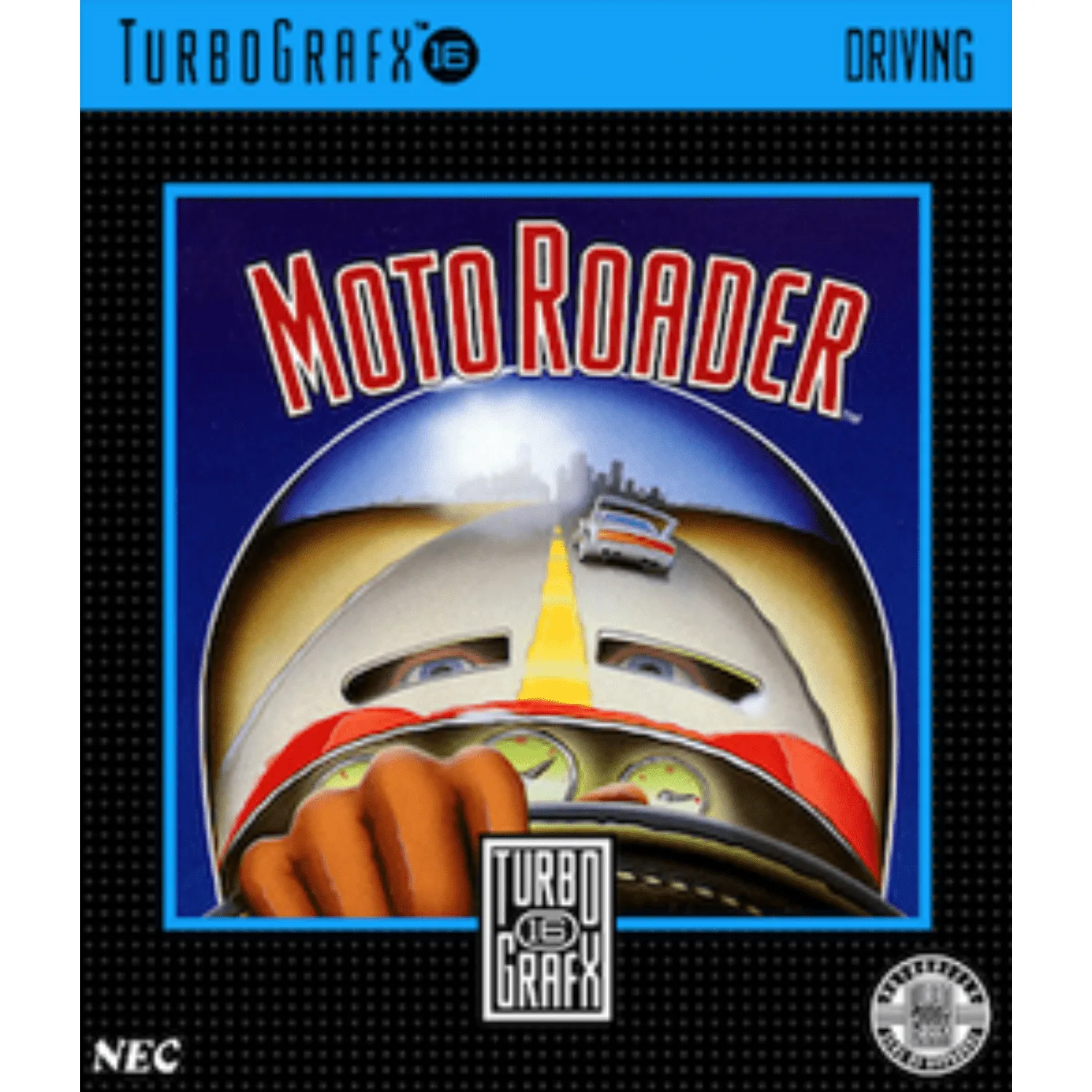
- Moto Roader - Turbografx 16 Game: Moto Roader - Turbografx 16 Game is fully tested and guaranteed to work, and ships as the HuCard only unless otherwise specified. If you are already ordering supplies for a retro setup, a tested HuCard takes the guesswork out of whether the game will boot on your TurboGrafx-16.
- Ratatouille - PS2 Game: Ratatouille - PS2 Game is fully tested and guaranteed to work, and ships as the disc only unless otherwise specified. A tested disc is a low-risk way to add a family-friendly title to a PS2 library while you are already sorting out memory-card and save-data housekeeping.
- ZombiU - Wii U Game: ZombiU - Wii U Game is a used NTSC copy that is fully cleaned, tested, and working, and it is backed by a 90-day no-questions-asked returns policy. The 90-day return window matters for used Wii U discs, because it gives you time to confirm the disc reads correctly in your own console.