What the Edifier MR5 offers for studio monitoring
The Edifier MR5 is an active studio monitor designed for accurate sound reproduction. Its flat frequency response from 46Hz to 40kHz and 110W RMS total output power make it suitable for mixing and critical listening. The monitor includes multiple input options, room acoustic compensation settings, and dual preset sound modes, giving you flexibility in how you connect and place it.
Step 1: Choose the right audio cable
The MR5 provides balanced XLR, balanced TRS, RCA, and AUX inputs, plus a headphone output. For studio monitoring, balanced connections (XLR or TRS) are preferred because they reject interference over longer cable runs. If your audio interface has balanced outputs, use XLR or TRS cables. For consumer gear with only RCA or AUX outputs, those inputs work too, but unbalanced connections are more susceptible to noise.
Confirmed MR5 connectivity
-
Edifier MR5: Balanced XLR, balanced TRS, RCA, and AUX inputs, with a headphone output socket This tells you which cables you can use to connect the MR5 to your interface or other audio source.
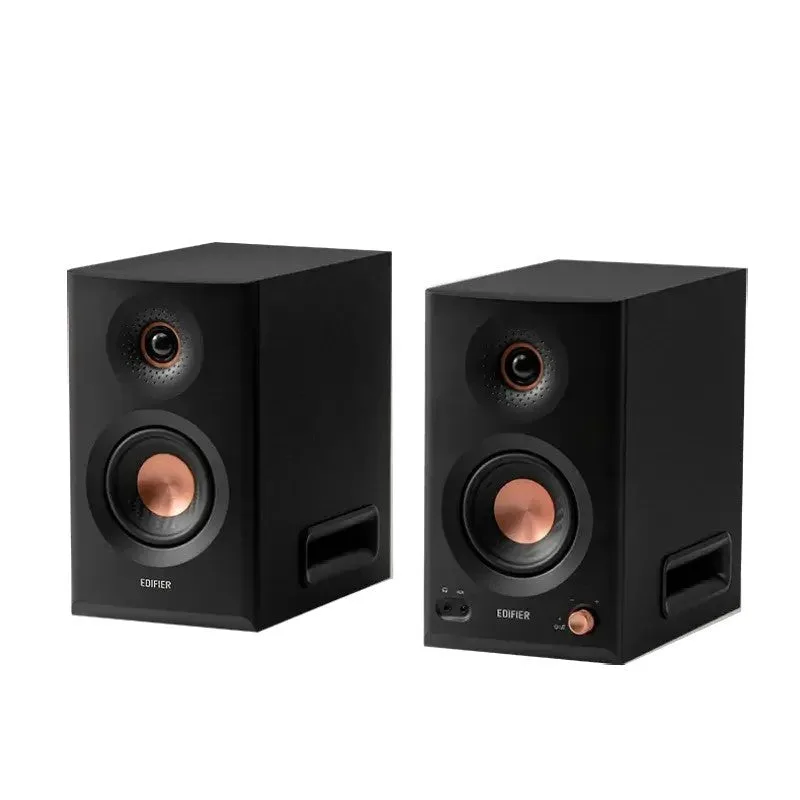
Edifier MR5
-
Edifier MR5: Bluetooth V6.0 audio receiver supporting multipoint connection You can also stream wirelessly from a phone or computer, though wired connections are more reliable for studio work.
Step 2: Connect the MR5 to your interface
The exact connection sequence depends on your gear, but these general steps apply:
- Turn off the monitors: Before plugging in cables, make sure the MR5 power is off to avoid pops.
- Connect balanced cables: Run XLR or TRS cables from your interface's balanced outputs to the MR5's XLR or TRS inputs.
- Set your interface output level: Start with your interface volume low, then power on the monitors and gradually raise the level.
- Use the headphone output for private listening: The MR5 has a headphone output socket for when you need to monitor without speakers.
Step 3: Adjust room acoustic compensation
The MR5 includes multiple settings for room acoustic compensation. These help correct for common issues like bass buildup near walls or reflections from hard surfaces. Experiment with the settings based on your room and monitor placement. The dual preset sound modes and customizable EQs in the EDIFIER ConneX App give you further control to tailor the sound to your environment.
Step 4: Position the monitors for accurate monitoring
Place the MR5 at ear level, with the tweeters aimed at your listening position. The supplied information does not specify exact distances or angles, so use standard studio practice: form an equilateral triangle between you and the two monitors, and keep them away from walls to reduce bass reflections. The room acoustic compensation settings can help if you cannot avoid wall proximity.
Step 5: Troubleshooting common issues
If you hear noise or hum, check that your cables are balanced and properly seated. If the monitors sound boomy, try moving them away from walls or adjusting the room compensation settings. If one monitor is louder than the other, verify that your interface output is balanced and that the input selection matches the cable type. The MR5's flat frequency response means it will reveal problems in your signal chain, so a clean connection matters.
What the setup guide does not cover
The supplied information does not include specific installation steps, power requirements, or detailed operating instructions. For exact procedures, refer to the manufacturer's manual. The MR5's features are confirmed, but some setup details—like recommended distances or angle adjustments—are not provided in the catalog evidence.