Quick answer
Most Engino Mini ERP 2.0 setup problems come from three things: the controller is not paired in the app, the model is wired to the wrong port, or the program is missing a stop or wait block. Work through them in that order before you change any code. If the kit still will not connect after a fresh battery set and a clean reinstall, treat it as a hardware or compatibility limit rather than a coding mistake.
Pair the controller before you build anything
The Mini ERP 2.0 controller uses Bluetooth and Engino's KEIRO environment, so the app must see the controller before any program will run. Turn the controller on first, wait for its indicator to settle, then open the app and connect. If you open the app first, it may scan past the controller and report nothing found.
Keep the controller and the device running the app within a few feet during setup, and close other apps that hold a Bluetooth connection. If pairing fails twice, remove the controller from your device's Bluetooth list, restart the tablet or phone, and pair again from inside the app rather than from system settings.
Match every plug to its labeled port
A robot that twitches or stays silent usually has a motor or sensor in the wrong port. The controller expects specific inputs and outputs, and swapping two leads produces behavior that looks like a software bug. Recheck the build instructions against the physical ports, not against what you remember building.
Do this check with the model powered off. Reseat each connector until it clicks, then power on and run a single motor test block. One working output confirms the controller and app are talking; add sensors only after that.
Build the program in layers, not all at once
Beginners often write the whole routine, run it, and see nothing. Instead, start with one action block, run it, and confirm the movement. Add a wait, run again. Add the sensor condition last.
The KEIRO environment includes live readings, an ERP simulator, and drag-and-drop action blocks, so you can test logic on screen before sending it to the robot. Use the simulator to confirm the sequence, then upload and watch the real model.
Fix sensor logic that triggers too early or never
IF and WHILE statements behave differently. An IF block checks once and moves on; a WHILE block keeps repeating until the condition changes. If your robot reacts once and then ignores the sensor, you likely used IF where the task needs a loop.
Logic gates add a second layer. An AND gate needs both conditions true, while an OR gate needs only one. If a robot stops at the wrong line, test each sensor reading separately in the live view, then combine them. This is also where the Mini ERP 2.0 progression from manual programming and flow diagrams into sensor-based logic pays off: the earlier exercises teach you to trace the flow before you add gates.
When the problem is the kit, not the code
If the controller will not power on with fresh batteries, or the app never lists it after a clean reinstall on a second device, stop debugging the program. That points to the controller or your device's Bluetooth stack, not your blocks.
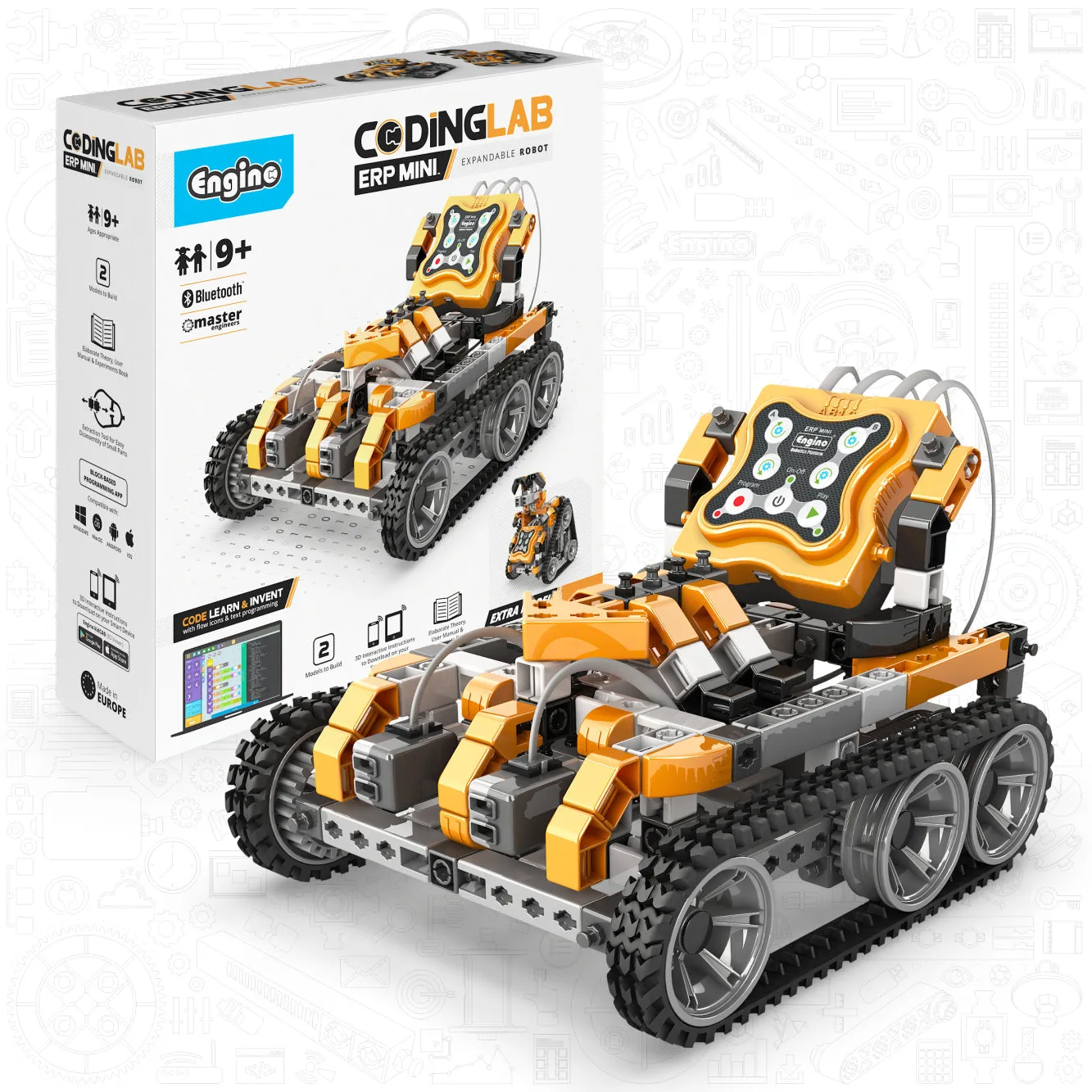
At that point, choose a different starting point. The Coding Lab- ERP MINI kit uses the same ERP MINI 2.0 controller and KEIRO software but builds only two robot models, which suits a child who wants faster success before tackling a larger model library. Neither kit lists a wired connection option, so if your tablet's Bluetooth is unreliable, plan around that before buying.
Setup symptom diagnosis
- App never finds the controller: The controller is usually off, out of range, or still paired to another device. Turn the controller on first, bring it within a few feet, and remove old pairings from your device's Bluetooth list. If it still fails on a second device after a reinstall, stop and treat it as a hardware or Bluetooth issue.
- Robot runs but ignores the sensor: An IF block checks once, so a single pass looks like a dead sensor. Switch to a WHILE loop when the robot must keep reacting, and confirm the reading in the live view first. Test one sensor at a time before adding AND or OR gates.
- Motor spins the wrong way: The lead is in the wrong port or the block's direction is reversed. Reseat the connector with the power off, then flip the direction in the action block. If swapping ports changes nothing, recheck the build against the instructions.
- Nothing moves at all: The program may be missing a start condition or a wait long enough for the motor to act. Run a single motor block on its own to confirm the chain works. If one block works and the full program does not, the fault is in the sequence, not the hardware.
- Setup keeps failing after two hours: Stop troubleshooting and change the entry point. A two-model kit reduces build time, and a non-coding Simple Machines set removes the app from the equation entirely. Choose the simpler path now and return to the full Mini ERP 2.0 model library when your child is ready.
Kit facts that affect setup
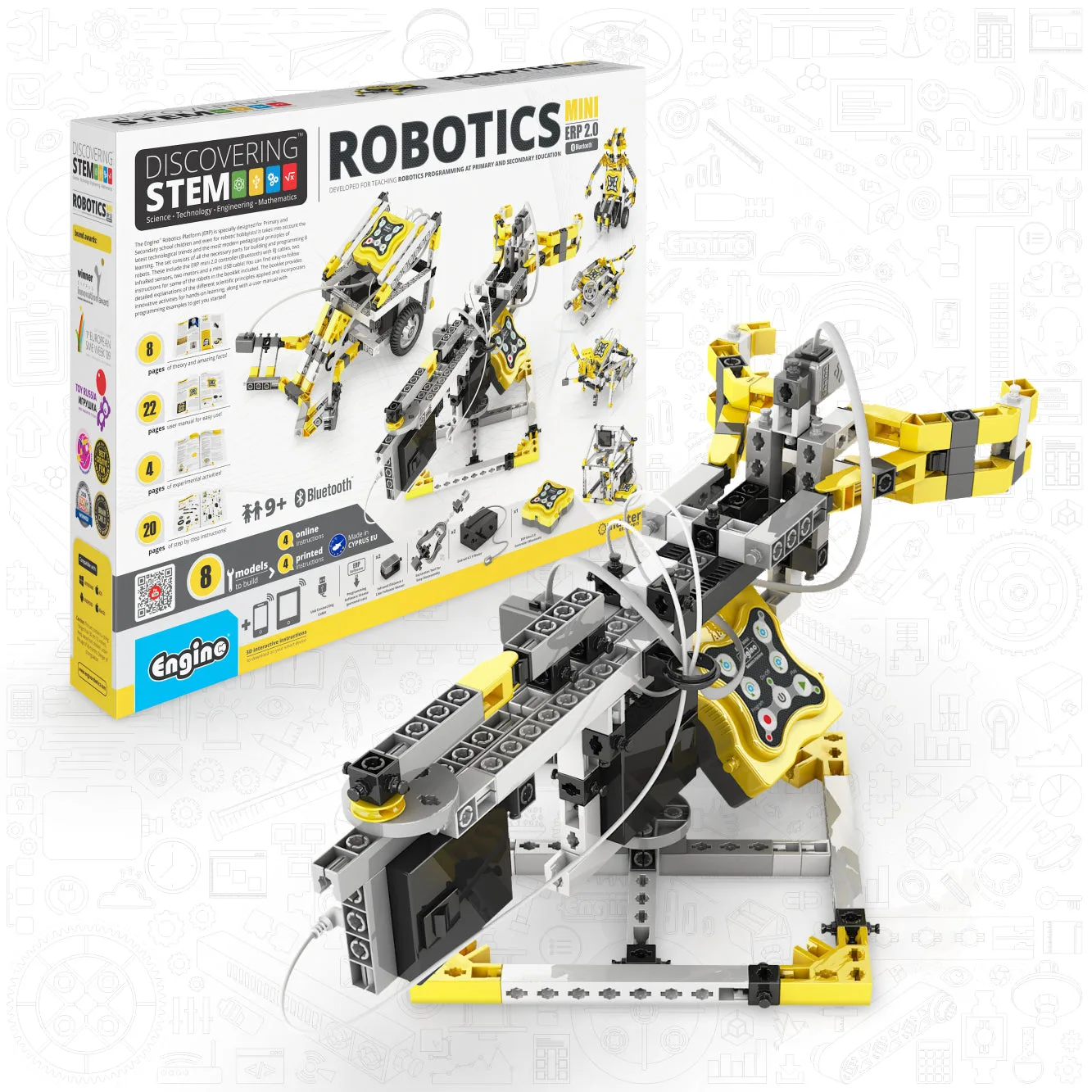
- Engino Discovering STEM Robotics Set: Mini ERP 2.0 Build & Program Robots with Coding for Kids Ages 9+ (8 Models to Build): The Mini ERP 2.0 set covers inputs and outputs, manual programming, flow diagrams, then sensor-based logic with IF/WHILE statements and logic gates, and includes 8 models to build. The progression tells you the intended order: get one output working, then add sensors, then add gates. Skipping to gates is the most common reason a first program fails.
- Engino Coding Lab- ERP MINI, STEM Robotics Kit for Kids Ages 9+ (2 Robot Models to Build): The Coding Lab- ERP MINI kit uses the ERP MINI 2.0 controller with Bluetooth and KEIRO software, and builds 2 robot models. Fewer models means less build time before the first successful program, which helps if your child loses interest during long assemblies.
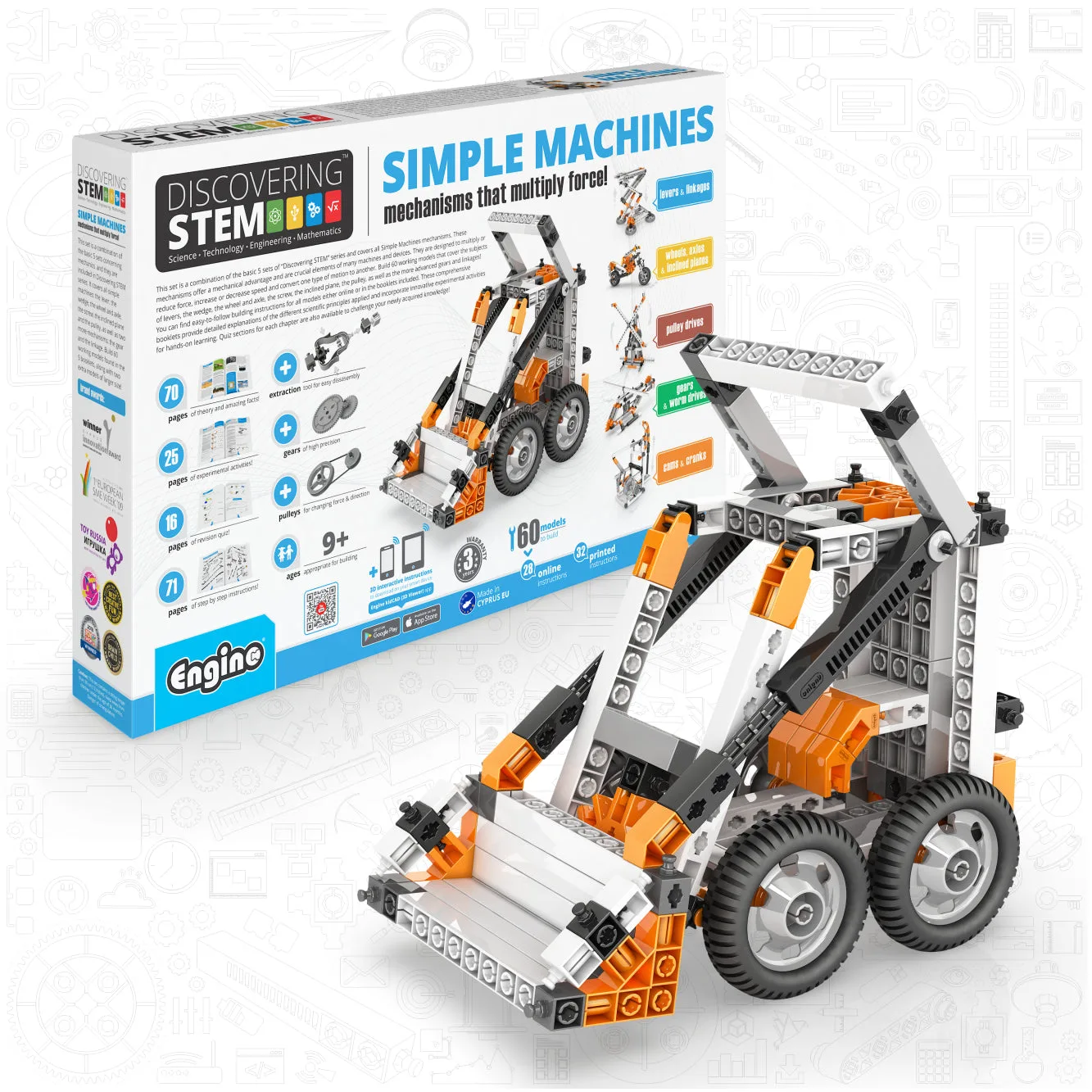
- Engino Simple Machines Set, Building Kit for Young Inventors, STEM Projects for Kids Ages 9+: The Simple Machines set covers levers and linkages, wheels, axles and inclined planes, and pulley drives, including fixed versus movable pulleys. If your child is not ready for Bluetooth pairing and code blocks, this kit teaches the mechanical thinking behind the robots without any app setup.