Quick answer
Set up your EPOMAKER RT82 by connecting it via USB or Bluetooth, then customize the detachable LCD screen, remap keys, adjust RGB lighting, and hot-swap switches using the companion software.
Why customize the RT82?
The RT82’s detachable LCD screen sets it apart from standard keyboards. You can display the date, time, battery level, or custom graphics without interrupting your workflow. The ability to hot-swap switches means you can change the typing feel on the fly—no soldering or disassembly required.
Software requirements
Before you begin, download the EPOMAKER companion software from the official website (check the support section for RT82 drivers). The software handles LCD customization, key mapping, and RGB lighting. Note that the LCD customization tool is separate from the key mapping module, so you may need to switch between tabs.
Step-by-step setup and customization
- 1. Connect the RT82: Plug the USB cable into your computer, or pair via Bluetooth for wireless use. For first-time Bluetooth pairing, hold the Fn + P keys until the LED blinks, then select 'RT82' in your device list. If Bluetooth fails, try a wired connection first to rule out driver issues.
- 2. Install and open the companion software: Run the installer from the EPOMAKER website. Once open, the software should detect your RT82 automatically. If not, check the USB cable or restart the app. Close other keyboard software to avoid conflicts.
- 3. Customize the LCD screen: In the LCD tab, choose a preset (date/time, battery, or custom image). Upload a 128x32 pixel BMP or PNG for a personal logo. Adjust brightness from the same panel. Custom images may appear pixelated; use simple designs for best readability.
- 4. Remap keys (key mapping): Go to the Key Mapping tab. Click any key on the on-screen keyboard, then assign a new function (e.g., media play/pause, open calculator, or a macro). Save the profile to the keyboard’s onboard memory. You can create multiple profiles for gaming, typing, or work and switch them via Fn + number keys.
- 5. Adjust RGB lighting: In the Lighting tab, choose from static colors, breathing effects, or reactive modes (lights change per keystroke). Adjust brightness and speed sliders. Save the profile. Reactive modes consume more battery; use static or breathing for longer wireless sessions.
- 6. Hot-swap switches: To change a switch, gently pull the keycap off the stem, then use the included switch puller to remove the old switch. Insert the new switch (press firmly until it clicks) and replace the keycap. The RT82 supports most MX-style switches. Avoid touching the switch pins; hold by the sides to prevent damage.
Product facts
-
EPOMAKER RT82: The EPOMAKER RT82 features a magnetically detachable LCD screen that shows date, time, and keyboard battery status. You can glance at important info without alt-tabbing, and the screen detaches for easy angle adjustment or removal during gaming.
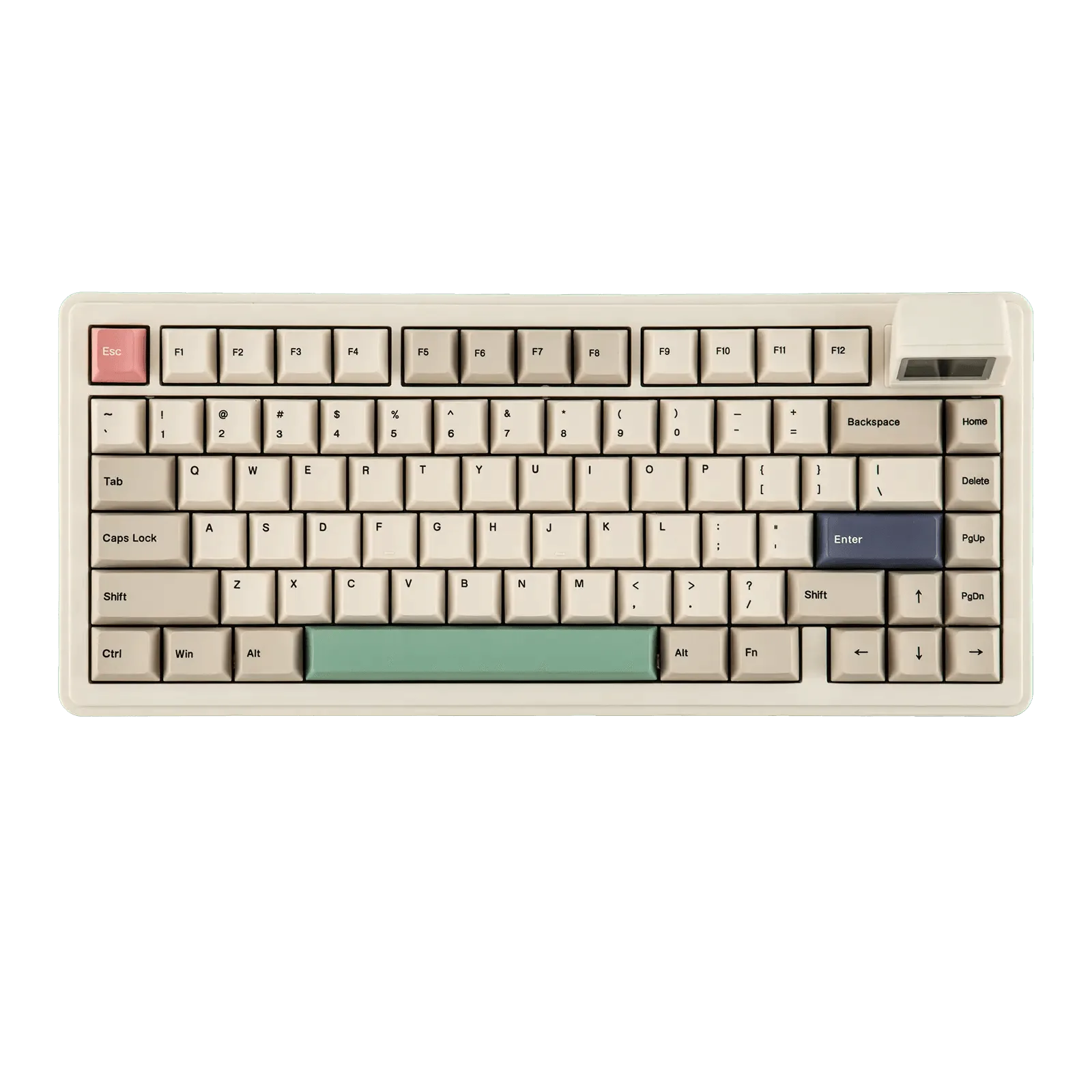
EPOMAKER RT82