Quick answer
If you have a large collection of photos and want to digitize them quickly without manual editing, the Epson FastFoto FF-680W is a strong choice. Its batch feeding and automatic enhancement make it a practical high-speed photo scanner for home archivists.
Why speed matters for photo digitizing
Scanning one photo at a time on a flatbed can take hours when you have hundreds or thousands of prints. The Epson FastFoto FF-680W is designed to handle stacks of photos, which can dramatically cut down the time you spend on this project.
The trade-off is that you need to prepare your photos properly—remove any that are stuck together or too fragile. The scanner feeds photos automatically, so damaged or curled prints may jam, requiring you to scan those individually on a flatbed instead.
Automatic enhancement: convenience vs. control
The Epson Perfect Picture Imaging System automatically enhances photos as they are scanned. It restores colors, reduces red eyes, and crops or rotates images so your digital copies look better without manual editing.
If you prefer full control over the final look, you can disable these enhancements and scan the original image. This is useful for archival purposes where you want to preserve the exact appearance of the original print, including any imperfections.
Backup and sharing made easier
The Auto Upload and Backup feature lets you send scanned photos directly to cloud services or shared folders, so you don't have to manually transfer files after each session.
This convenience comes with a setup step: you'll need to configure your preferred destination before you start. Once set, it can save you time, but it's not a substitute for a separate backup strategy if you want redundancy.
Decision rules for choosing the FF-680W
- Volume of photos: If you have more than a few hundred photos to digitize, the FastFoto's high-speed batch scanning will save you significant time compared to a flatbed scanner. For occasional single scans, a flatbed is more economical. Estimate your total photo count before deciding.
- Condition of your photos: The scanner feeds photos automatically, so it works best with prints that are flat and undamaged. If you have fragile, curled, or very old photos, you may need to scan them individually on a flatbed to avoid jams. Sort out damaged photos before starting a batch.
- Desired output quality: The automatic enhancement features can improve color and reduce red eyes, but if you want to preserve the original look for archival purposes, you can turn them off. Consider whether you value convenience or exact reproduction. Decide whether to use auto-enhancement or raw scans.
- Backup workflow: The Auto Upload and Backup feature helps you send scans directly to cloud services or folders. If you already have a backup system, this can streamline your workflow, but it's not a replacement for a dedicated backup plan. Set up your backup destination before starting.
Key product facts
-
Epson FastFoto FF-680W: The Epson FastFoto FF-680W scans physical photos, postcards, and other paper items, and uses the Epson Perfect Picture Imaging System to automatically enhance photos by restoring colors, reducing red eyes, cropping, and rotating. This means you can batch scan and get polished digital copies without spending time on manual editing, making it ideal for large photo collections.
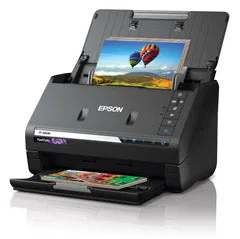
Epson FastFoto FF-680W
Who should buy the Epson FastFoto FF-680W?
Best for
- People with large photo collections who want to digitize them quickly
- Users who appreciate automatic enhancement to save editing time
- Those who want convenient cloud backup integration
Not for
- Users who need to scan fragile or oversized items that cannot feed automatically
- Those on a tight budget who only need occasional scanning
- Archivists who require exact, unenhanced reproductions and prefer manual control