Quick answer
Fit Esports Tiger Arc 2 skates to the Logitech G502 Wireless by removing both layers of the stock feet first, cleaning the exposed plastic, then aligning the Arc 2 set before pressing it down. The 0.7–0.8 mm PTFE thickness is the glide upgrade; the two-layer removal is the step that decides whether the fit works.
Why the G502 Wireless needs a careful feet swap
The G502 Wireless is a heavier mouse than most competitive shapes, so any drag from a poorly seated foot is easier to feel in slow tracking. Arc 2's rounded edges and reinforced PTFE are aimed at reducing that edge catch, but only if the skate sits flat on clean plastic.
This is also the install where the stock feet are easy to misread. The G502 Wireless ships with two layers of stock feet; removing only the top layer leaves a raised surface that prevents the new skates from sitting flush. Treat the two-layer check as the main fit variable, not the adhesive.
What the Arc 2 set does and does not change
Arc 2 is a 1-pack, 1-set replacement with rounded edges and Tiger Gaming's 2019 Arc 2 proprietary PTFE, listed at 0.7–0.8 mm thick. That thickness is close to common stock feet, so the swap is about material and edge shape rather than a major ride-height change.
It will not change the G502 Wireless's weight or shape, and it will not fix a worn mousepad or a dirty sensor lens. If your glide problem is scratchiness rather than speed, check the pad surface before blaming the feet.
When to skip this swap
If you are not comfortable lifting the stock feet and exposing the screw holes, have a shop or a more experienced friend do it. The catalog note is explicit: after correct removal of both layers you should see plastic and screw holes, and that is the surface the new skates must bond to.
Also skip it if you need a thicker or thinner ride height than 0.7–0.8 mm; the catalog does not list alternate thicknesses for this set, so do not assume one exists.
Step-by-step Arc 2 install on the G502 Wireless
- Remove both stock foot layers: Lift the stock feet and keep going until both layers are off. The checkpoint is visual: you should see plastic and the screw holes underneath. If you still see a soft layer, stop and remove it before continuing. Seeing screw holes is the confirmation that both layers are gone.
- Clean the exposed plastic: Wipe away adhesive residue with isopropyl alcohol and let the surface dry fully. A common mistake is pressing new skates onto a tacky surface, which traps old glue and creates a high spot. Dry, residue-free plastic is the bonding surface, not the old adhesive.
- Dry-fit the Arc 2 set before peeling: Place the skates in position without removing the backing and check that each one sits inside its recess and does not overhang the edge. Adjust before any adhesive is exposed. If a skate overhangs, recheck that both stock layers are removed.
- Apply and press evenly: Peel the backing and set each skate down in one motion, then press firmly across the whole surface for several seconds. Avoid sliding the skate after contact; that stretches the adhesive. Press from the center outward so no edge lifts.
- Test the glide before gaming: Set the mouse on your pad and make slow circles and short flicks. Listen for scratch and feel for a consistent breakaway. If one corner catches, reseat that skate rather than adding force. Uneven glide usually means one skate is not fully seated, not that the PTFE is wrong.
Product facts
-
Esports Tiger Arc 2 - Logitech G502 Wireless: Esports Tiger Arc 2 for the Logitech G502 Wireless is a 1-pack, 1-set replacement with rounded edges and 0.7–0.8 mm thickness. One set covers the mouse, and the rounded edges are the part that reduces catch when the G502 Wireless is tilted in a flick.
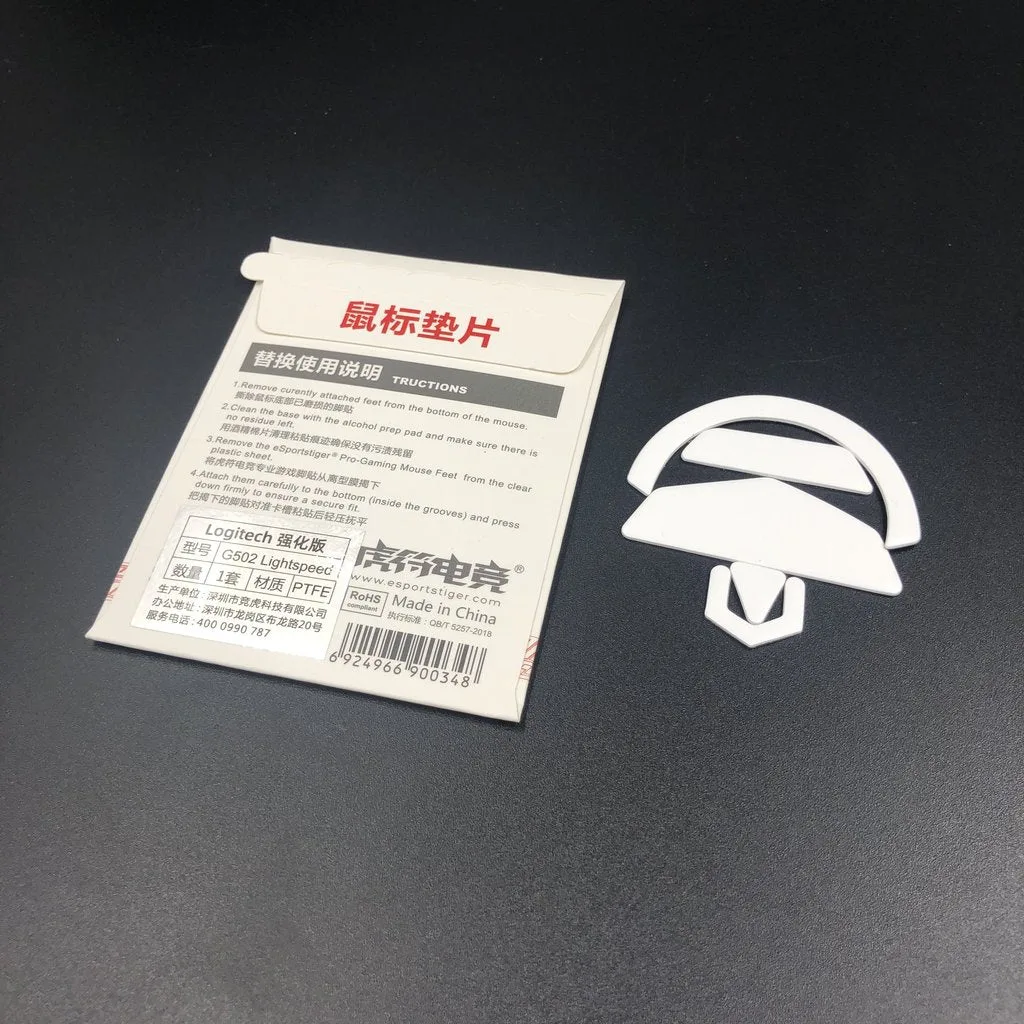
Esports Tiger Arc 2 - Logitech G502 Wireless
-
Esports Tiger Arc 2 - Logitech G502 Wireless: The catalog warns that the G502 Wireless stock feet have two layers and both must be removed before applying Arc 2. Leaving the second layer on raises the mounting surface, so the new skate cannot sit flush and the glide feels uneven.