Quick Answer
The eufy X10 Pro Omni bundle includes the robot vacuum, the All-in-One Station, a replacement parts kit, and floor cleaning solution. Follow the steps below to unbox and set up your system for a hassle-free first clean.
What's in the Box?
The eufy X10 Pro Omni bundle packs the robot vacuum, the All-in-One Station (which handles charging, dust emptying, and mopping pad washing), plus a replacement parts kit and floor cleaning solution. The replacement parts kit typically includes extra filters, brushes, and mopping pads, so you won't need to reorder immediately.
Before you start, check that all components are present: the robot, station, power cord, replacement parts kit, and the cleaning solution. If anything is missing, contact eufy support before proceeding.
Trade-Offs to Consider
While the bundle saves you money upfront, the included replacement parts kit covers only standard wear items. You may still need to purchase additional filters or brushes later, depending on your cleaning frequency and home size.
The floor cleaning solution is specifically formulated for the X10 Pro Omni's mopping system. Using other cleaning agents could void the warranty or damage the mopping components.
Setup Steps
- Unbox and Place the Station: Remove the All-in-One Station from the box and place it against a wall with at least 1.5 feet of clearance on each side. Plug it into a power outlet. Ensure the station's water tank is accessible for refilling. Common mistake: placing the station too close to furniture can block the robot's docking path.
- Install the Replacement Parts Kit: Open the replacement parts kit and swap the pre-installed filter and side brush with the new ones if desired. Attach the mopping pad holder and insert a clean pad. This kit extends the life of your robot, but you don't need to replace everything at once. Checkpoint: only replace parts that show visible wear to avoid unnecessary waste.
- Add Floor Cleaning Solution: Fill the station's clean water tank with water, then add the recommended amount of eufy floor cleaning solution (usually a capful). Do not exceed the fill line or use other cleaning products. Common mistake: using too much solution can leave residue and clog the mopping system.
- Power On and Connect the Robot: Remove the robot's protective film and place it on the station to charge. Press the power button on the robot, then open the eufy Clean app on your phone. Follow the app's prompts to connect the robot to your Wi-Fi network (2.4 GHz recommended). Checkpoint: ensure your phone is on the same 2.4 GHz network during setup; 5 GHz networks are not supported.
- Run the First Cleaning Cycle: Once the robot is fully charged (indicated by a solid light on the station), select 'Quick Clean' in the app. Let the robot map your home. It may bump into obstacles initially—this is normal. After the first run, review the map in the app and adjust no-go zones if needed. Common mistake: expecting a perfect map on the first run; the robot improves with each cleaning cycle.
Product Details
-
eufy X10 Pro Omni White + Replacement Parts Kit + Cleaning solution: Powerful 8,000 Pa Suction for a Deeper Clean This high suction power ensures the X10 Pro Omni can pick up fine dust and larger debris from carpets and hard floors alike.
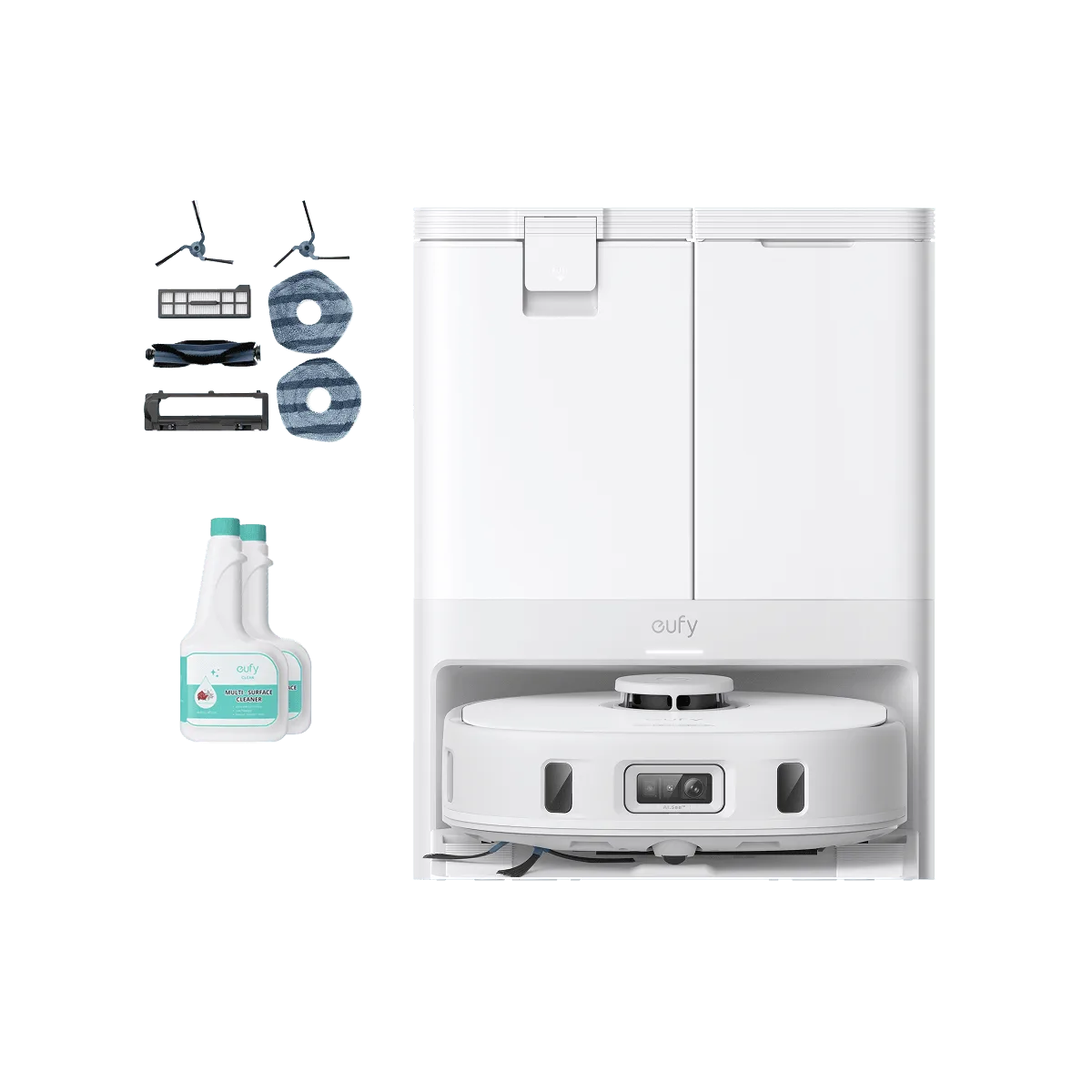
eufy X10 Pro Omni White + Replacement Parts Kit + Cleaning solution
-
eufy X10 Pro Omni White + Replacement Parts Kit + Cleaning solution: All-in-One Station for Hands-Free Cleaning The station automatically empties the dustbin and washes the mopping pads, so you only need to refill the water tank and replace the cleaning solution periodically.