Quick Answer
Set up the eufyCam C35 2-Cam Kit with HBmini by charging the cameras, connecting the HomeBase, pairing each camera in the eufy app, and mounting them in your chosen spots. Always update the eufy app to the latest version before starting.
Why the HBmini Matters for Your Setup
The HomeBase (HBmini) is the central hub that connects your cameras to your Wi-Fi network and stores footage locally. It plays a key role in the eufyCam C35 2-Cam Kit setup, so placing it in a central location with a strong Wi-Fi signal ensures stable connections and reliable performance.
Before you begin, check that your eufy app is updated to version 5.2.10_16477001 (iOS) or 5.2.10_17014 (Android) or newer. This ensures full functionality with the C35 cameras and avoids common pairing issues.
Choosing the Right Mounting Spot
The C35 cameras are designed for flexible installation, both indoors and outdoors. You can mount them with magnets, rope/string, screws, or simply place them on any flat surface. When choosing a spot, consider the viewing angle, power access, and whether you need to capture activity in a specific area.
For indoor use, a shelf or tabletop placement works well. For outdoor use, use the magnetic mount or screws to secure the camera under an eave or on a wall, ensuring it is within range of the HBmini.
Step-by-Step Setup for eufyCam C35 2-Cam Kit with HBmini
- Charge the Cameras: Before pairing, fully charge both cameras using the provided USB cables. A full charge ensures uninterrupted setup and initial use. Common mistake: starting with a low battery can cause pairing failures or unexpected shutdowns. Check the LED indicator on each camera to confirm charging is complete.
- Connect the HBmini: Plug the HBmini into a power outlet and connect it to your router using the included Ethernet cable. Wait for the LED to turn solid blue. Common mistake: placing the HBmini too far from the router or cameras can cause weak signals. Place the HBmini in a central location, away from thick walls or metal objects.
- Update the eufy App: Open the eufy app on your smartphone and go to Settings > About to check for updates. Install any available updates to ensure you have version 5.2.10_16477001 (iOS) or 5.2.10_17014 (Android) or newer. Common mistake: skipping the update can lead to compatibility issues with the C35. Always keep the app updated for optimal performance.
- Add the HBmini to Your Account: In the eufy app, tap the '+' icon, select 'HomeBase', and follow the on-screen instructions to pair the HBmini. Make sure your phone is connected to the same Wi-Fi network you intend to use. Common mistake: using a different Wi-Fi network can prevent pairing. Confirm the HBmini appears in your device list before moving on.
- Pair the Cameras: With the HBmini added, tap '+' again, select 'Camera', and choose the eufyCam C35. Follow the prompts to scan the QR code on the camera or enter the serial number. Repeat for the second camera. Common mistake: trying to pair both cameras simultaneously can cause confusion; pair one at a time. Wait for each camera to show a solid blue LED before pairing the next.
- Mount and Position the Cameras: Decide on the placement for each camera. Use the magnetic base to attach to metal surfaces, or use the included screws for walls. For temporary placement, simply set the camera on a flat surface. Common mistake: mounting the camera too high or too low can limit the field of view. Test the live view in the app to adjust the angle before finalizing the mount.
- Configure Settings and Test: In the eufy app, adjust motion detection zones, sensitivity, and notification preferences. Then, walk in front of the camera to test that alerts are received. Common mistake: leaving default settings may result in too many false alerts or missed events. Set up activity zones to focus on important areas and reduce unnecessary notifications.
Product Facts
-
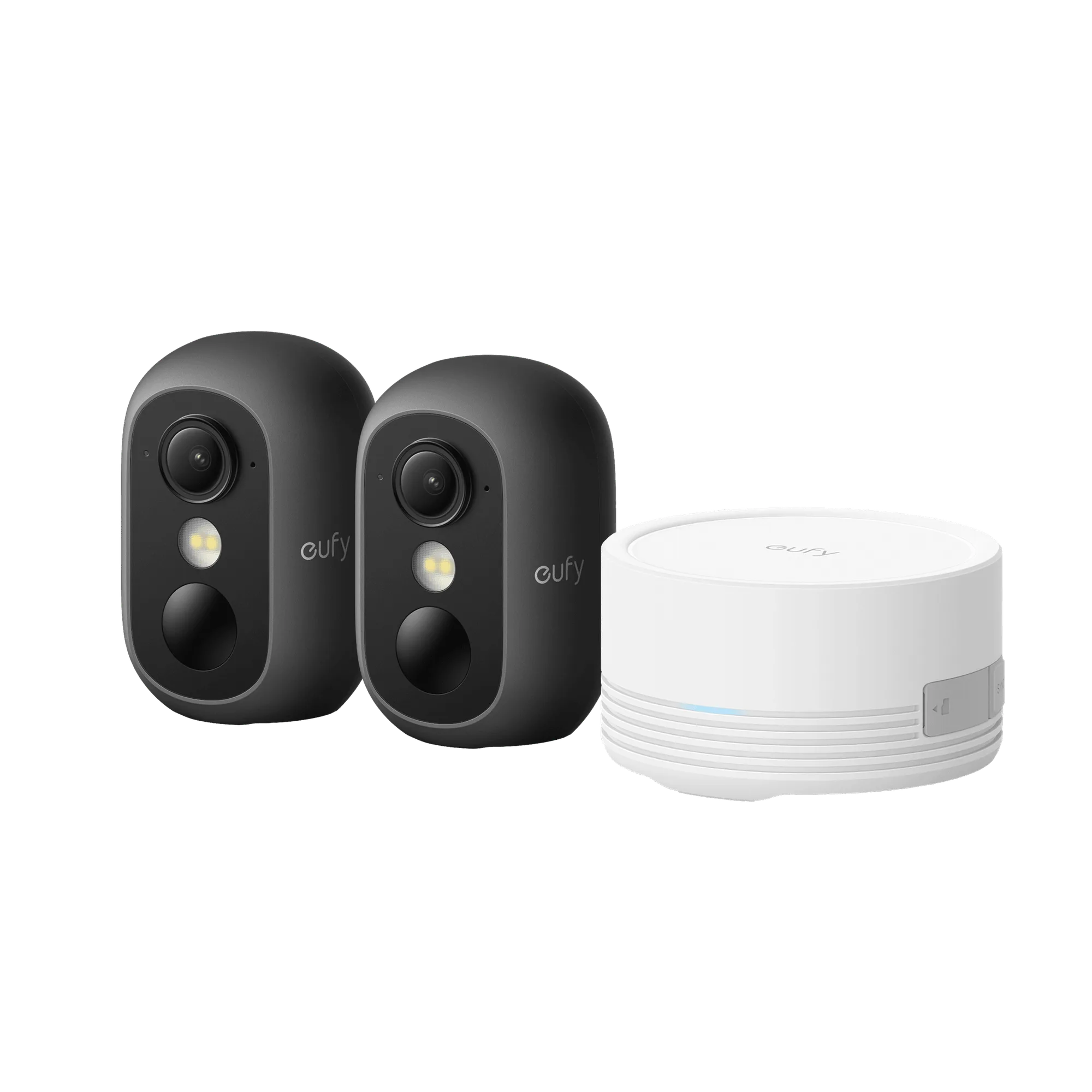
eufyCam C35 2-Cam Kit with HBmini (Black): The eufyCam C35 2-Cam Kit with HBmini offers effortless security anywhere: easily mount with magnets, rope/string, screws, or simply place on any flat surface to install your security camera outdoors or inside. This flexibility means you can adapt the camera placement to your home without needing professional installation, whether you want it on a metal surface, hanging from a hook, or sitting on a shelf.
eufyCam C35 2-Cam Kit with HBmini (Black)