Plan the order before you mount anything
The FamiLock S3 Max, Video Doorbell E340, and Smart Display E10 work as a team, but they don't all pair at once. Start by deciding where each piece will live: the lock on your front door, the doorbell beside it, and the display on a counter or table inside. Then set them up in this order: lock first, doorbell second, display last. That way each device is already on your Wi-Fi and visible in the eufy Security app when the next one looks for it.
Before you begin, confirm your Wi-Fi network name and password, and make sure your phone is connected to the 2.4 GHz band if your router splits bands. The supplied product information does not list a required app version or a maximum number of devices, so check the eufy Security app for any prompts during pairing.
Set up the FamiLock S3 Max first
The lock is the anchor of the entryway, so get it working before you add the doorbell and display.
- Choose your power mode: The lock supports battery mode for easy installation or wired mode. Wired mode requires the battery to be installed and a power source connected with 8 to 24V and more than 10VA. If you're unsure about your door's wiring, battery mode is the simpler starting point.
- Install the lock and batteries: Mount the lock on your door and insert the batteries. The dual power supply system uses two batteries for up to 5 months of total usage, plus 4 AAA backup batteries for uninterrupted performance during power outages.
- Enroll your palm vein: Follow the in-app prompts to register your palm vein. Recognition takes about 0.1 seconds, and your palm vein data is stored locally on the lock, not in the cloud.
- Add the lock to the eufy Security app: Complete the pairing steps in the app so the lock appears in your device list. This is also where you can name the lock and adjust settings.
What the lock brings to the entryway
-
eufy FamiLock S3 Max + Video Doorbell E340 + eufy Smart Display E10: Palm vein unlocking with recognition in just 0.1 seconds; palm vein data is stored locally on the lock. Fast, local authentication means you can enter without a key or phone, and your biometric data stays on the device.
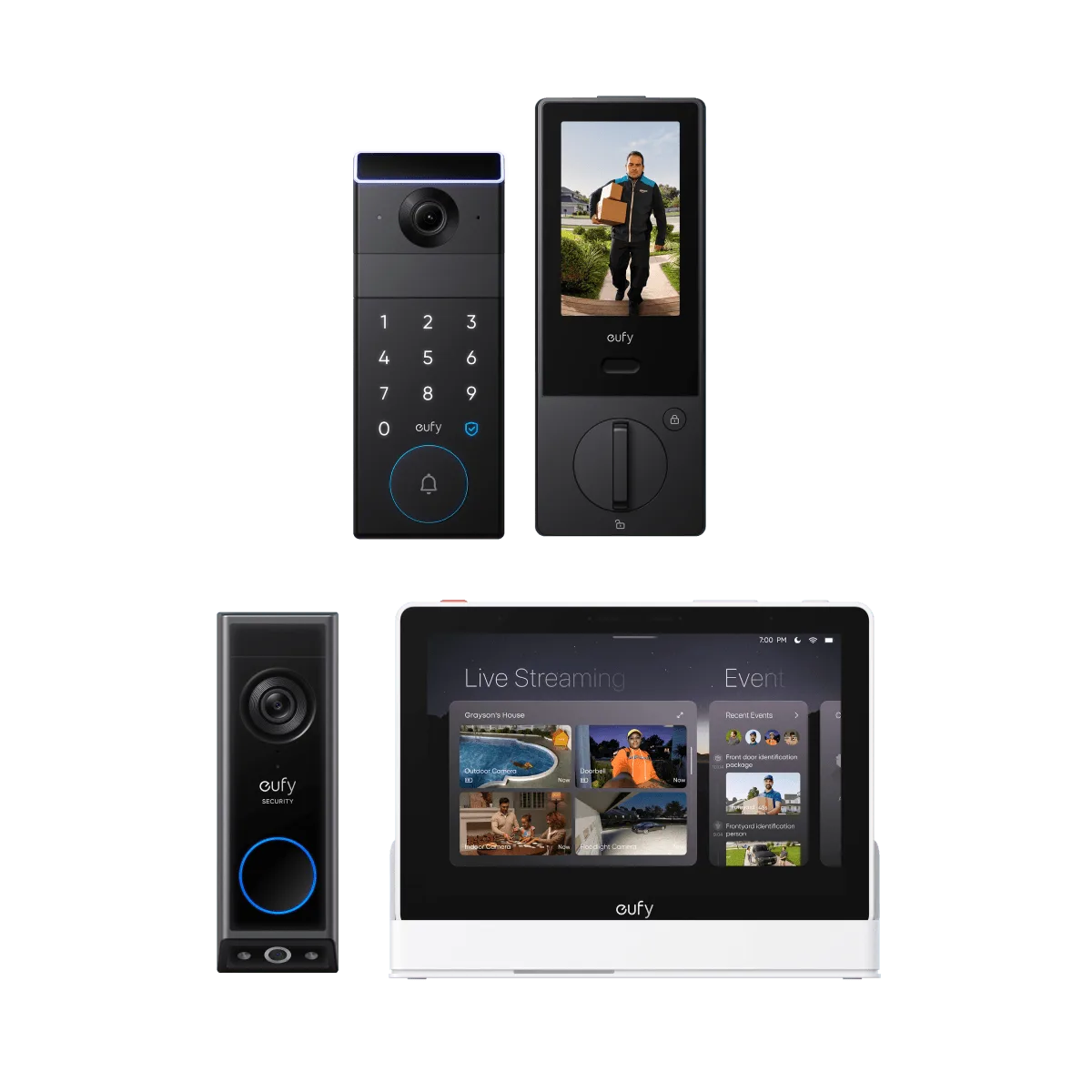
eufy FamiLock S3 Max + Video Doorbell E340 + eufy Smart Display E10
-
eufy FamiLock S3 Max + Video Doorbell E340 + eufy Smart Display E10: Built-in 2K HD night-vision camera with a 150° wide-angle view and real-time alerts. The lock itself can watch the door, so you get video coverage even before the doorbell is installed.
-
eufy FamiLock S3 Max + Video Doorbell E340 + eufy Smart Display E10: Rear Lock Video Screen lets you check the front door without an app. Anyone inside can see who is at the door by looking at the lock's screen, which is helpful for children or seniors who may not use a phone app.
Add the Video Doorbell E340 next
With the lock online, pair the doorbell so it can share the same network and app account.
- Decide on wired or battery power: The E340 can run on battery or wired power. In wired mode, the battery is still required and is topped up by the wired source for long-lasting performance. Battery mode makes installation easy if you don't have doorbell wiring.
- Mount the doorbell: Position the doorbell at the doorframe, typically around chest height, so both cameras can see faces and the floor. The downward-facing camera fills in the gaps with a view of the floor in front of your door.
- Pair in the eufy Security app: Follow the app prompts to add the doorbell. You'll scan a QR code or press a button on the device, depending on the app version. The supplied information does not specify a pairing button location, so refer to the in-app instructions.
- Check the live view: Open the doorbell in the app and confirm you can see a clear 2K image. The front-facing camera focuses on people, while the downward camera shows the floor. Adjust the angle if either view is blocked.
Doorbell details that affect placement
- eufy FamiLock S3 Max + Video Doorbell E340 + eufy Smart Display E10: Dual cameras: a front-facing camera for people and a downward-facing camera for the floor in front of the door. Two views help you see both faces and packages, so mount the doorbell where neither camera is obstructed.
- eufy FamiLock S3 Max + Video Doorbell E340 + eufy Smart Display E10: 2K Full HD clarity for detailed visuals of your doorstep. Higher resolution helps identify visitors and packages, especially when you need to zoom in on a recording.
- eufy FamiLock S3 Max + Video Doorbell E340 + eufy Smart Display E10: Battery or wired power; in wired mode the battery is topped up by the wired source. You can install the doorbell even without existing wiring, and wired setups reduce the need to recharge.
Pair the Smart Display E10 last
The display is the control center that ties the lock and doorbell together. Pair it after both are online.
- Power on the display: Plug in the Smart Display E10 and follow the on-screen setup. Connect it to the same Wi-Fi network as your lock and doorbell.
- Link your eufy account: Sign in with the same eufy Security account you used for the lock and doorbell. The display should automatically detect your devices.
- Choose what appears on the display: You can view up to four live feeds at once on the display. Select the lock's camera and the doorbell's camera to keep an eye on the entryway.
- Test hands-free alerts: When someone rings the doorbell, unlocks the door, or is detected by the camera, the display automatically lights up with a live feed and a voice alert. Trigger each event to confirm the display responds.
How the display connects the system
- eufy FamiLock S3 Max + Video Doorbell E340 + eufy Smart Display E10: Smart Display E10 shows instant hands-free door alerts with live feed and voice alert when the doorbell rings, the door unlocks, or the camera detects motion. You don't need your phone to see who's at the door; the display lights up automatically.
- eufy FamiLock S3 Max + Video Doorbell E340 + eufy Smart Display E10: Four simultaneous live feeds on one screen. You can monitor the lock camera, doorbell, and other cameras at a glance.
Checkpoints after setup
Run through these checks to confirm everything works together.
- Lock responds to palm vein: Place your palm on the reader and confirm the door unlocks within about 0.1 seconds.
- Doorbell sends alerts: Press the doorbell button and verify you receive a notification on your phone and that the Smart Display E10 lights up with a live feed.
- Display shows both cameras: Check that the display can show the lock's camera and the doorbell's camera simultaneously.
- Battery levels are healthy: In the app, confirm the lock and doorbell batteries are sufficiently charged. The lock's two batteries last up to 5 months, and the doorbell battery life depends on usage and power mode.
A note on what the supplied information doesn't cover
The product records used for this guide do not include specific pairing button locations, app menu names, or step-by-step pairing sequences for the lock, doorbell, or display. They also don't state whether the lock and doorbell can be paired directly to each other without the display. For those details, rely on the eufy Security app's in-app instructions or the printed quick start guides in the box. The setup order above is based on general best practice for multi-device systems and the features described in the supplied facts.