Quick answer
If your flight sim panel is not recognized in MSFS, check Windows first: open Game Controllers and confirm the panel appears and responds. If it does, the hardware is fine and the problem is MSFS bindings, a missing driver, or a USB power or hub issue. Fix those in that order before you consider replacing the panel.
Start with Windows, not MSFS
MSFS only lists devices that Windows already sees as game controllers. Before you change anything in the sim, open the Windows Game Controllers panel and check whether your throttle, display, or button box is listed. If it is listed, click Properties and move an axis or press a button. A response there means the panel is working and the fault is in software configuration. If nothing appears, unplug the panel, try a different USB port directly on the PC rather than through a hub, and check Device Manager for a device with a warning icon. Powered USB hubs are a common cause of intermittent detection, especially when several panels share one hub.
Check the driver and firmware path
Many cockpit panels use a generic Windows HID driver and need no vendor software, but some rely on a companion app or firmware utility for full function. If the panel appears in Windows but only some controls respond, install or update the manufacturer software for that exact model and version. A flight sim panel driver issue often looks like partial detection rather than total failure. For panels that ship with a specific firmware version, do not mix firmware from a different model or revision; use only the file supplied for your unit. If the manufacturer provides no driver and the panel is class-compliant, treat the driver step as not applicable and move to MSFS bindings.
Rebuild the MSFS binding, don't just re-plug
When a panel is detected by Windows but msfs panel not working symptoms persist, the usual cause is a stale or conflicting control profile. In MSFS, open Options, then Controls, and select the panel from the device list. If it is missing there, create a new profile for it. If it appears but inputs do nothing, delete every existing binding for that device and assign the axes and buttons again from scratch. Duplicate bindings across two devices are a frequent culprit: the same axis assigned to both a yoke and a panel can make one appear dead. Also check that the correct aircraft profile is active, because MSFS stores bindings per aircraft in some setups.
MSFS 2024 panel setup problems worth knowing
In MSFS 2024, control profiles and device detection changed compared with MSFS 2020, so a panel that worked in 2020 may need a fresh profile after the upgrade. If you use a 4-in-1 display panel that shows PFD, ND, and ECAM content, confirm the display is connected by HDMI as well as USB; a display panel with no video signal can look like a detection failure when the USB side is actually fine. For motorized throttle units, the motor and sensor need stable power, so connect them to a powered port and avoid daisy-chaining with low-power peripherals. If the unit moves on power-up but MSFS ignores it, the problem is almost always the sim profile, not the hardware.
When to stop troubleshooting and change the setup
Stop and choose another option if the panel never appears in Windows Game Controllers after trying two known-good ports and a direct connection, or if Device Manager shows an unrecognized device with no available driver. At that point the fault is likely hardware or cable-related, and further MSFS changes will not help. If the panel is detected and calibrated correctly but still does not match your aircraft, the limitation is compatibility, not a fault: check the manufacturer's supported simulator and aircraft list before buying. A panel that is not listed as compatible with your sim or aircraft will not become compatible through troubleshooting.
Diagnosis checklist: symptom, cause, action, stop point
- Panel missing from Windows Game Controllers: Likely a USB power, cable, or port fault. Try a direct rear port, replace the cable, and avoid unpowered hubs. If it still does not appear after two ports, stop and treat it as a hardware or cable issue.
- Panel appears in Windows but not in MSFS: Usually a missing or outdated driver, or a sim that needs a new control profile. Install the correct manufacturer software, then create a fresh profile in MSFS. If the panel shows in Windows but no profile can be created, check the manufacturer's supported sim list.
- Panel appears in MSFS but inputs do nothing: Conflicting or duplicate bindings are the most common cause. Delete all bindings for that device and reassign axes and buttons one at a time. If inputs still fail after a clean profile, test the panel in Windows Properties to confirm the hardware responds.
- Display panel shows no image while USB works: Check the separate HDMI connection and input source. A blank screen with a detected USB device is a video path problem, not a detection failure. If HDMI is correct and the screen stays blank, stop and contact the seller rather than changing MSFS settings.
Panels and accessories that reduce detection headaches
- Hoowalt D107 V2.0 A320 A310 A190 Motorized Throttle-Quadrant for Flight Sim - Backlit, Full Range Motion, Compatible with MSFS2020/2024, X-Plane, Fenix, FBW, toliss - Windows Home Cockpit Panel(Pre-sale: 1 month): Hoowalt D107 V2.0 A320/A310/A190 motorized throttle-quadrant supports MSFS 2020/2024, X-Plane, Fenix, FBW, and Toliss, with a near 1:1 scale, metal load-bearing supports, adjustable damping, and a linked dust-protection cover. Because compatibility is stated for specific sims and aircraft add-ons, you can confirm your setup matches before troubleshooting detection; the metal structure and damping also mean fewer mechanical false faults.
- Hoowalt D106 A320/A350/A380 PFD-ND-ECAM-E/WD 4-in-1-Display for MSFS 2020/2024 - Compatible with Fenix, PMBG, FBW & NEOV2 - Windows Home Cockpit Panel(Ships within 30 days): Hoowalt D106 A320/A350/A380 4-in-1 display uses a 12.6-inch 1920x515 bar screen with HDMI input and supports MSFS 2020/2024 with Fenix, PMDG, FBW, and NEOV2. The separate HDMI and USB paths mean you can isolate a detection problem: if Windows sees the device but the screen stays blank, check the HDMI side before rebuilding MSFS bindings.
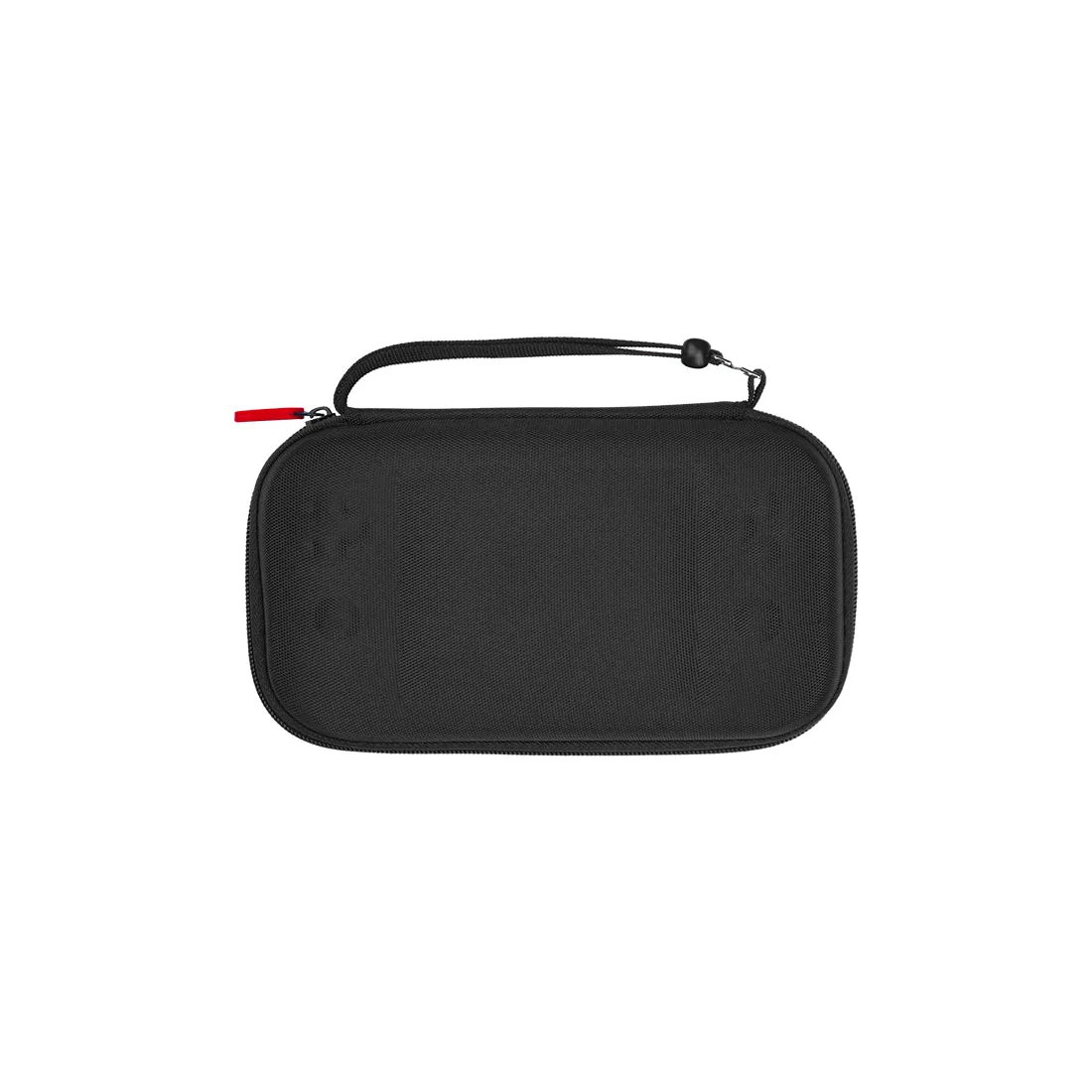
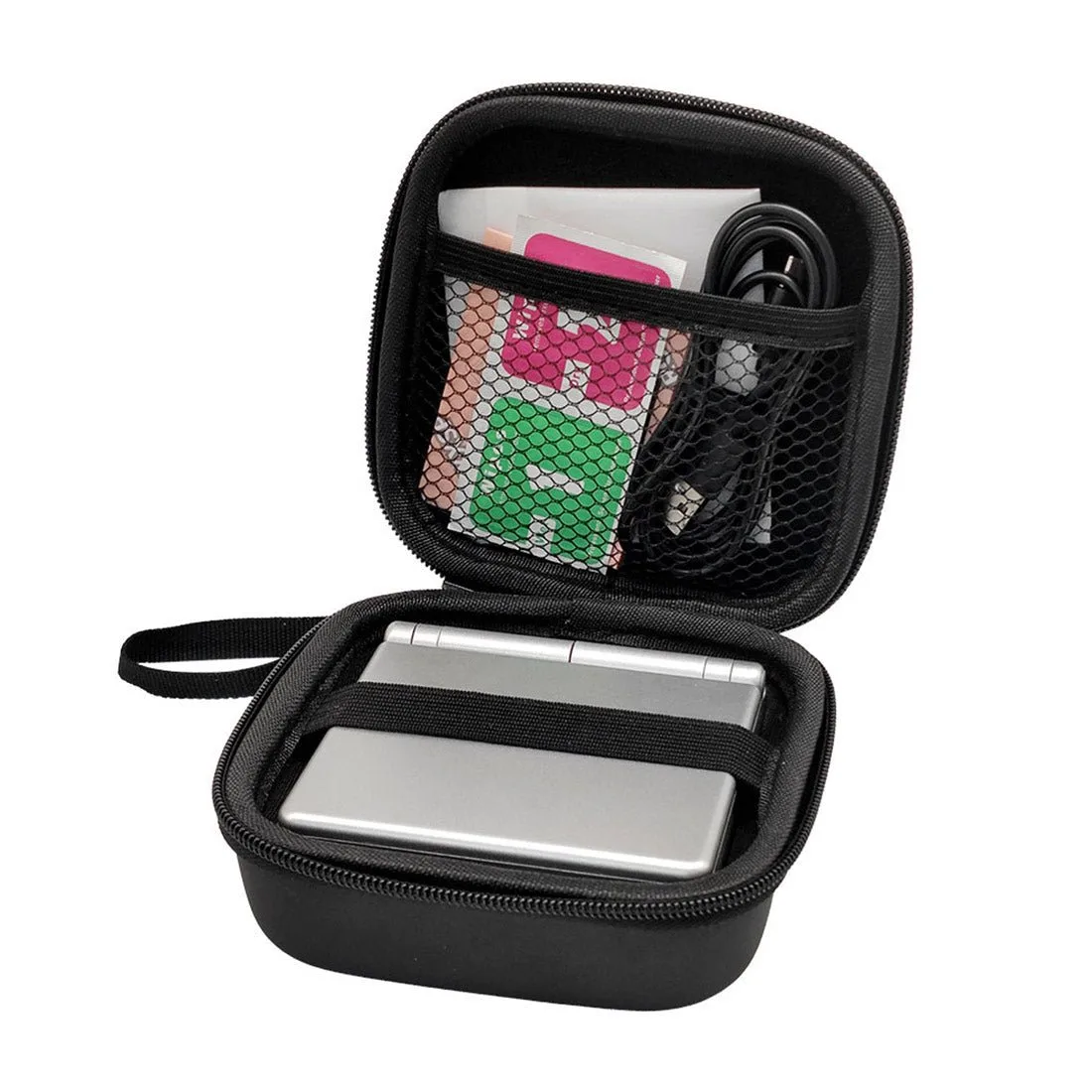
- Storage Bag for RG477M Retro Handheld Game Console: The storage bag for the RG477M retro handheld offers carrying convenience, ample space for the console and accessories, and sturdy scratch protection. If you swap panels or move your handheld between setups, safe storage prevents connector and cable damage that can cause later detection failures.