Quick answer
Plug the joystick into a rear USB port, let Windows recognize it, calibrate the axes once in the system game-controller panel, then bind controls inside MSFS or X-Plane and save that profile. Most setup problems come from skipping calibration or binding in the wrong profile.
Why plug-and-play still needs a calibration pass
USB plug-and-play removes driver installation, not the need to confirm axis ranges. Windows and the simulator each read raw axis values, and a stick that reports a slightly off-center rest position will drift in cruise even though every button works.
Do the calibration in the Windows game-controller panel before opening the simulator. If you calibrate inside the sim first, you may be correcting a problem the operating system has already half-solved, and the result is harder to reproduce after a reinstall.
Where MSFS and X-Plane store your bindings
Both simulators keep control assignments in profiles tied to the detected device. MSFS creates a default profile per device and lets you duplicate it; X-Plane saves assignments per aircraft unless you deliberately save a general profile. That difference explains why a setup that works in one airliner can feel wrong in a light single.
Name your profiles after the aircraft category rather than the stick, for example 'GA single' or 'twin turboprop'. When you add a second controller later, the naming makes it obvious which profile owns which axis.
When to expect conflicts
If another USB controller is already assigned to the same axis, both devices will fight for it and the aircraft will respond erratically. Disconnect unused controllers during first setup, or clear the duplicate assignment in the sim's control menu before flying.
Some aircraft add-on packages ship their own control presets that override the simulator defaults. If your bindings seem ignored in one specific aircraft, check that aircraft's own configuration before rebuilding the whole profile.
Setup steps
- Connect to a rear USB port: Plug the stick directly into a rear motherboard port rather than a front-panel hub, then wait for Windows to report the device as ready. Common mistake: using an unpowered hub, which can cause intermittent dropouts mid-flight. Confirm the device appears in Windows game controllers before opening the simulator.
- Calibrate axes in Windows: Open the game-controller properties, run the calibration wizard, and move each axis through its full travel slowly. Check that the rest position sits at center and that no axis spikes when released. If an axis will not hold center after calibration, re-test on another port before blaming the simulator.
- Create a named profile in the simulator: In MSFS, duplicate the default profile for the device and rename it; in X-Plane, save a general profile before binding. Common mistake: editing the default profile, which is harder to reset cleanly later. One profile per aircraft category keeps later changes predictable.
- Bind primary axes first: Assign pitch, roll and yaw before anything else, then test in a free-flight session with the aircraft on the runway. Common mistake: binding buttons first and discovering an inverted axis only after takeoff. If an axis responds backward, use the invert option rather than rebinding to a different axis.
- Add buttons and save: Bind only the buttons you actually use in your first aircraft, then save the profile explicitly. Common mistake: closing the control menu without saving, which discards the session's assignments. Reopen the control menu after saving to confirm the bindings persisted.
Product notes
-
Flight Simulation Joystick, USB Plug-and-Play, Compatible with Mainstream Flight Simulation Platforms and Various Aircraft Configurations: USB plug-and-play with automatic system recognition and no driver installation. You can go straight to Windows calibration and in-sim binding instead of troubleshooting drivers first.
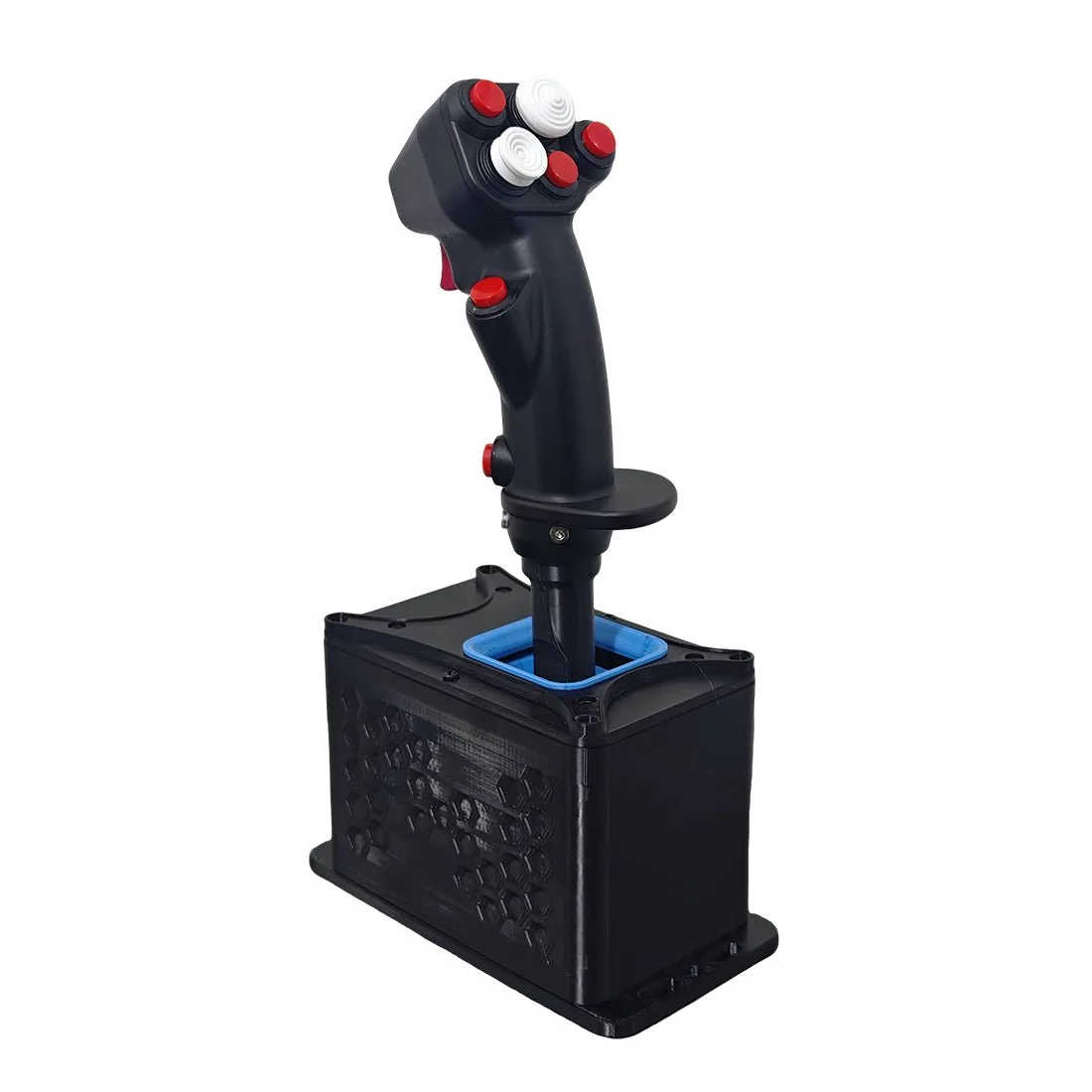
Flight Simulation Joystick, USB Plug-and-Play, Compatible with Mainstream Flight Simulation Platforms and Various Aircraft Configurations
-
Flight Simulation Joystick, USB Plug-and-Play, Compatible with Mainstream Flight Simulation Platforms and Various Aircraft Configurations: Developed for PC-based flight simulation with in-game button and axis binding across mainstream platforms and aircraft models. Assignments are made inside MSFS or X-Plane, so the profile you save is the one that controls the aircraft.