Choosing the Right Weather Layer for Your Photo
The Fog & Rain Overlays and Actions Collection gives you over 100 weather elements, but knowing which layer to use first makes the difference between a believable scene and a distracting effect. Each type of overlay—fog, smoke, rain, and lightning—creates a distinct mood, and the included applicator actions help you blend them in seconds.
Start by deciding the atmosphere you want: dreamy and soft, dramatic and stormy, or somewhere in between. The overlays are real smoke images, so they look natural when placed correctly.
What the Collection Includes
-
Fog & Rain Overlays and Actions Collection: 23 Choppy Fog & Smoke Overlays, 22 Organic Fog & Smoke Overlays, 27 Puffy Fog & Smoke Overlays, 14 Wispy Fog & Smoke Overlays, 15 Rain Overlays, 5 BONUS Lightning Overlays. Knowing the exact overlay counts helps you choose based on the texture you need: choppy for rough mist, organic for natural haze, puffy for thick clouds, wispy for light tendrils.
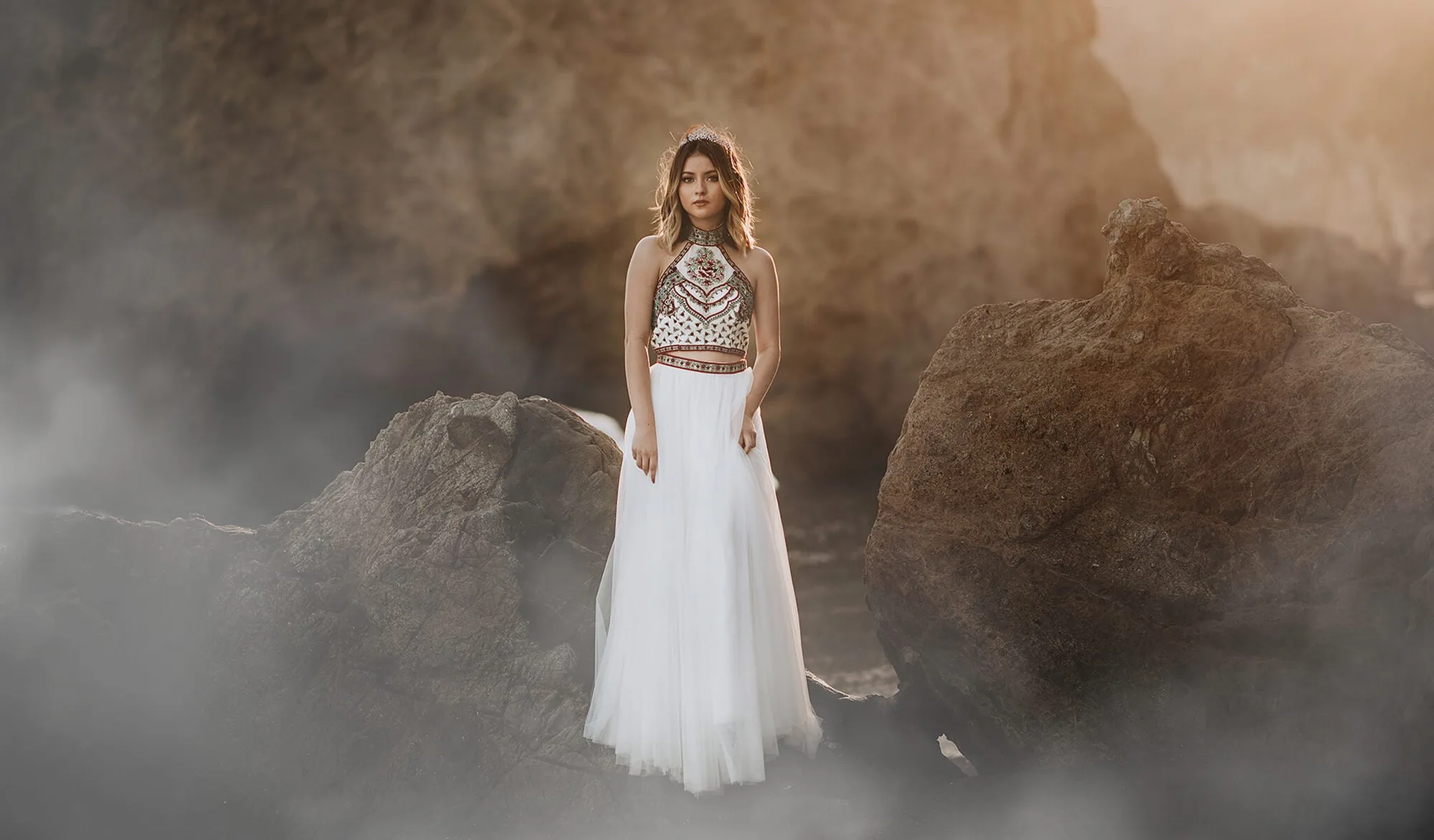
Fog & Rain Overlays and Actions Collection
How to Apply Each Layer with the Included Actions
The collection includes Fog Applicator, Rain Applicator, and BONUS Lightning Applicator actions. These are not standalone filters—they work on top of the overlays to help you adjust color and make selective edits.
- Fog or smoke overlay: Open your image in Photoshop. Choose one of the 86 fog/smoke overlays based on the texture you want. Run the Fog Applicator action to change the overlay's color (useful for gender reveal sessions) and make selective adjustments. The action saves time compared to manual masking.
- Rain overlay: Pick one of the 15 rain overlays. Use the Rain Applicator action to blend it naturally with your scene. The action helps match the rain direction and opacity so it looks like part of the original image.
- Lightning overlay: Add drama with one of the 5 lightning bolt overlays. The BONUS Lightning Applicator action lets you position and blend the bolt quickly. Use this sparingly—too many lightning elements can make the scene feel artificial.
Overlay vs Action: What Each Does
An overlay is the actual weather element—the fog, rain, or lightning image you place on top of your photo. An action automates the steps to apply that overlay: it can change the color, adjust opacity, and create a mask for selective editing. Without the actions, you would need to do all that manually. The actions are shortcuts, not replacements for the overlays.
For example, if you want a soft fog effect over a portrait, you would drag the wispy overlay onto your image, then run the Fog Applicator action to tint it and fine-tune the blend. The action does not create the fog; it helps you apply it faster.
How to Combine Multiple Weather Layers
You can stack overlays for a richer scene. Start with a fog layer for background atmosphere, add rain in the midground, and finish with lightning for a focal point. Because the overlays are real smoke images, they layer naturally without looking like a filter.
The applicator actions work on each layer individually, so you can adjust the color and blending of each element separately. This control lets you create custom weather effects without manual masking.
What the Collection Does Not Confirm
The product record does not specify exact blending modes or opacity percentages for each overlay. You will need to experiment with layer blend modes (such as Screen or Overlay) and opacity to match your specific image. The video tutorial included in the download can guide you through the process, but the final adjustment depends on your photo's lighting and composition.
Basic knowledge of Photoshop or Photoshop Elements is required. The actions are designed for standard Photoshop versions, but the record does not list specific version compatibility. If you use an older version, test the actions on a sample image first.