Quick answer
Connect the Nyko Gamer Dock to your Switch 2 via USB-C, then attach an HDMI 2.1 cable and power adapter. Adjust your Switch 2 display settings to enable 4K and HDR for the best visual experience.
What you need before starting
The Nyko Gamer Dock for Switch 2 is built exclusively for the Switch 2's advanced architecture. It requires a USB-C connection, an HDMI 2.1 cable (not included) for 4K HDR output, and the original power adapter or a compatible USB-C PD charger. Ensure your TV or monitor supports HDMI 2.1 and 4K HDR for full benefit.
Common setup mistakes
Using an older HDMI cable (e.g., HDMI 2.0) will limit output to 4K at 60Hz without HDR or cause intermittent signal loss. Always use a certified HDMI 2.1 cable rated for 48Gbps. Also, plug the dock directly into a wall outlet, not a USB hub or power strip, to avoid power delivery issues.
Step-by-step setup
- Connect the dock to power: Plug the USB-C power cable into the Gamer Dock and connect the other end to a wall outlet using the Switch 2's original power adapter or a compatible USB-C PD charger (15V/3A minimum). A power strip may not deliver consistent power; use a wall outlet for reliable charging.
- Attach the HDMI cable: Connect one end of an HDMI 2.1 cable to the dock's HDMI output port and the other end to your TV or monitor's HDMI 2.1 input. Ensure the cable is fully inserted. Using an HDMI 2.0 cable will cap resolution at 4K 60Hz without HDR; upgrade to 2.1 for full 4K HDR support.
- Connect the Switch 2: Insert the USB-C end of the dock's cable into the Switch 2's USB-C port. The console should begin charging and the display should mirror to your TV within a few seconds. If no image appears, check that the dock's cable is fully seated and the Switch 2 is awake (not in sleep mode).
- Configure display settings on the Switch 2: Go to System Settings → TV Settings. Set Resolution to 2160p (4K) and enable HDR. If your TV supports VRR, also enable Match TV Frame Rate for smoother motion. If your TV doesn't support 4K or HDR, the console will automatically fall back to 1080p SDR; no further changes needed.
- Test audio and game performance: Launch a game that supports 4K HDR (e.g., The Legend of Zelda: Tears of the Kingdom or a compatible title). Verify the TV displays an HDR badge and that audio syncs correctly. Adjust audio output in System Settings if needed. If audio is out of sync, try changing the TV's audio format to PCM in the Switch 2 settings.
Product facts
-
Gamer Dock for Switch™ 2 | 4K & HDR High-Performance Hub: Native 4K Ultra HD: Specifically engineered to handle the Switch 2’s high-bandwidth requirements for 4K visuals and ultra-fluid frame rates. This means you get sharp, smooth gaming without the signal degradation or lag that can occur with generic USB-C hubs.
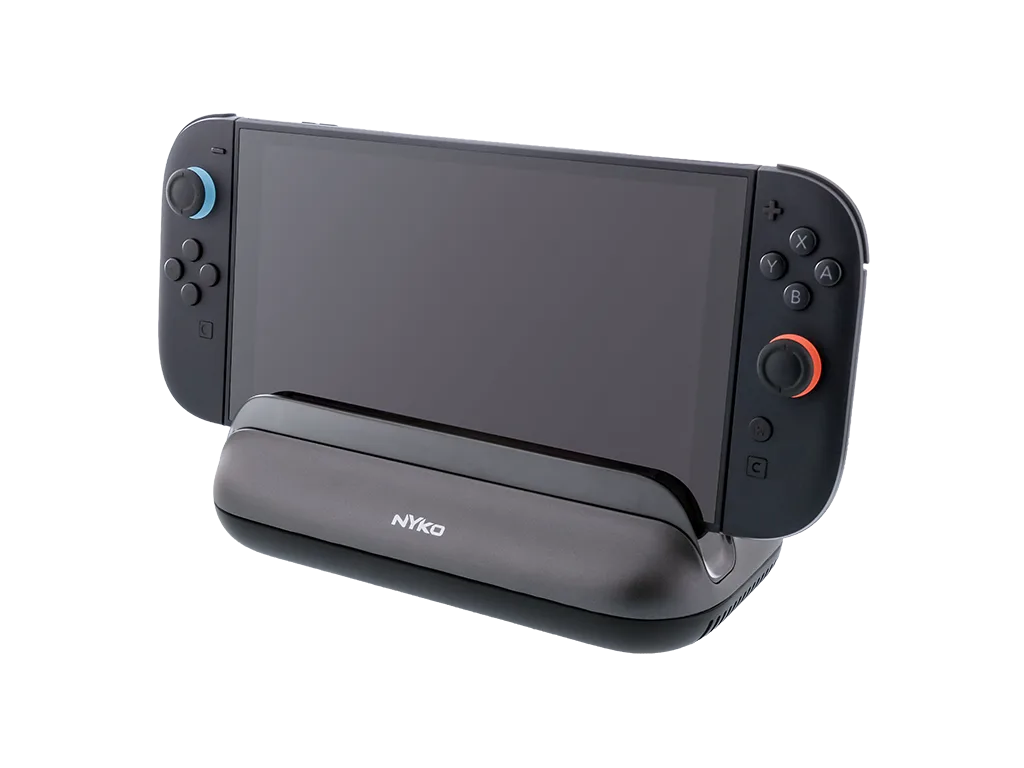
Gamer Dock for Switch™ 2 | 4K & HDR High-Performance Hub