Quick Answer
Before you replace anything, check three things in order: the physical mute switch or flip-to-mute boom, the input device selected in your game or chat app, and Windows microphone privacy permissions. Most gaming headset mic not working cases are one of those three, not a dead microphone. If all three pass and the mic still fails on a second device, the headset hardware is the likely cause.
Start With the Mute Switch and Boom Position
A surprising share of dead-mic calls end with a mute switch that got bumped. Check the inline remote, the earcup button, and any flip-to-mute boom. If your boom flips up to mute, it must sit down and close to your mouth to pick up speech.
Then reseat the connection. Unplug and replug the 3.5mm jack, USB plug, or wireless dongle. On a PC, try a different USB port, ideally one directly on the motherboard rather than a hub or monitor. If your headset uses a split mic/headphone jack and your PC has a single combo port, you need the splitter that came with the headset; without it, the mic line never reaches the PC.
Check the Input Device in Windows and Your Game
Open Settings > System > Sound > Input and confirm your headset is listed and selected. Speak and watch the test bar. If the bar moves, Windows hears you and the problem is inside the game or chat app, not the headset.
In Discord, Steam voice settings, or the in-game voice menu, set the input device explicitly instead of leaving it on Default. Default can route to a webcam mic or a monitor mic after a reboot. Also check push-to-talk: if it is enabled, your mic only transmits while the bound key is held, which reads as a dead mic to everyone else.
Fix Privacy Permissions and Driver Conflicts
Windows 11 and Windows 10 both gate microphone access. Go to Settings > Privacy & security > Microphone and turn on Microphone access plus Let apps access your microphone. Scroll down and confirm the specific app, such as Discord or your game, is allowed. A blocked app shows a working mic in the Sound panel but transmits nothing.
If the device still does not appear, open Device Manager > Audio inputs and outputs, right-click your headset, and choose Uninstall device, then restart. Windows reinstalls the driver on boot. For USB headsets, also try disabling exclusive mode: Sound > Input > your device > Properties > Advanced, then uncheck Allow applications to take exclusive control.
Test on a Second Device Before You Buy
Plug the headset into a phone, tablet, or another PC and record a voice memo. If the mic works there, your original PC's port, driver, or settings are the fault. If it fails everywhere, the microphone element or its wiring is the problem.
This test also tells you what to replace. If only the mic fails but audio still plays, a replacement cable or a headset with a detachable boom may be enough. If the whole headset is aging out, a model with a boom mic and on-board controls is the practical upgrade for chat and calls.
Symptom-to-Cause Diagnosis
- No mic detected in Windows at all: The device is missing from Settings > Sound > Input. Replug the headset, try another port, and check Device Manager for a disabled or unknown device. If it never appears on any port or PC, the mic hardware or cable is the fault.
- Windows sees the mic but the level bar stays flat: The device is listed but no signal registers when you speak. Confirm the mute switch is off, the boom is down, and the correct input is selected. A flat bar on a correctly selected device points to a muted or faulty mic element.
- Level bar moves, but teammates still cannot hear you: Windows is receiving audio, so the break is in the app: wrong input device, push-to-talk, or a blocked privacy permission. Fix the app settings; replacing the headset will not help here.
- Works on a phone or second PC, fails on your gaming PC: The headset is fine. The problem is the PC port, driver, or a setting that resets after updates. Reinstall the audio driver and recheck exclusive mode before buying anything.
- Fails on every device you try: The microphone element, boom wiring, or inline module has failed. This is the point to replace the headset rather than keep troubleshooting.
When Replacement Makes More Sense
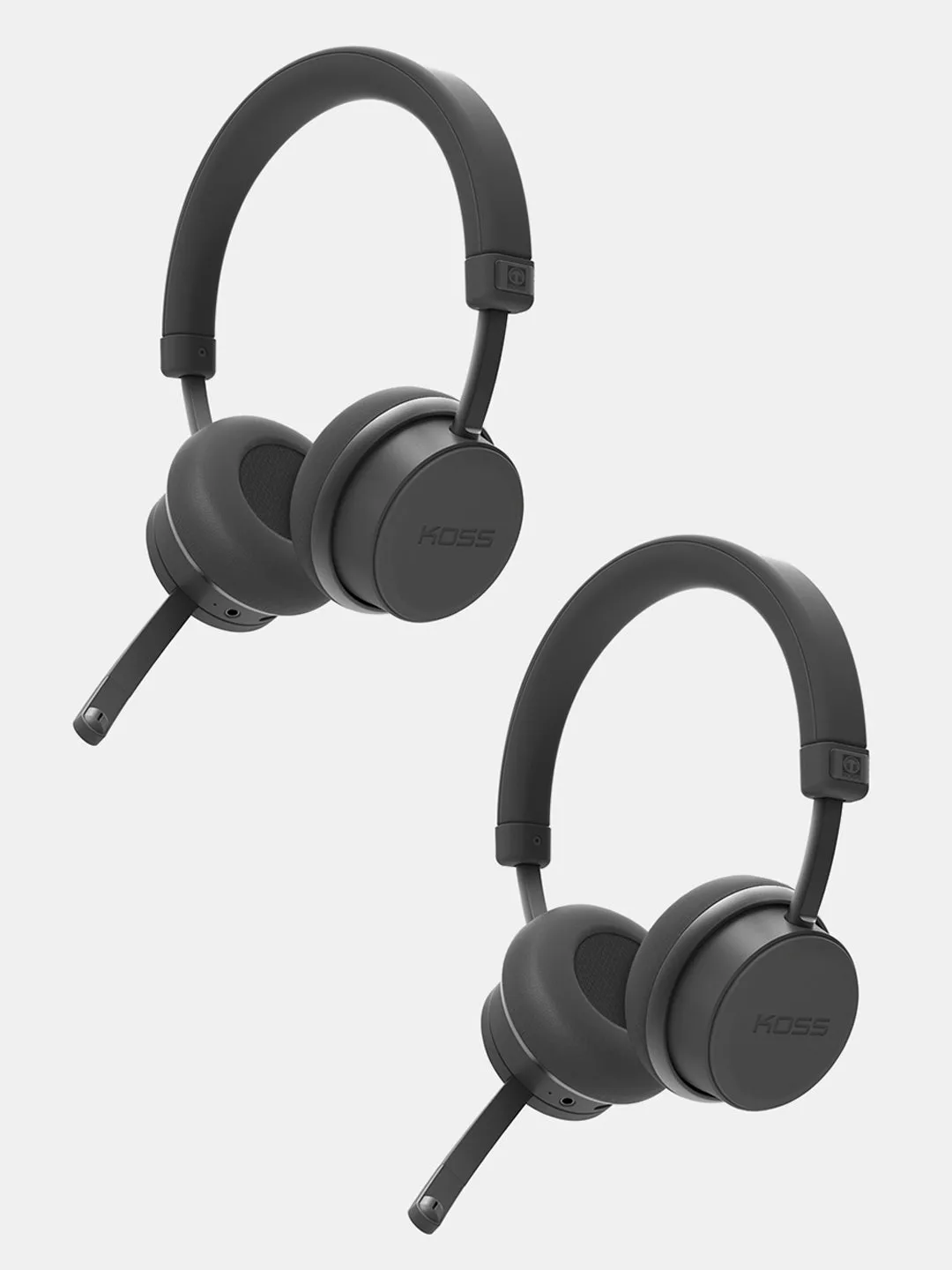
- CS340BT QZ - Buy One Get One Free: The Koss CS340BT QZ is a wireless communication headset with environmental and active noise cancellation, on-board controls, and up to 22 hours of use with ANC plus Bluetooth or up to 30 hours with Bluetooth only. On-board controls let you mute and adjust without touching software, and the long battery means a full session of chat or calls without a mid-game recharge.
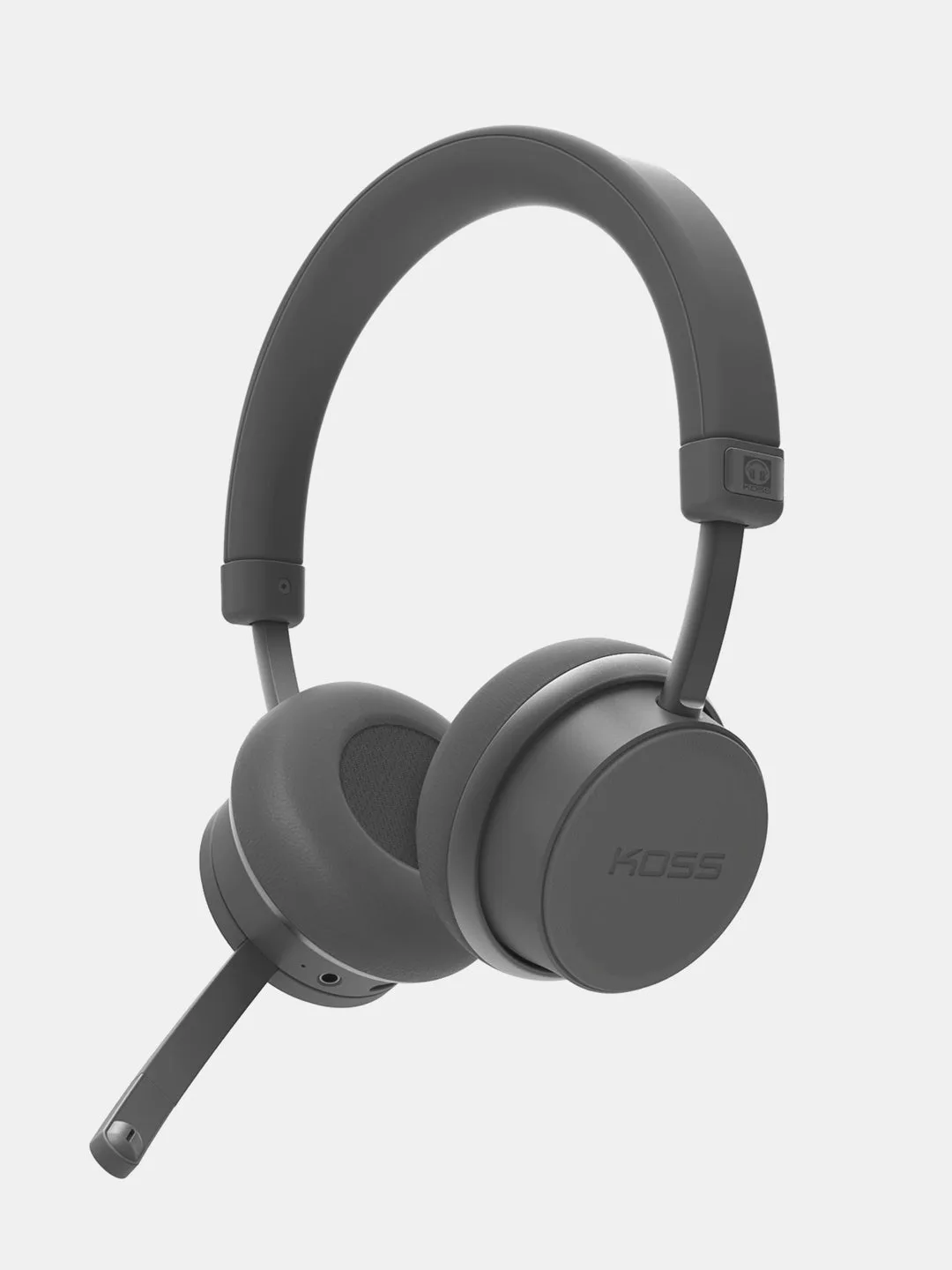
CS340BT QZ
- BT232i Bluetooth®: The Koss BT232i Bluetooth FitClips use a SportClip design, an 18+ hour rechargeable battery with USB-C charging, an inline microphone and remote, and three cushion sizes. A stable clip-on fit keeps the mic in a consistent spot near your mouth, which is often the real reason a headset mic sounds unreliable.