Getting Started with Your Ghostbusters Charging Mat
If you've just picked up the Official Ghostbusters Wireless Charging Mat, the setup is straightforward, but a few key checks will make sure your devices charge reliably. This guide walks you through placement, compatibility, and care, so you can keep your phone and earbuds powered without fumbling with cables.
Before you plug anything in, the most important step is confirming that your device supports wireless charging. The mat is compatible with iPhone, Samsung, Nokia, and other wirelessly charged devices, but it will not work with phones that lack wireless charging capability. Check your device specifications if you are unsure.
What the Official Charging Mat Offers
-
Official Ghostbusters Wireless Charging Mat: 10W fast charge for smartphones and other wireless charging devices. This tells you the mat can top up compatible phones and earbuds quickly, so you can plan your charging sessions without long waits.
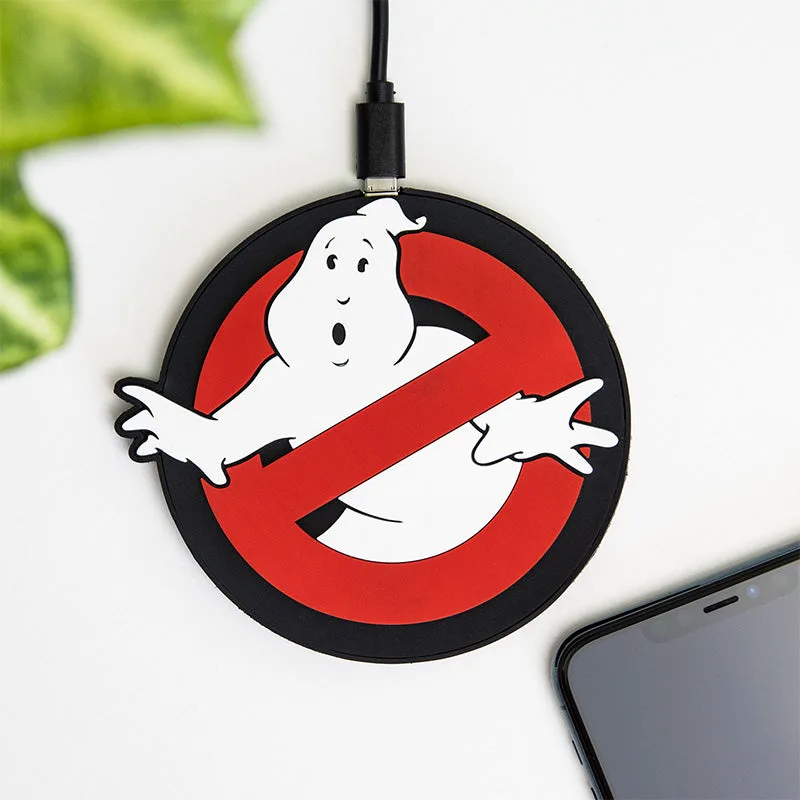
Official Ghostbusters Wireless Charging Mat
-
Official Ghostbusters Wireless Charging Mat: Built-in over-charging and over-temperature circuit protection. Safety features like these give you peace of mind when leaving the mat plugged in overnight or on a desk all day.
-
Official Ghostbusters Wireless Charging Mat: Sleek, compact design with non-slip rubber. The non-slip base keeps the mat steady on a desk or bedside table, so your phone stays put while charging.
-
Official Ghostbusters Wireless Charging Mat: Official Ghostbusters product designed and manufactured by Numskull Designs, featuring the iconic Ghostbusters logo design. For collectors, this confirms the mat is an officially licensed piece that fits a Ghostbusters-themed setup.
How to Set Up Your Wireless Charging Mat
Follow these steps to get your charging mat ready for everyday use. The process takes only a few minutes and requires no special tools.
- Check device compatibility: Confirm that your phone or earbuds support wireless charging. The mat works with iPhone, Samsung, Nokia, and other wirelessly charged devices, but not with non-wireless devices.
- Choose a flat, stable surface: Place the mat on a desk, bedside table, or lounge table. The non-slip rubber base helps keep it in place, but a clean, level surface works best.
- Connect the mat to power: Plug the mat into a power source using the cable and adapter that came with it. (The catalog does not specify the cable type, so use the included accessories.)
- Position your device on the mat: Place your phone or earbuds case on the center of the mat. Align the device's charging coil with the mat's surface for the most reliable charge.
- Monitor the charging status: Watch for a charging indicator on your device or the mat. If charging doesn't start, reposition the device and check that it is wireless-charging enabled.
Placement Tips for Best Results
Where you put the mat matters more than you might think. Because it uses a 10W fast charge, you want a spot where your phone can rest undisturbed. A desk or bedside table is ideal, but avoid placing it on uneven or soft surfaces that could block airflow. The non-slip rubber base helps keep the mat steady, so you can place it within easy reach without worrying about it sliding around.
If you use the mat in a lounge area, make sure the surface is clear of metal objects or other electronics that could interfere with wireless charging. Keep the mat away from direct heat sources, and remember that the built-in over-temperature protection is a safety net, not a substitute for sensible placement.
Caring for Your Charging Mat
To keep your Ghostbusters charging mat looking and working its best, wipe it occasionally with a soft, dry cloth to remove dust and fingerprints. Avoid using liquids or abrasive cleaners, which could damage the surface or the logo. Unplug the mat when you're not using it for extended periods, and store it in a cool, dry place if you need to pack it away.
The catalog doesn't specify detailed cleaning instructions, so a gentle, dry wipe is the safest approach. Also, remember that the mat is designed for indoor use, so keep it away from moisture and extreme temperatures.
What to Do If Charging Doesn't Work
If your device doesn't charge, start by checking that it is wireless-charging enabled. The mat will not work with non-wireless devices, so this is the most common issue. Next, reposition your device on the mat to ensure proper alignment. If the problem persists, check that the mat is connected to a working power source and that the cable is fully seated. The catalog doesn't list troubleshooting steps beyond compatibility, so if the mat still doesn't work, contact the retailer or manufacturer for support.