Quick answer
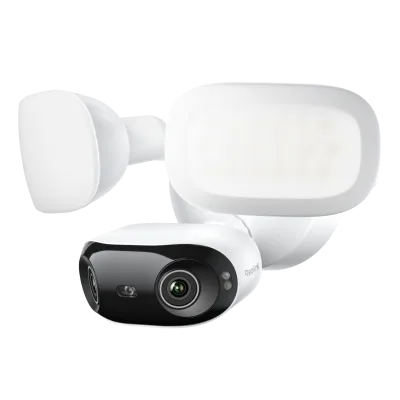
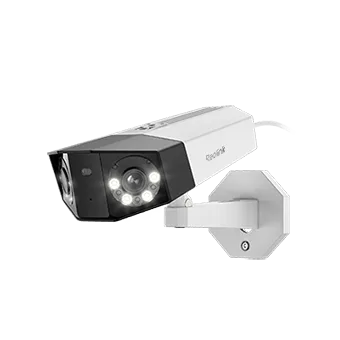
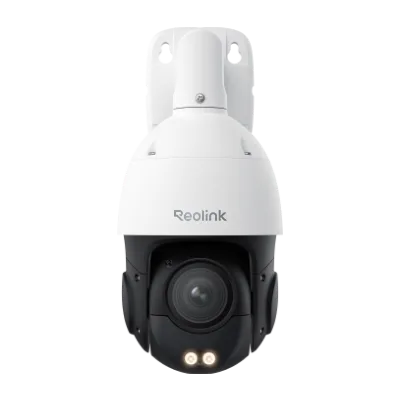
To add a Reolink camera to your NVR, connect the camera to a PoE port on the NVR using an Ethernet cable, then power on the NVR. The camera will appear automatically in the NVR's channel list within a minute. If it doesn't, log into the NVR, go to the channel settings, and manually add the camera by scanning or entering its IP address. This process works for most Reolink PoE cameras, including the Elite Pro Floodlight PoE and Reolink Duo 2 PoE.
Before you start: what you'll need
Gather these items: your Reolink NVR, a compatible Reolink camera, an Ethernet cable (Cat5e or Cat6), a monitor with HDMI or VGA cable, and a USB mouse. If your camera is not PoE, you'll also need a power adapter. Make sure the NVR is running the latest firmware to avoid compatibility issues. You can check for updates in the NVR's settings menu under 'System' or 'Maintenance'.
Step 1: Connect the camera to the NVR
Plug one end of the Ethernet cable into the camera's network port and the other end into an available PoE port on the back of the NVR. The NVR's PoE ports provide both power and data, so no separate power adapter is needed for PoE cameras. If you're using a non-PoE camera, connect it to your network switch and power it separately. For outdoor cameras like the Elite Pro Floodlight PoE, ensure the cable connection is weatherproofed to prevent moisture damage.
Step 2: Power on the NVR and wait for detection
Turn on the NVR and wait for it to boot up. The NVR will automatically scan for connected cameras on its PoE ports. This usually takes 30-60 seconds. You'll see the camera appear in the live view grid or in the channel list. If the camera doesn't show up, check that the Ethernet cable is firmly seated and that the camera's LED indicators are on. A common mistake is using a faulty cable or a port that isn't PoE-enabled.
Step 3: Configure the camera in NVR settings
Once detected, the camera is added to a channel automatically. To customize settings, right-click and select 'Menu' > 'Camera' > 'Channel Configuration'. Here you can rename the channel, adjust resolution, enable motion detection, and set recording schedules. For dual-lens cameras like the Reolink Duo 2 PoE, ensure the channel is set to the correct aspect ratio to display the full 180° view. If you need to add a camera that isn't auto-detected, click 'Add' and enter the camera's IP address or scan the network.
Step 4: Verify and troubleshoot
After adding the camera, check the live view to confirm the image is clear and the field of view covers your intended area. If the camera shows 'Disconnected' or 'No Signal', try these steps: restart the NVR, swap the Ethernet cable, or move the camera to a different PoE port. For cameras with special features like auto-zoom tracking (e.g., Reolink TrackMix LTE), ensure the firmware is up to date and the feature is enabled in the camera's settings. If issues persist, reset the camera to factory defaults and repeat the pairing process.
Step-by-step NVR pairing checklist
- Connect camera to PoE port: Use an Ethernet cable to connect the camera to an available PoE port on the NVR. The NVR will provide power and data. Checkpoint: The camera's LED should light up. If not, try a different cable or port.
- Wait for auto-detection: Power on the NVR and wait up to 60 seconds. The camera should appear automatically in the live view or channel list. If it doesn't appear, proceed to manual add.
- Manually add if needed: In the NVR menu, go to 'Camera' > 'Channel Configuration' and click 'Add'. Enter the camera's IP address or use the scan function. Ensure the camera and NVR are on the same subnet.
- Configure settings: Rename the channel, adjust resolution, and set motion detection or recording schedules as desired. For dual-lens cameras, verify the aspect ratio to avoid cropping.
- Test and troubleshoot: Check live view. If the camera shows 'Disconnected', restart the NVR, swap cables, or reset the camera. Most issues resolve with a cable swap or firmware update.
Which Reolink cameras work with this setup
- Elite Pro Floodlight PoE: 16MP dual-lens system with a 180° field of view and built-in floodlights for clear night vision; PoE powered. This camera is ideal for wide-area coverage and works seamlessly with Reolink NVRs via a single Ethernet cable, simplifying installation.
- Reolink Duo 2 PoE: 4K dual-lens camera with a 180-degree field of view and PoE connectivity. Offers sharp 4K detail and panoramic coverage, and its PoE design means it connects directly to your NVR without extra power cables.
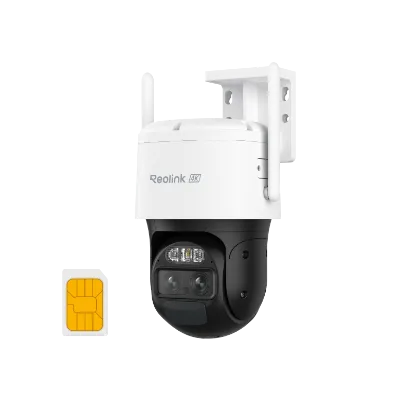
- Reolink TrackMix LTE: 4G LTE dual-lens camera with auto-zoom tracking; designed for areas without Wi-Fi. While this camera uses cellular connectivity, it can still be added to a Reolink NVR if it supports the camera's protocol; check compatibility before purchase.