Quick answer
To apply a crystal ball sticker patch to a laptop, clean the surface, peel the backing, position the patch, and press firmly for 30 seconds. No heat or iron is needed.
Why a sticker patch works on laptops
Unlike iron-on patches, a sticker patch has a peel-and-stick adhesive backing that bonds to smooth surfaces like laptop lids. The Crystal Ball Sticker Patch from These Are Things uses this design, making it a quick, heat-free option for personalizing your device.
Steps to apply the patch
- Clean the laptop surface: Wipe the area where you will place the patch with a lint-free cloth and isopropyl alcohol. Let it dry completely. This removes oils and dust that can weaken adhesion. A common mistake is applying to a dusty or greasy surface, which causes the patch to peel off within days.
- Peel the backing: Carefully peel the clear film from the back of the Crystal Ball Sticker Patch. Avoid touching the adhesive with your fingers to keep it clean.
- Position and press: Place the patch on the laptop in your desired spot. Once it touches the surface, you cannot reposition it easily, so align it carefully. Press firmly over the entire patch for at least 30 seconds, especially the edges. If the patch lifts at a corner, press it down again immediately. For best results, wait 24 hours before handling the laptop roughly.
Product facts
-
Crystal Ball Sticker Patch: This 1-inch embroidered patch features a peel-and-stick backing for easy application to bags, jackets, or any fabric surface. The peel-and-stick backing means you can apply it to a laptop without heat, iron, or additional adhesive, reducing the risk of damage to the device.
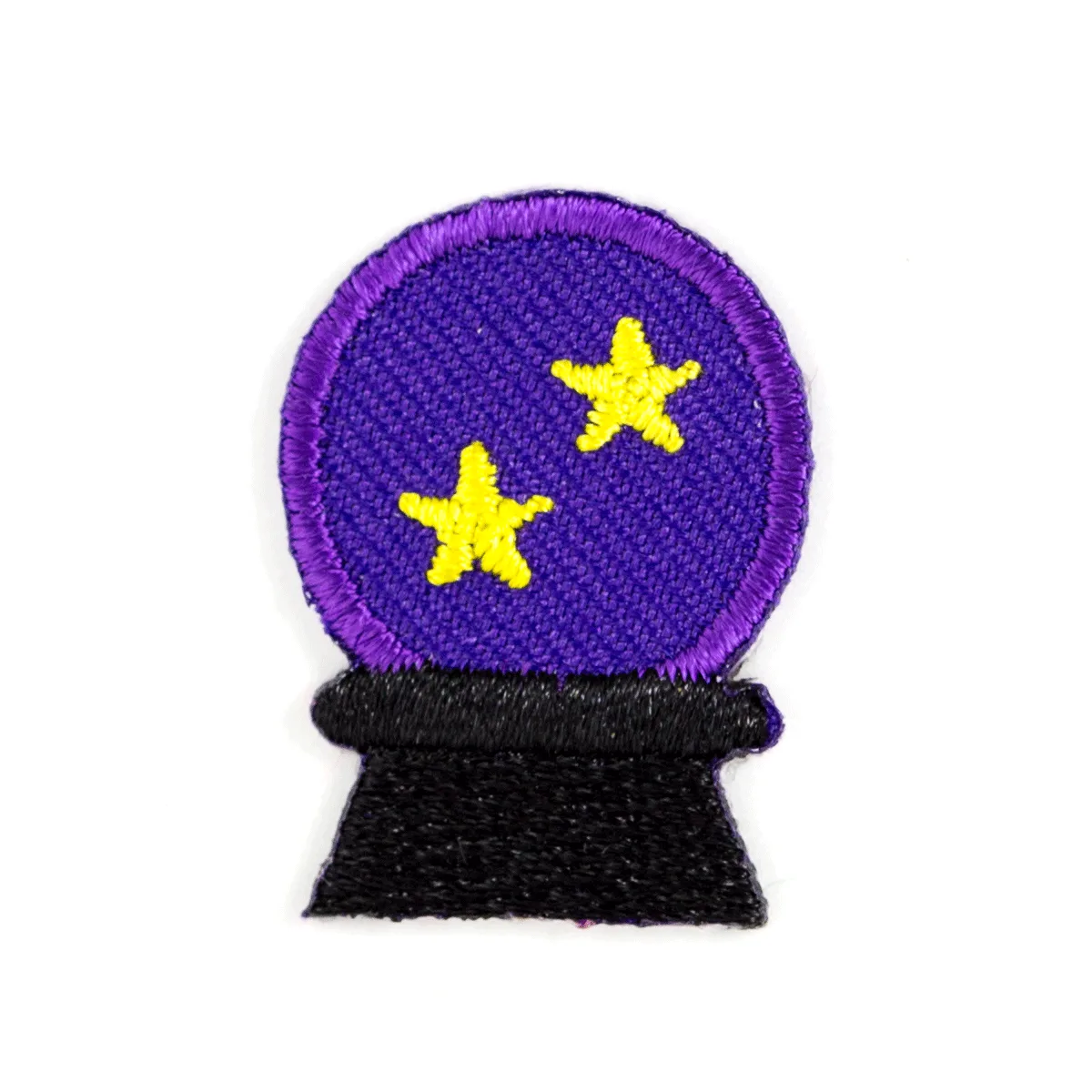
Crystal Ball Sticker Patch