Quick answer
Maintain your iPad keyboard and digital pen with a simple monthly routine: power everything off, wipe surfaces with a dry or barely damp microfiber cloth, clear debris from key gaps with soft air, and keep pens charged between 20% and 80%. Avoid alcohol sprays, paper towels, and leaving a pen on a hot dashboard. Consistent small habits prevent most sticky keys, worn tips, and battery degradation.
Why a consistent care routine matters
iPad keyboards and digital pens are mechanical and electronic devices that accumulate dust, skin oils, and pocket lint. Over time, that debris can cause keys to stick, charging contacts to fail, and pen tips to drag. A five-minute monthly routine is usually enough to prevent these problems, and it also gives you a chance to notice early wear before it becomes expensive.
The two biggest risks are liquids and heat. Most iPad keyboard cases use fabric or soft-touch plastic that traps moisture, and digital pens contain small batteries that degrade faster when stored fully charged or in hot environments. Treating both devices gently and keeping them dry will extend their usable life far more than any single deep clean.
What to keep in your care kit
You do not need a drawer full of specialty products. A clean microfiber cloth, a soft-bristled brush or clean makeup brush, a can of compressed air, and a few cotton swabs cover almost every situation. For disinfecting, use a 70% isopropyl alcohol wipe only on hard plastic surfaces and never on fabric or around openings.
Skip paper towels, which can scratch coatings and leave fibers behind, and skip household glass cleaners, which often contain ammonia or other solvents that damage oleophobic coatings on screens and pen tips. If your keyboard case is fabric, a dry brush is safer than any liquid.
How to clean an iPad keyboard case without damaging it
Start by detaching the keyboard case from the iPad and turning both devices off. Hold the case upside down and gently shake it to dislodge loose crumbs, then use short bursts of compressed air at an angle across the key gaps. Do not spray air directly into one spot, because condensation can form and moisture is the enemy of membrane keyboards.
For the keycaps and hard surfaces, wipe with a dry microfiber cloth. If a spot is stubborn, dampen a corner of the cloth with distilled water only, wring it out thoroughly, and wipe gently. For fabric-covered cases, brush the surface in one direction with a soft brush and let it air dry completely before reattaching it to the iPad. Never submerge the case or run it under a tap.
How to clean and protect a digital pen
Wipe the pen body and tip with a dry microfiber cloth after each heavy use to remove oils that cause skipping. If the tip feels gritty, inspect it for dust or a small burr; a damaged tip can scratch a screen, so replace worn tips rather than sanding them down. Use a cotton swab lightly dampened with distilled water around the tip housing, then dry it immediately.
For charging, follow the manufacturer's guidance. In general, avoid leaving a pen on a charger indefinitely and avoid fully draining it regularly. If you store a pen for weeks, aim for roughly half charge and keep it at room temperature. Heat from a car dashboard or a sunny windowsill is one of the fastest ways to permanently reduce a pen battery's capacity.
Storage habits that prevent most damage
Store the keyboard case closed with the iPad inside so the keys are not exposed to loose objects in a bag. Pens should travel in a dedicated slot or sleeve rather than loose next to keys, coins, or cables that can scratch the barrel or press on the tip. If you carry both in one bag, put the pen in a separate pocket.
At home, keep both devices out of direct sunlight and away from radiators, kitchen counters, and bathrooms where humidity swings are common. A simple shelf or drawer at room temperature is ideal. These habits cost nothing and prevent the warping, sticky keys, and battery swelling that are expensive to fix.
When to replace instead of repair
Some wear is not worth fixing. If multiple keys on a keyboard case stop responding after cleaning, the membrane or connection is likely failing. If a pen no longer holds a reasonable charge or the tip housing is cracked, replacement is usually more reliable than repair. Refurbished options can be a practical middle ground when the condition is documented and the price reflects it.
Before buying a replacement, confirm the model fits your exact iPad generation and that the pen is compatible with your device. Compatibility is the most common reason a care routine seems to fail: the accessory was never fully supported in the first place.
Your monthly care checklist
- Power down and detach: Turn off the iPad and remove the keyboard case before cleaning so you do not trigger keys or ports while wiping. Checkpoint: if the case does not detach easily, stop and check the manual rather than forcing it.
- Dry-clean the keyboard first: Shake out loose debris, then use short bursts of compressed air across the key gaps at an angle. Common mistake: spraying air straight down can push crumbs deeper into the keyboard.
- Wipe surfaces with a microfiber cloth: Use a dry cloth for daily dust and a barely damp corner with distilled water for stubborn spots on hard plastic only. Common mistake: using alcohol or glass cleaner on fabric or coated surfaces.
- Clean the pen body and tip: Wipe the barrel and tip housing with a dry microfiber cloth, and use a lightly dampened swab only around the tip if needed. Checkpoint: replace the tip if it is visibly worn or gritty rather than cleaning it repeatedly.
- Manage battery level: Keep the pen between roughly 20% and 80% for storage, and avoid leaving it on a charger for days. Common mistake: storing a pen fully drained for weeks, which can make it unable to recharge.
- Store both devices properly: Close the keyboard case around the iPad and keep the pen in a dedicated slot or sleeve, away from heat and humidity. Next step: set a monthly reminder so the routine actually happens.
Products that fit this care routine
- Refurbished Folio Touch for iPad Air & Pro - Oxford Grey - English US (QWERTY): Refurbished Folio Touch keyboard case for iPad Air and iPad Pro in Oxford Grey with an English US QWERTY layout. A refurbished case benefits even more from regular cleaning, since fabric and key gaps hold dust that can affect key response.
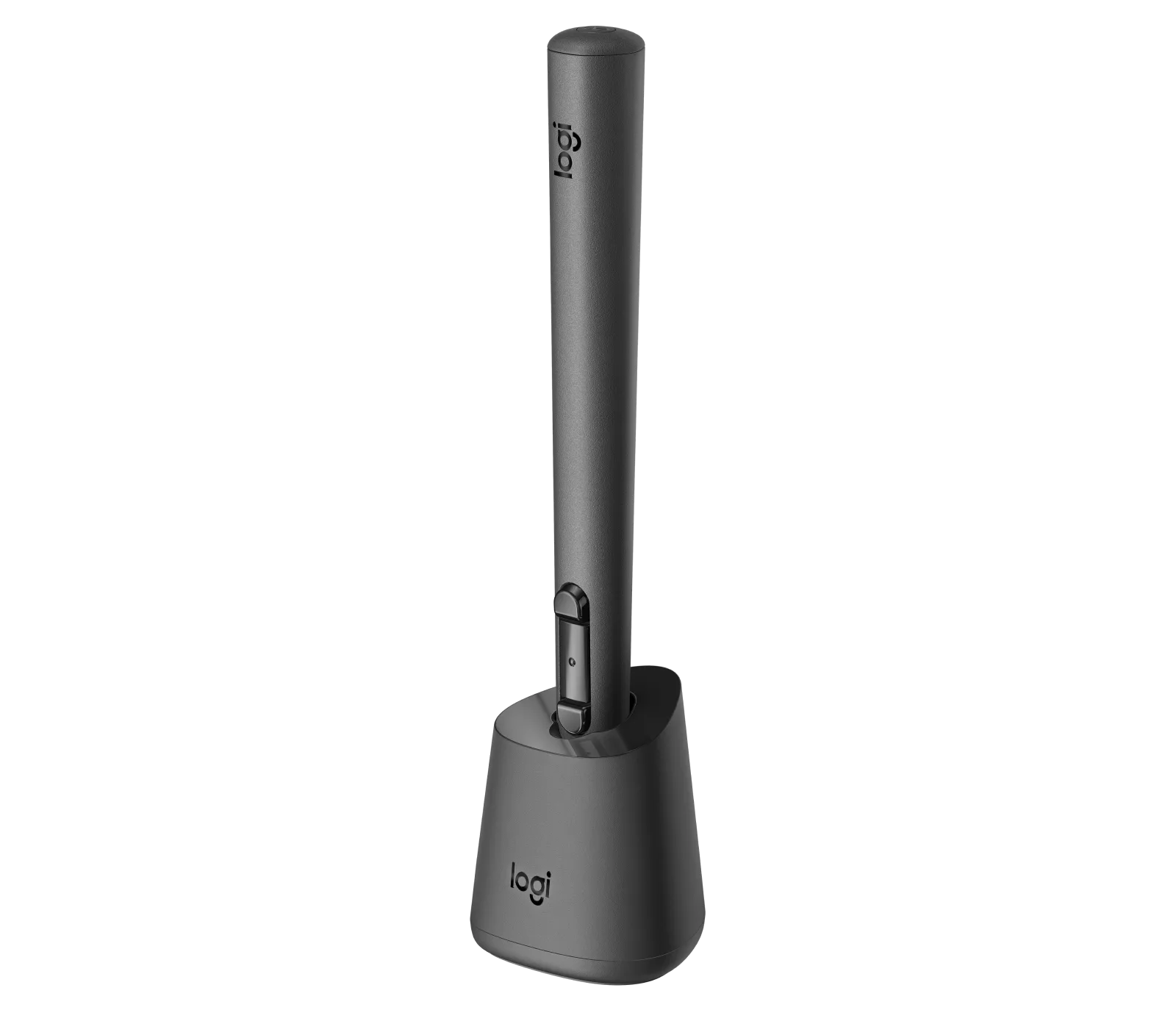
- MX Ink + Inkwell Combo - Black: MX Ink + Inkwell Combo in Black, including the MX Ink stylus and the Inkwell charging dock. A dedicated dock makes it easier to store the pen safely and avoid the deep discharges that shorten battery life.
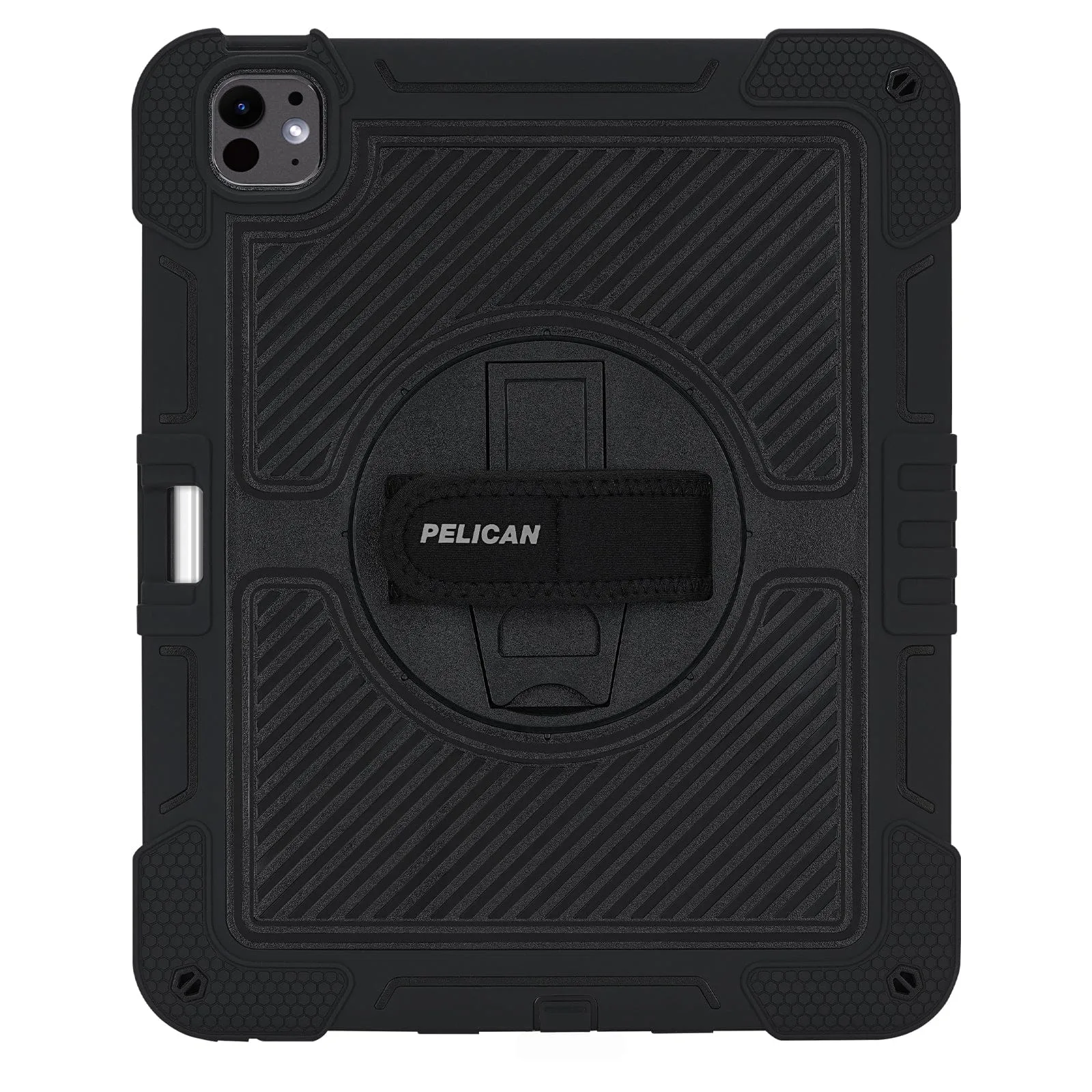
- Carrying Case - G CLOUD - Black: Carrying Case for G CLOUD in Black with a custom-fit design and interior padding. Padded, fitted storage keeps accessories from knocking against each other, which reduces scratches and tip damage during travel.