Quick Answer
To change the code on most Yale keypad locks, enter the current master code, press the Yale button, then follow the prompts to enter and confirm a new code. The exact sequence varies by model, but the process takes under two minutes and requires no tools.
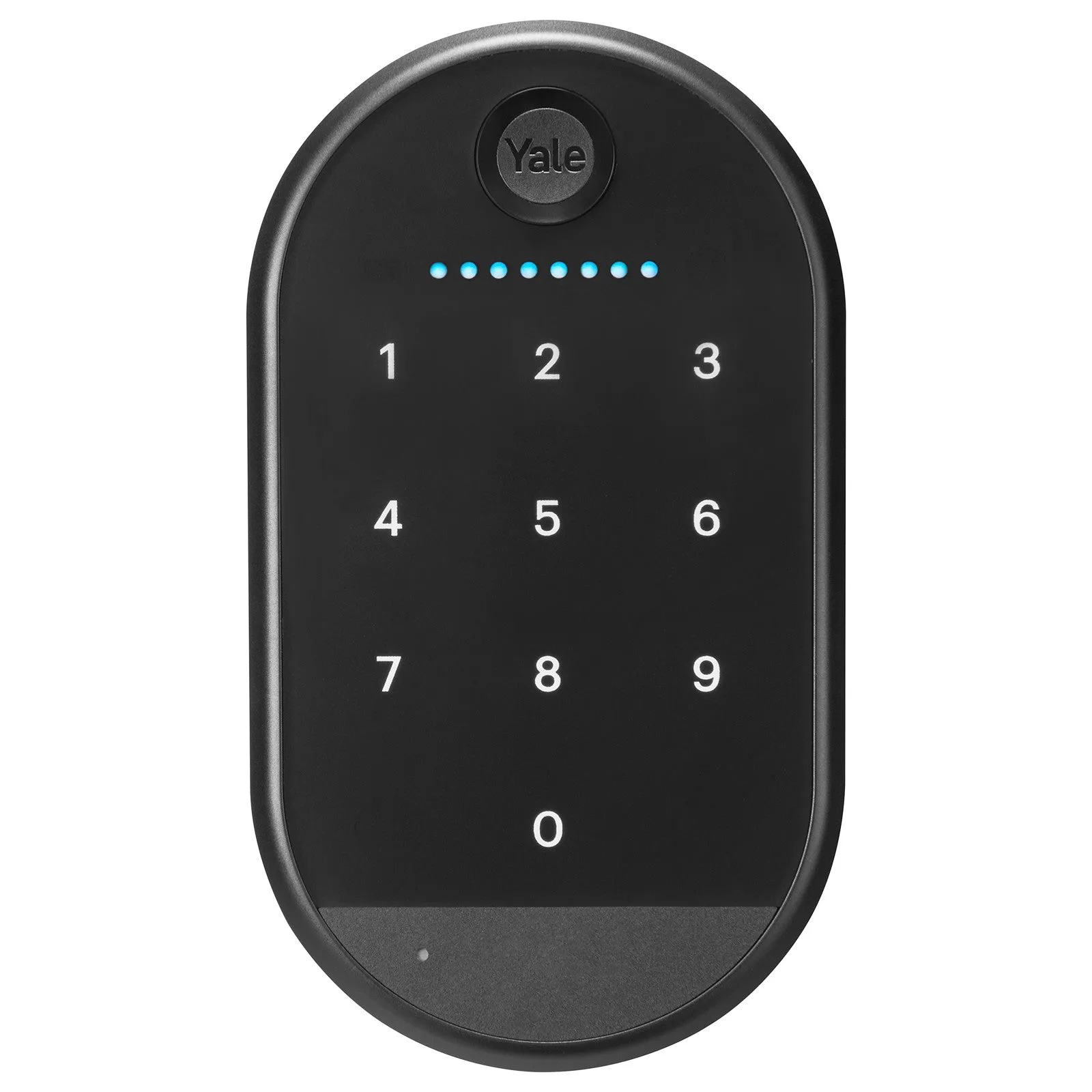
Yale keypad
Before You Start: What You'll Need
You need your current master code (also called the programming code). If you bought a used lock or forgot the code, you may need to perform a factory reset first. Keep the lock's programming guide handy, or download the Yale Home app if your lock supports Bluetooth or Wi-Fi. The app lets you manage codes without touching the keypad.
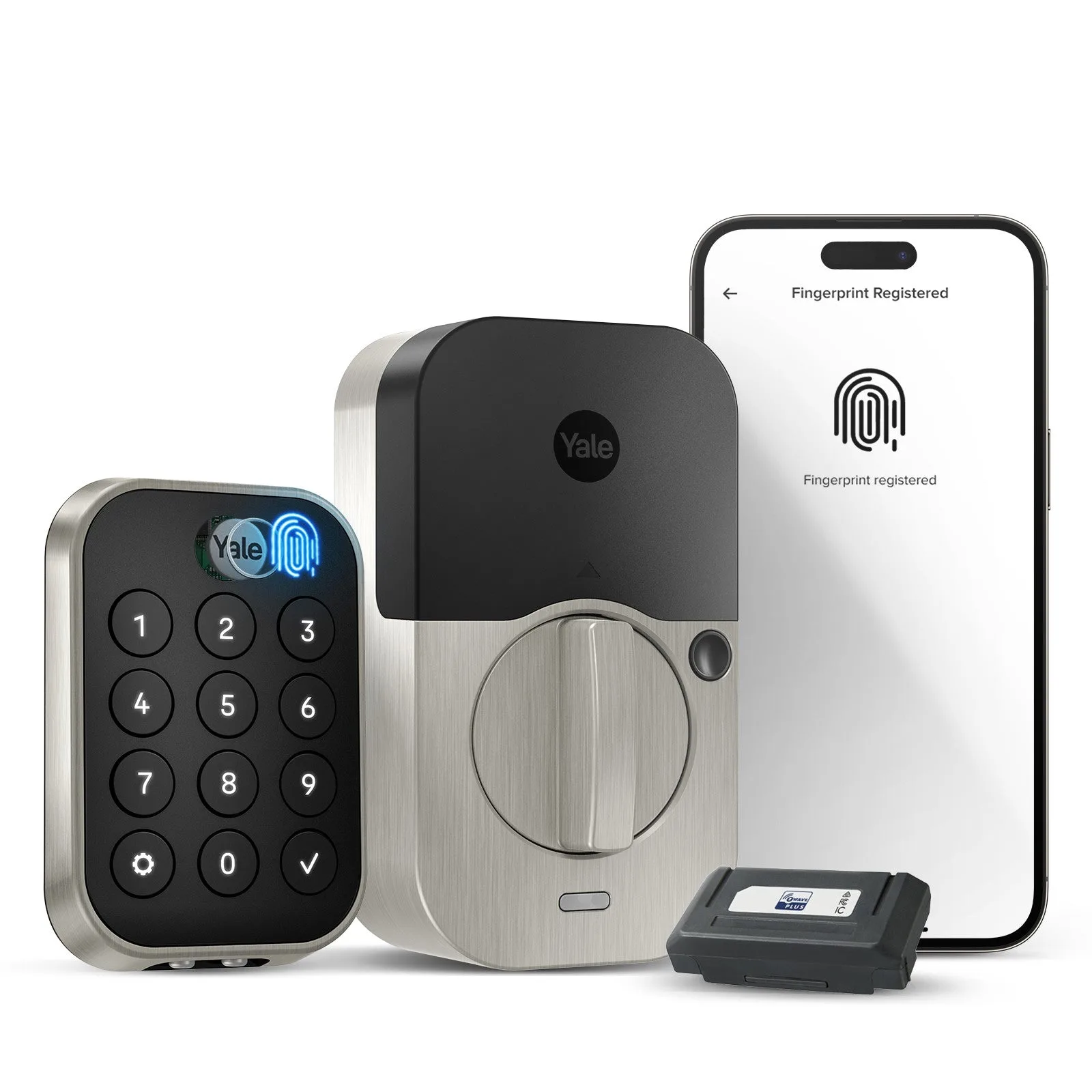
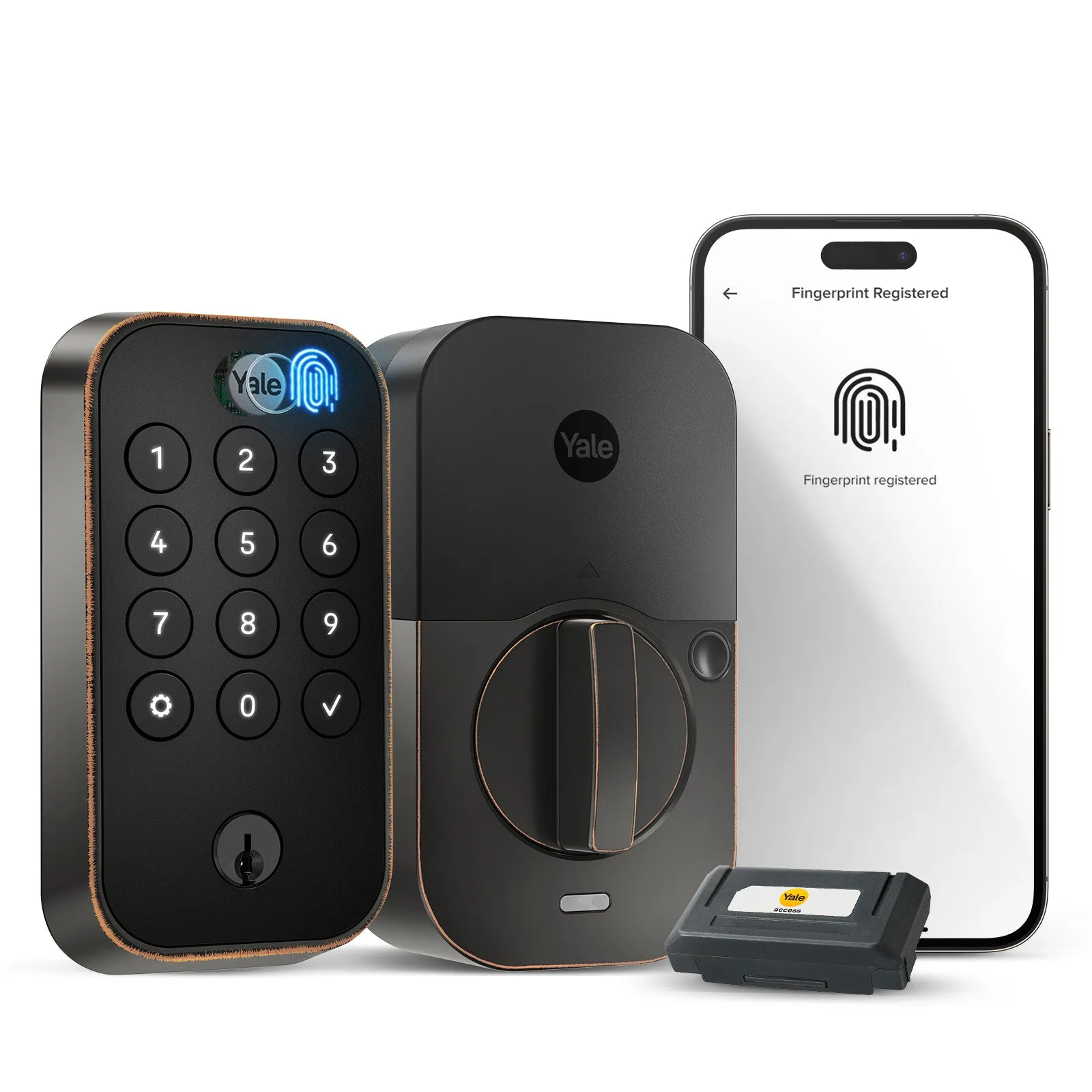
For locks like the Yale Assure Lock 2 Touch Keypad with Wi-Fi, you can change codes remotely through the app. For key-free models like the Yale Assure Lock 2 Key-Free Keypad with Z-Wave, all programming happens at the keypad. Make sure the lock is within range of your hub if you use Z-Wave.
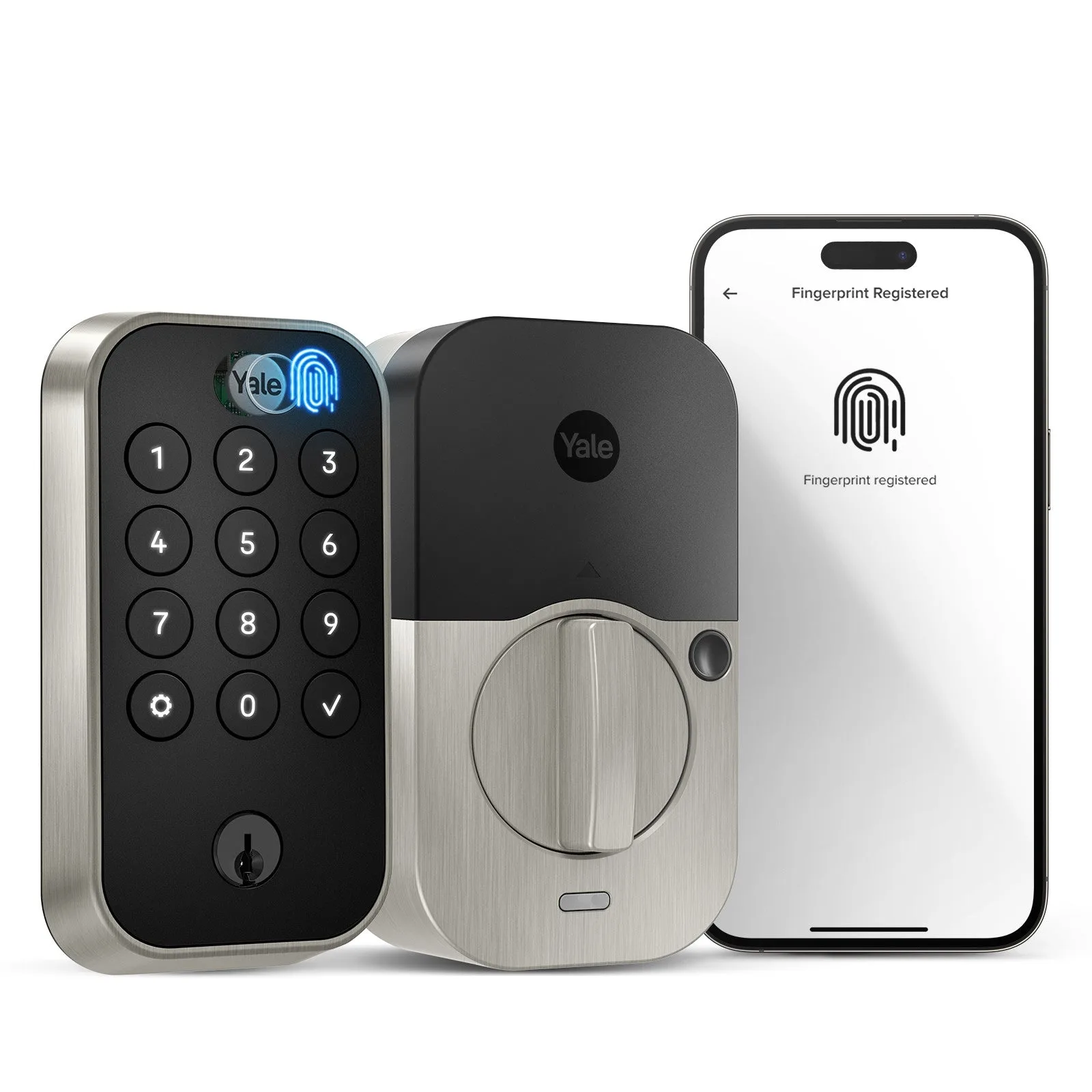
Yale Assure Lock 2 Touch Keypad
Step-by-Step: Change Your Yale Lock Code
- Enter Master Code: Press the Yale button (the Y logo) on the keypad, then enter your current master code. The default master code for most Yale locks is 1-2-3-4-5-6, but you should change it after installation. If the lock beeps three times or flashes red, the master code is wrong. Try again or perform a factory reset.
- Press the Yale Button Again: After entering the master code, press the Yale button once more. The lock will beep and the keypad will light up, indicating you are in programming mode. Don't wait too long between steps. Most Yale locks time out after 5 seconds of inactivity, and you'll have to start over.
- Enter a New User Code: Press the number you want to assign (e.g., 1 for the first user slot), then enter a 4- to 8-digit code of your choice. Press the Yale button to confirm. Avoid obvious codes like 1234 or your birth year. Use a code you can remember but others can't guess.
- Test the New Code: Close the door and try the new code on the keypad. The lock should unlock smoothly. If it doesn't, repeat the steps and make sure you saved the code by pressing the Yale button after entering it. If the lock still doesn't respond, check the batteries. Low battery voltage can cause the lock to ignore new programming.
Which Yale Lock Do You Have?
- Yale Assure Lock 2 Touch Keypad with Wi-Fi: The Yale Assure Lock 2 Touch Keypad with Wi-Fi is a smart deadbolt available in multiple finishes. Choose the look that fits your door and the features you need. Keyed entry deadbolt function. Fingerprint and Wi-Fi technology options. Works with Amazon Alexa and Apple HomeKit. If you own this model, you can change codes directly on the keypad or through the Yale Home app. The Wi-Fi connection also lets you create temporary codes for guests and revoke them remotely.
- Yale Assure Lock 2 Touch Key-Free Keypad with Z-Wave: The Yale Assure Lock 2 Key-Free Keypad with Z-Wave offers multiple ways to unlock, the ability to share and track entry codes, and Auto-Lock with DoorSense. This key-free model requires a Z-Wave hub for remote code management. At the keypad, you still use the master code to add or delete user codes. DoorSense confirms the door is fully closed before auto-lock engages.