Quick answer
To charge devices with the Charge 40 PD, connect your device to the USB-C PD port using a compatible cable, then press the power button if needed. The power bank automatically delivers fast charging to supported devices.
Understanding the Charge 40 PD's ports
The Charge 40 PD is designed to charge a variety of devices, from phones to tablets. It features a USB-C PD port for fast charging and a standard USB-A port for older devices. Knowing which port to use helps you get the fastest charge possible.
USB-C Power Delivery (PD) is a fast-charging standard that can deliver higher wattage to compatible devices. This means your phone or tablet can charge quicker than with a standard USB-A port. However, not all devices support PD, so check your device's specifications to see if it can take advantage of fast charging.
Choosing the right cable
The cable you use matters. A standard USB-C cable may not support fast charging speeds. For the best results, use a USB-C to USB-C cable that supports Power Delivery. If you're charging an older device with a USB-A port, a standard USB-A to USB-C cable will work, but you won't get the fast charging speeds.
If you're unsure whether your cable supports PD, try charging with a different cable and see if the charging time improves. Some devices show a fast-charging indicator, like a lightning bolt or 'fast charging' text on the screen.
Step-by-step charging instructions
- Check your device's charging port: Determine whether your device uses USB-C or USB-A. Most modern phones and tablets use USB-C, but older devices or accessories like earbuds may use USB-A or a micro-USB cable. Check the device's manual or the port shape to avoid using the wrong cable.
- Connect the appropriate cable to the Charge 40 PD: Plug the USB-C end of your cable into the USB-C PD port on the power bank. If your device uses USB-A, plug the USB-A end into the USB-A port. Ensure the cable is fully inserted to avoid loose connections that can interrupt charging.
- Connect the other end to your device: Plug the other end of the cable into your device's charging port. The Charge 40 PD should automatically start charging. If it doesn't, press the power button on the side of the power bank. If charging doesn't start, check the power bank's LED indicators to see if it has enough charge.
- Monitor the charging status: Watch your device's screen for a charging indicator. If you're using a USB-C PD cable, you may see a fast-charging notification. The Charge 40 PD's LEDs show its remaining power. If the device isn't fast charging, try a different USB-C cable that supports PD.
- Disconnect when done: Once your device is fully charged, unplug the cable from both the device and the power bank. This saves the power bank's battery for later use. Avoid leaving devices plugged in overnight to prevent overcharging and preserve battery health.
Product fact
-
Charge 40 PD: Charge 40 PD delivers fast, flexible charging to your network of personal devices, including phones, earbuds, and tablets. This means you can rely on it to quickly top up multiple devices, whether you're at home, traveling, or during an outage.
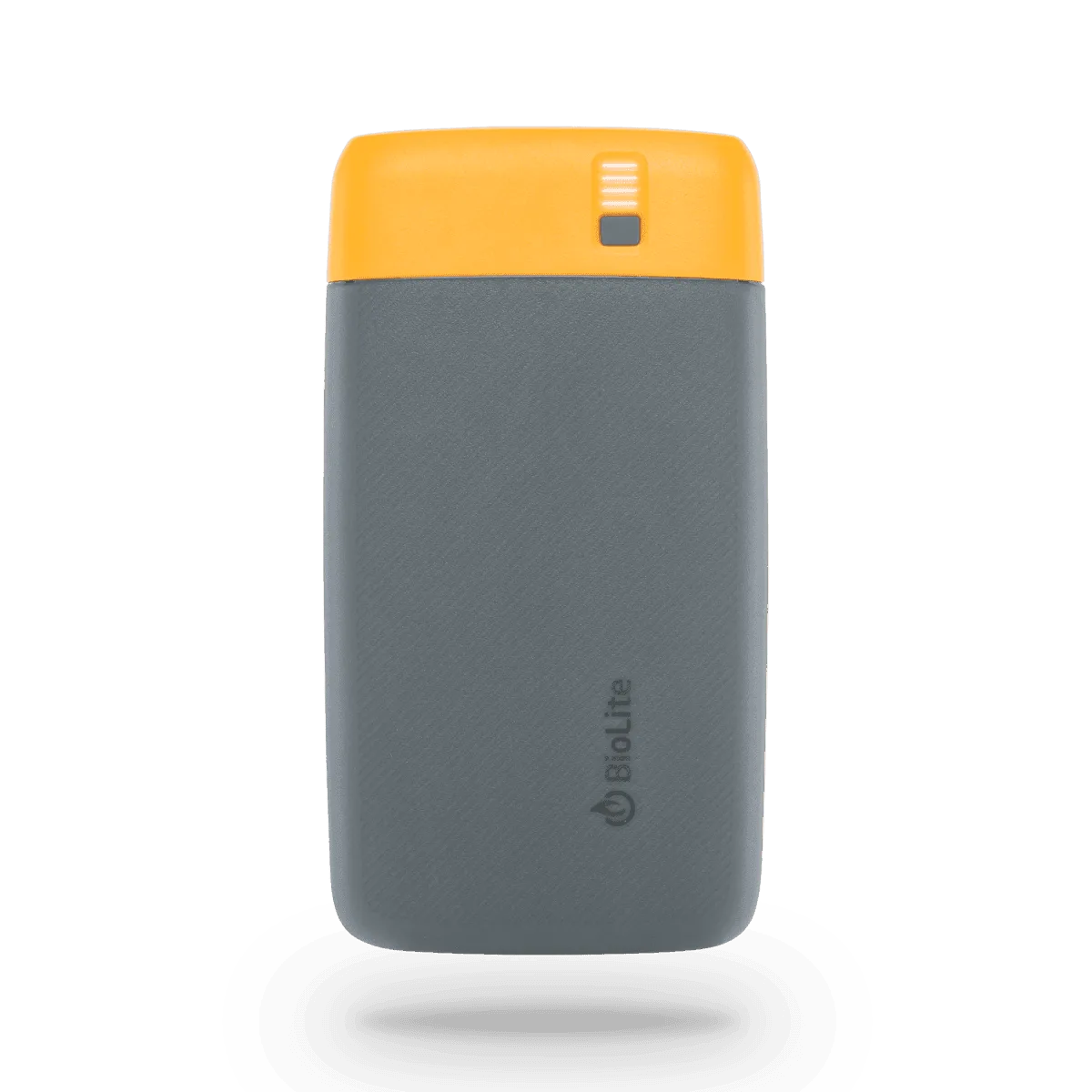
Charge 40 PD