Quick Answer
Start by identifying the biggest source of discomfort in your workspace, then choose accessories that address that specific issue. For most people, a monitor arm to position your screen at eye level and an adjustable https://snuglivingcoai.shop/products/led-desk-lamp-275672LED desk lamp to reduce glare are high-impact upgrades. Prioritize items that adjust to your body, not the other way around.
When your workspace causes back pain, eye strain, or cluttered cables, the right ergonomic accessories can make a real difference. But with so many options, it's easy to overspend on gear that doesn't solve your actual problem. This guide helps you evaluate what you truly need before you buy.
Ergonomic accessories are not one-size-fits-all. Your height, desk setup, and daily tasks all influence which products will help. By focusing on adjustability and practical fit, you can build a workspace that supports your body and your workflow.
Start with Your Posture and Pain Points
Before adding anything to your desk, notice where you feel discomfort by the end of the day. Neck and shoulder tension often point to a monitor that's too low or too far. Lower back fatigue may mean your chair lacks proper lumbar support. Frequent eye strain could be a lighting issue.
Once you identify the problem, you can choose accessories that target it directly. For example, if your monitor sits on its original stand, an adjustable monitor arm can help you position the screen at eye level. If you rely on harsh overhead lighting, a https://snuglivingcoai.shop/products/task-light-275673task light with adjustable brightness can reduce glare.
- List your top three physical complaints during work hours.
- Match each complaint to a potential accessory solution.
- Prioritize purchases that address more than one issue.
Monitor Arms: Flexibility and Desk Space
A monitor arm is one of the most versatile ergonomic accessories. It lets you adjust screen height, distance, and angle without moving the base. This is especially useful if you switch between sitting and standing or share a desk with someone else. It also frees up valuable desk space that a bulky stand would occupy.
When choosing a monitor arm, consider the weight and size of your monitor. A dual monitor arm is a good choice if you use two screens, but it requires a sturdy desk clamp or grommet mount. If you have a single monitor, a simpler arm may be sufficient. Always check the weight capacity to avoid sagging.
- Measure your monitor's VESA pattern to ensure compatibility.
- Check your desk edge thickness for clamp or grommet fit.
- Consider future needs—a dual arm can support one monitor now and a second later.
Lighting: Reduce Eye Strain with Adjustable Lamps
Good lighting is essential for comfortable work, especially if you read documents or spend long hours at a screen. A desk lamp with adjustable brightness and color temperature can help you avoid glare and reduce eye fatigue. Look for lamps that allow you to direct light exactly where you need it.
Some task lights include sensors that adjust brightness automatically, which can be convenient if your ambient light changes throughout the day. But don't sacrifice adjustability for automation—make sure you can still control the light manually when needed.
- Place the lamp on the opposite side of your writing hand to minimize shadows.
- Use a dimmer setting for screen work and brighter light for reading.
- Avoid placing the lamp directly behind your monitor to prevent screen glare.
Cable Management: Keep Your Workspace Tidy
Cables and cords can create visual clutter and even become a safety hazard. Under-desk cable management solutions help keep wires organized and out of the way. This not only improves the look of your workspace but also makes it easier to clean and reduces the risk of accidentally pulling out a cable.
When choosing cable management, consider the number of devices you have and how often you need to disconnect them. A simple under-desk basket can hold power strips and excess cable, while clips and sleeves can bundle wires along the edge of your desk. Choose a system that allows easy access when you need to add or remove a device.
- Route cables along the back or underside of your desk.
- Label cables at both ends to make tracing easier.
- Leave some slack for movement if you have a sit-stand desk.
Decision Rules for Choosing Accessories
- Rule 1: Fix the biggest problem first: If you have neck pain, prioritize a monitor arm. If you have eye fatigue, choose a better lamp. Don't buy everything at once. Start with one high-impact accessory.
- Rule 2: Check adjustability: Look for accessories that offer multiple points of adjustment—height, angle, brightness—so you can tailor them to your body and tasks. Adjustability is more important than flashy features.
- Rule 3: Verify compatibility: For monitor arms, confirm your monitor's weight and VESA pattern. For lamps, check the clamp size and desk edge thickness. Measure twice, buy once.
- Rule 4: Consider future needs: If you might add a second monitor or change desks, choose an arm that can adapt. For cable management, select a system that can grow with your setup. Invest in flexibility to avoid repurchasing.
Ergonomic Accessories to Consider
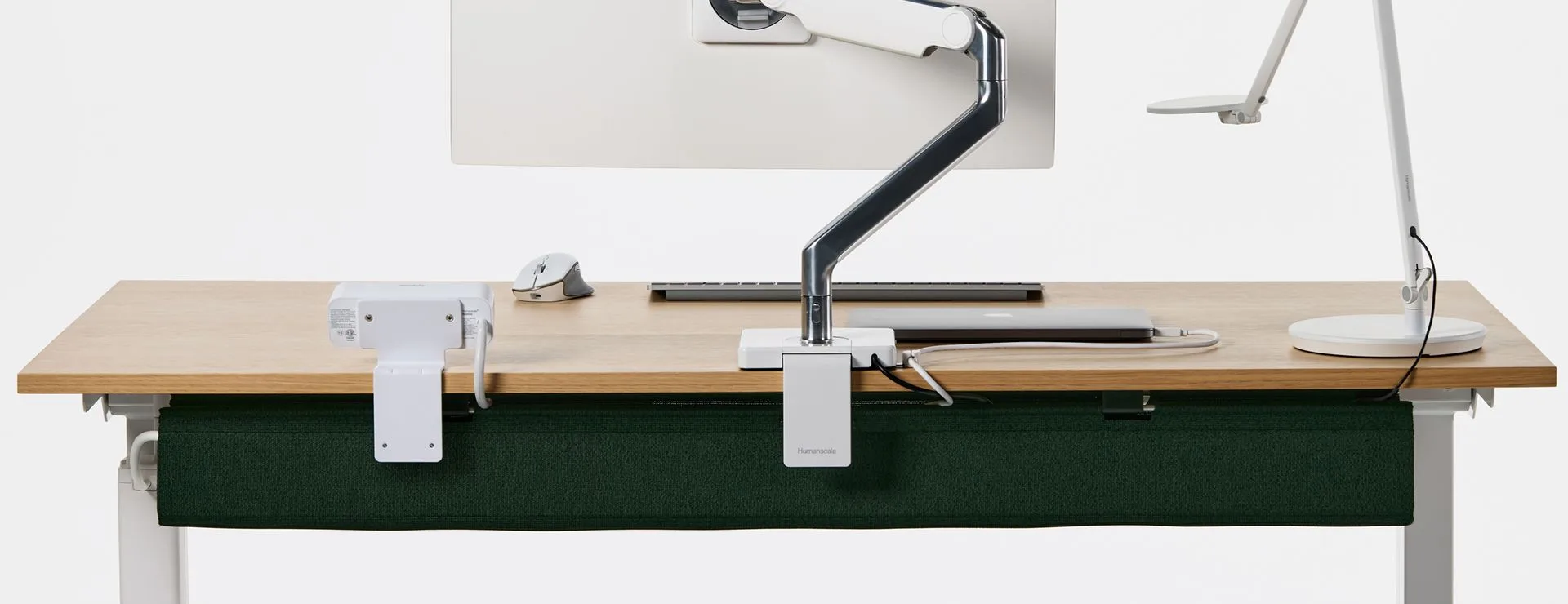
- Adjustable Dual Monitor Arm: With a sleek and safe design, Humanscale's adjustable dual monitor arms are perfect for single or dual monitors weighing up to 28lbs. This gives you the flexibility to position your screen at the optimal height and distance, which is key to preventing neck and eye strain.
- LED Desk Lamp: Element Disc task light by Humanscale is a versatile LED desk lamp that adjusts to your needs. It has 7 brightness levels and a PIR sensor for easy use. Multiple brightness levels let you adapt lighting to different tasks, while the PIR sensor can automatically turn the light on and off, saving energy.
- Under Desk Cable Management: NeatTech is a lightweight but heavy duty cable solution. This under desk basket is the perfect wire and cord organizer to help secure your cables and provide easy access. Keeping cables organized reduces clutter and makes it easier to clean and maintain your workspace, which supports a more focused work environment.
What Fits Your Workspace?
Best for
- People who spend more than 4 hours a day at a desk and experience physical discomfort.
- Home office users who want to maximize limited desk space and improve lighting.
Not for
- Those who rarely adjust their monitor or lighting and are satisfied with their current setup.
- Minimalists who prefer a bare desk and don't mind using a laptop screen.
Choosing the right ergonomic office accessories doesn't have to be overwhelming. Start by addressing your most pressing comfort issue, prioritize adjustability, and verify that each product fits your space and equipment. A few thoughtful upgrades can make your workspace more comfortable and productive for years to come.