What an SD Card Reader Does for Your Workflow
A dedicated SD card reader saves time and protects your gear. Instead of tethering your camera or device to a computer each time you need to transfer files, a reader plugs into a USB port and treats the memory card like a removable drive. This means faster transfers and less drain on your camera's battery.
The key is choosing a reader that matches the cards you actually use and the computer you own. Not all readers support every card type, and interface speed matters when you move large files regularly.
Vivitar Hi-Speed CR-35 SD USB 2.0 Card Reader at a Glance
-
Vivitar Hi-Speed CR-35 SD USB 2.0 Card Reader Compatible with SD, SDHC, MMC & Mini-SD: Compatible with Secure Digital Card including SDHC, Multi Media Card (MMC), RS-MMC, mini SD (adapter required), and T-Flash (adapter required). This covers the most common memory card formats used in digital cameras, phones, and older devices, so you can read multiple card types without buying separate readers.
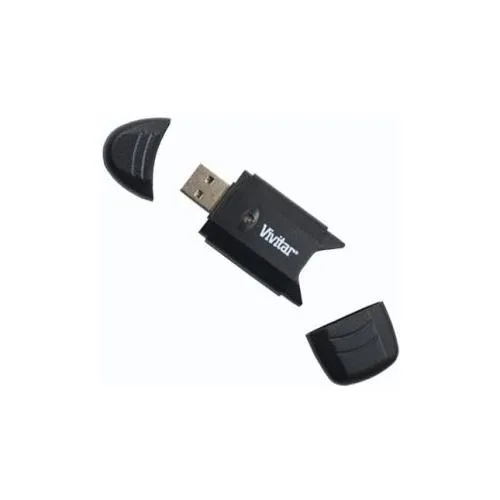
Vivitar Hi-Speed CR-35 SD USB 2.0 Card Reader Compatible with SD, SDHC, MMC & Mini-SD
-
Vivitar Hi-Speed CR-35 SD USB 2.0 Card Reader Compatible with SD, SDHC, MMC & Mini-SD: USB 2.0 High-Speed connectivity with a supported data transfer rate at 480 Mbps, and backwards compatible with USB 1.1. USB 2.0 is sufficient for most photo transfers; the 480 Mbps ceiling is the practical limit. If you work with 4K video or large RAW files daily, USB 3.0 would be faster, but for standard use this is a reliable speed.
-
Vivitar Hi-Speed CR-35 SD USB 2.0 Card Reader Compatible with SD, SDHC, MMC & Mini-SD: MAC & PC compatible, supporting Windows 98SE/ME/2000/XP/Vista and Mac OS 8.6 or above. Works with nearly any computer from the past two decades. No driver installation needed—just plug in and the card appears as a drive letter (Windows) or desktop icon (Mac).
-
Vivitar Hi-Speed CR-35 SD USB 2.0 Card Reader Compatible with SD, SDHC, MMC & Mini-SD: USB bus-powered, no external power supply needed. Includes a USB extension cable. No wall wart or batteries required. The reader draws power from the USB port, making it easy to pack in a laptop bag or camera case.
Matching Card Types to Your Reader
The most common mistake is buying a reader that doesn't support your camera's memory card. Most modern cameras use SD or SDHC cards, but older models may use MMC or mini SD. Some readers also handle RS-MMC and T-Flash (micro SD) with an adapter.
Check the card types listed on the reader's specifications. The Vivitar CR-35 supports SD, SDHC, MMC, RS-MMC, mini SD (with adapter), and T-Flash (with adapter). If you only use standard SD cards, almost any reader will work. If you juggle multiple formats, a multi-card reader saves you from carrying adapters or a second device.
USB Speed: What You Actually Need
USB 2.0 readers like the Vivitar CR-35 transfer data at up to 480 Mbps. That's fast enough for dozens of high-resolution photos in seconds. If you regularly move large video files or work with a fast SD card (UHS-II or UHS-III), a USB 3.0 or USB-C reader will cut wait times significantly.
The trade-off: USB 3.0 readers cost more and may not be backward compatible with older computers. For most photographers who shoot JPEG or RAW stills, USB 2.0 is perfectly adequate. If you edit video or batch-export hundreds of files daily, consider upgrading to a USB 3.0 model.
How to Use an SD Card Reader: Simple Setup
Using a plug-and-play reader like the Vivitar CR-35 is straightforward. No drivers or software installation is needed.
- Insert the memory card: Slide your SD, SDHC, or MMC card into the reader's slot until it clicks. If using mini SD or T-Flash, insert the card into the required adapter first.
- Connect the reader to your computer: Plug the reader into a USB port (the included extension cable can help if the port is tight). The power LED indicator lights up to show it's active.
- Access the files: On Windows, the card appears as a new drive letter. On Mac, an icon appears on the desktop. Open it and drag files to your computer—just like a USB flash drive.
- Eject safely: When done, eject the drive from your operating system before unplugging. This prevents data corruption.
Portability and Power
A compact, bus-powered reader is ideal for travel or fieldwork. The Vivitar CR-35 draws power from the USB port, so you don't need an extra outlet or batteries. Its small size fits in a camera bag pocket or laptop sleeve.
If you work in a studio or at a desk, a reader with a longer cable or a USB hub might be more convenient. For on-the-go use, a short, lightweight reader is less clutter.
Who Should Consider This Reader
The Vivitar Hi-Speed CR-35 is a good match for photographers and casual users who work with SD, SDHC, or MMC cards and need a reliable, low-cost way to transfer files without draining camera batteries. It's also useful for anyone with older computers that have USB 2.0 ports.
If you need to read CFexpress, XQD, or micro SD without an adapter, or you require USB 3.0 speeds for large video files, look for a reader that specifically supports those formats and speeds.