Quick answer
To choose the right USB-C cable, first identify the devices you need to charge or connect and their power or data requirements. Then match the cable's specifications—such as USB version, power delivery wattage, and connector type—to those needs. For most users, a USB-C to USB-C cable with USB 3.2 and 60W or 100W power delivery is a versatile choice. For laptops, ensure the cable supports at least 60W, and for phones, 18W is usually sufficient.
USB-C has become the universal connector for everything from smartphones to laptops, but not all USB-C cables are created equal. With varying data transfer speeds, power delivery capabilities, and connector types, picking the wrong cable can lead to slow charging, data bottlenecks, or even device damage. This guide breaks down the key factors to consider when choosing a USB-C cable, helping you make an informed decision for your specific needs.
Whether you're looking to charge your phone faster, connect a 4K monitor to your laptop, or simply need a durable cable for daily use, understanding the basics of USB-C cables is essential. We'll cover types, lengths, compatibility, and what to look for in terms of quality and safety.
Understanding USB-C Cable Types
USB-C cables come in different versions that determine their data transfer speeds and power delivery capabilities. The most common types are USB 2.0, USB 3.2 Gen 1, USB 3.2 Gen 2, and USB4. USB 2.0 cables support up to 480 Mbps data transfer and are usually sufficient for charging and basic peripherals. USB 3.2 Gen 1 (also known as USB 3.0) offers up to 5 Gbps, while USB 3.2 Gen 2 doubles that to 10 Gbps. USB4 cables can reach 40 Gbps and support video and data simultaneously.
For most everyday charging tasks, a USB 2.0 cable is fine, but if you need to transfer large files or connect high-resolution displays, opt for a higher-speed cable. Additionally, check the cable's power delivery (PD) rating, which indicates how much power it can safely carry. For phones, 18W is common, but for laptops, you'll need at least 60W, and some high-performance laptops require 100W or more.
- Match the USB version to your data transfer needs: USB 2.0 for charging, USB 3.2+ for fast data.
- Check the power delivery wattage to ensure it meets your device's charging requirements.
Choosing the Right Cable Length
Cable length affects both convenience and performance. Shorter cables (0.5-1 meter) are ideal for travel and desktop setups where the power source is close. They also tend to have less voltage drop, so charging can be more efficient. Longer cables (2-3 meters) offer more flexibility, allowing you to use your device while it charges from a distant outlet. However, longer cables may have higher resistance, which can reduce charging speed, especially with higher power demands.
For charging your phone on a nightstand, a 1-meter cable is usually sufficient. For using your laptop on the couch while plugged in, a 2-meter cable is more practical. If you need to connect a hub or external display, consider the distance between your device and the hub or monitor. Always balance length with the quality of the cable—a well-shielded longer cable can minimize signal degradation.
- For travel, choose a short, tangle-free cable (0.5-1m).
- For home or office, a 2m cable offers flexibility without sacrificing too much performance.
Compatibility: USB-C to USB-C vs. USB-C to USB-A
USB-C cables come with different connector types on each end. The most common are USB-C to USB-C, which is becoming the standard for new devices, and USB-C to USB-A, which is useful for connecting to older chargers and computers. When choosing, consider your existing chargers and devices. If you have older USB-A wall adapters, a USB-C to USB-A cable can be handy, but it may limit fast charging and data speeds.
For future-proofing, USB-C to USB-C is the better choice, as it supports the latest fast charging standards like Power Delivery (PD) and can carry both power and data. Many laptops, tablets, and smartphones now come with USB-C ports, so a USB-C to USB-C cable is more versatile. However, if you need to connect to a USB-A port on an older laptop or charger, ensure the cable supports the required data speed and power output.
- USB-C to USB-C is the future-proof choice for new devices.
- Keep a USB-C to USB-A cable for compatibility with older equipment.
Decision Rules for Choosing a USB-C Cable
- Identify your primary use case: Are you charging a phone, laptop, or connecting a display? This determines the required power delivery and data speed. For phone charging, 18W is enough; for laptops, look for at least 60W.
- Check device specifications: Review your device's manual or manufacturer website for recommended USB-C cable specs, including USB version and power delivery. Match the cable's specs to your device's requirements to avoid slow charging or data transfer.
- Consider cable length and quality: Choose a length that fits your usage scenario and opt for cables from reputable brands that offer shielding and durability. A well-made cable may cost more but will last longer and perform better.
Belkin Products That Enhance Your USB-C Experience
- https://belkinqz.com/products/dual-usb-c-wall-charger-65w-for-nintendo-switch-2-293369Dual USB-C Wall Charger 65W for Nintendo Switch 2: This compact charger delivers 65W total power output with dual USB-C ports, allowing you to charge two devices simultaneously. If you need a high-power wall charger for your laptop or gaming console, this charger ensures fast and efficient charging, and its dual ports let you power multiple devices at once.
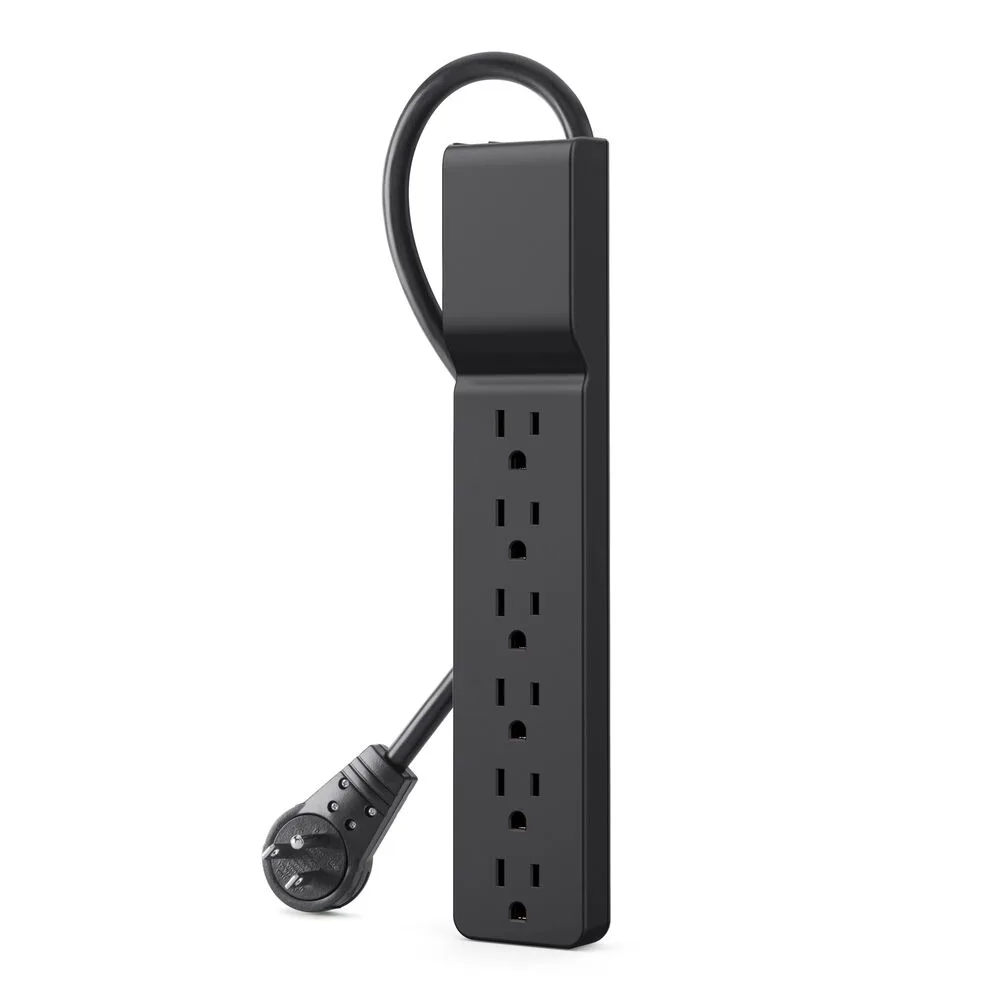
- 6 Outlet Wall Surge Protector with USB-C and USB-A: This surge protector combines six AC outlets with USB-C and USB-A ports, making it easy to power and charge multiple devices from a single wall outlet. When you have multiple devices to charge, this surge protector provides a convenient and safe way to manage your power needs, protecting your electronics from surges.
Which Cable Should You Choose?
Best for
- Users who need a versatile cable for both charging and data transfer across multiple devices.
- Those who want to future-proof their setup with USB-C to USB-C cables supporting high power delivery.
Not for
- Users who only need to charge older devices with USB-A ports and don't require fast data transfer.
- Those on a tight budget who are okay with slower charging speeds and basic functionality.
Choosing the right USB-C cable doesn't have to be overwhelming. Focus on your device's power and data needs, consider the cable's type, length, and compatibility, and always opt for quality from trusted brands. For a reliable charging solution, check out the Dual USB-C Wall Charger 65W for Nintendo Switch 2 to ensure your devices stay powered efficiently. With the right cable and accessories, you'll enjoy fast, safe, and convenient connectivity.