Why Cleaning Your Charge Curve Matters
The Nyko Charge Curve for PlayStation 4 keeps up to two DUALSHOCK 4 controllers charged and ready. Over time, dust, debris, and residue from controller grips can build up on the dock and charging adapters. Regular cleaning helps maintain a reliable connection and prevents charging issues.
This guide covers the supported cleaning and maintenance steps for the Charge Curve. No harsh chemicals or disassembly are needed — just a few simple habits.
How to Clean the Charge Curve Dock
Follow these steps to safely clean the charging dock and keep the contact points free of debris.
- Unplug the dock: Disconnect the USB cable from the console or wall adapter. This prevents accidental charging while cleaning.
- Remove controllers and adapters: Take off any controllers and the two patented micro-USB charging adapters. Set them aside on a clean surface.
- Wipe the dock surface: Use a soft, dry or slightly damp lint-free cloth to gently wipe the curved dock surface and the charging pins. Avoid getting moisture into the USB port or the power toggle area.
- Clean the charging adapters: The included low-profile micro-USB adapters can be wiped the same way. Make sure the metal contacts are clean and dry before reattaching them to your controllers.
- Dry completely before use: Let all parts air dry for a few minutes. Reconnect the dock and test with a controller.
What to Avoid When Cleaning
Do not use abrasive cleaners, alcohol wipes, or any liquid spray directly on the dock or adapters. The Charge Curve relies on precision-molded contact points, and harsh chemicals can damage the plastic or the charging circuitry. Stick to dry or barely damp cloths only.
Also, avoid inserting anything into the USB port or the power toggle switch. If debris gets inside, gently tap the dock upside down or use compressed air at a safe distance.
Maintenance Tips for Long-Term Use
The Charge Curve includes a built-in power toggle that lets you turn off the charging station completely when not in use. Use this feature to reduce wear on the USB port and save energy.
The smart charging circuitry safely stops delivering power once the controllers reach full capacity, so you can leave them on the dock without worry. However, if you notice the charging LED indicators not lighting up as expected, check the contact pins on both the dock and the adapters for dirt or damage.
If you use a protective silicone skin or grip on your DUALSHOCK 4 controllers, remember that thick covers may interfere with the dock connection. Remove the skin before placing the controller on the dock to ensure a proper charge.
Key Facts from the Product Record
-
Charge Curve for Playstation®4: The Charge Curve features smart charging circuitry that safely stops delivering power once the controllers reach full capacity. You can leave controllers on the dock overnight without overcharging, reducing the need for frequent maintenance.
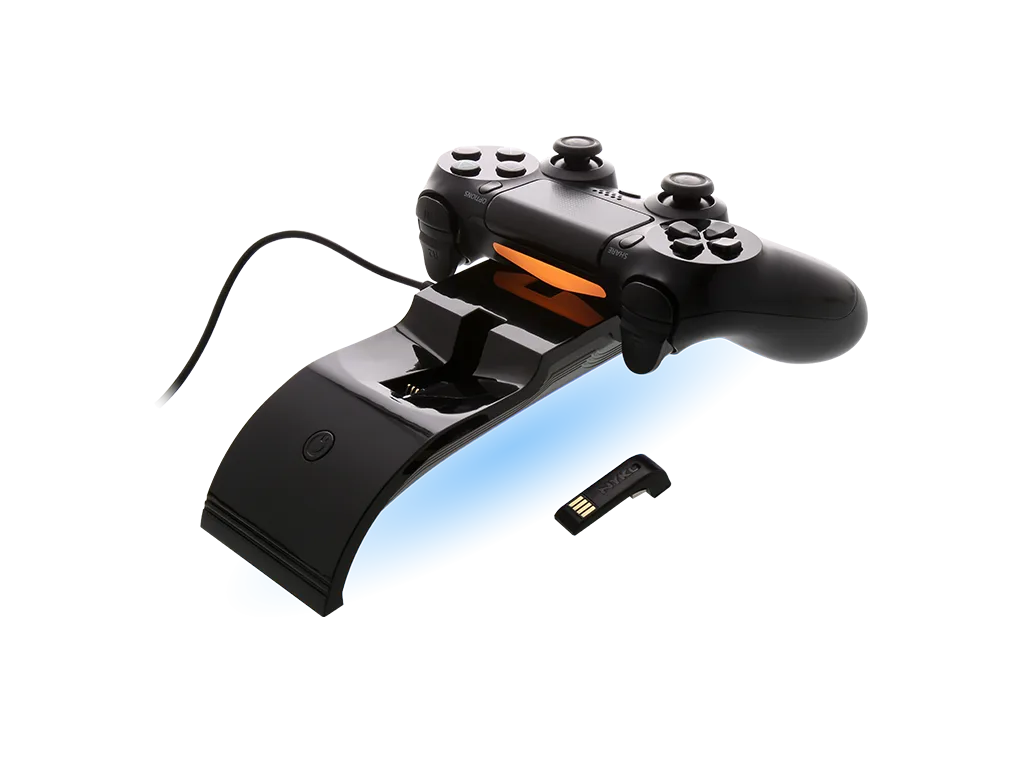
Charge Curve for Playstation®4
-
Charge Curve for Playstation®4: The built-in power toggle allows you to turn off the charging station entirely when it's not in use. Turning off the dock when idle reduces dust buildup on the contacts and prolongs the USB port life.
-
Charge Curve for Playstation®4: Thick third-party silicone skins or controller covers may interfere with the dock connection and may need to be removed before charging. If your controller fails to charge, check for a skin or grip that might be blocking the contact points. Removing it can restore the connection without cleaning.