Quick answer
Clean your custom PC’s dust filters every 4–8 weeks, blow out the interior and fans every 3–6 months, and only replace thermal paste when temperatures rise noticeably or you remove the cooler. Work in an order that keeps dust from spreading and never let fans spin freely while you clean.
Why a seasonal rhythm beats occasional deep cleans
Dust buildup is the main reason a custom PC gets louder or slower over time. A seasonal schedule—four light cleanings per year instead of one marathon session—keeps airflow consistent and makes each task small enough to finish in 15–30 minutes. If you live with pets or in a dusty area, shift to the shorter end of every interval below.
The order matters: filters first, then interior dust, then fans, then temperature checks. Doing filters last only pushes dust back into the case. Before you start, shut down, unplug the power cable, and hold the power button for a few seconds to discharge residual current.
Tools that help without risking damage
You do not need a workbench full of specialty gear. A can of compressed air (or a low-pressure electric blower), a soft anti-static brush, a microfiber cloth, and a screwdriver that matches your case screws cover almost every step. Avoid vacuum cleaners unless they are specifically designed for electronics—a standard vacuum can generate static that damages components.
For thermal paste replacement, add isopropyl alcohol (90% or higher), lint-free swabs or coffee filters, and a small tube of quality paste. If your custom PC uses an AIO liquid cooler, you generally do not need to replace the coolant; just clean the radiator fins and check that the pump cable is secure.
When to check temperatures instead of guessing
After each seasonal cleaning, run a short stress test or a demanding game for 10–15 minutes and note CPU and GPU temperatures. Compare them to your last reading. A gradual rise of 5–10°C over several months usually points to dust or a fan curve change, not failing hardware. A sudden jump of 15°C or more after cleaning often means the cooler mount or thermal paste needs attention.
Because the catalog for MAINGEAR systems lists platform and graphics details rather than specific fan curves or thermal limits, use the monitoring tool that came with your system or a trusted third-party utility. Record idle and load temperatures in a note on your phone so the next check has a baseline.
Seasonal custom PC maintenance checklist
- Power down and unplug: Shut down the operating system, flip the power supply switch to off, unplug the cable, and press the case power button for a few seconds to drain residual charge. Checkpoint: the motherboard standby light should be off before you open the case.
- Remove and rinse dust filters: Take out front, top, and bottom filters (if your case has them) and rinse them under lukewarm water. Let them dry completely—never reinstall a damp filter. Mistake to avoid: using a vacuum on the filters, which can crack plastic mesh or create static.
- Blow out the interior from top to bottom: Use short bursts of compressed air, starting at the top rear and working downward so dust falls toward the floor, not into drive bays. Keep the nozzle a few inches away and hold fans still with a soft brush or your finger. Checkpoint: never let a fan spin freely from air pressure—it can overspin the bearing and generate a back-current.
- Wipe fan blades and heatsink fins: Use a soft anti-static brush or microfiber cloth to wipe each fan blade and the gaps in CPU and GPU heatsinks. For stubborn dust, a cotton swab lightly dampened with isopropyl alcohol works on metal fins, not on fan motors. Mistake to avoid: pressing hard on fan blades or using a wet cloth near powered components.
- Check thermal paste only when needed: Thermal paste replacement is not a seasonal task. Do it when load temperatures are clearly higher than your baseline, when you remove the cooler for another reason, or after 3–5 years on a heavily used system. Clean old paste with isopropyl alcohol and a lint-free swab, apply a pea-sized dot, and reseat the cooler evenly. Checkpoint: if you are not comfortable removing the cooler, leave the paste alone and focus on dust and airflow instead.
- Reassemble and verify airflow: Reinstall dry filters, close the case, reconnect power, and boot. Confirm that all case fans spin up and that intake and exhaust directions match your original layout. Run a 10-minute load test and compare temperatures to your last recorded numbers. Mistake to avoid: mixing up fan orientation after cleaning, which can create a hot pocket and raise temperatures.
- Log the date and next due: Write down the cleaning date, any parts you removed, and the load temperatures. Set a reminder for the next seasonal check—4–8 weeks for filters, 3–6 months for a full interior clean. Next step: if temperatures stay high after a full clean, plan a thermal paste replacement or contact MAINGEAR support for guidance.
How MAINGEAR builds affect your maintenance routine
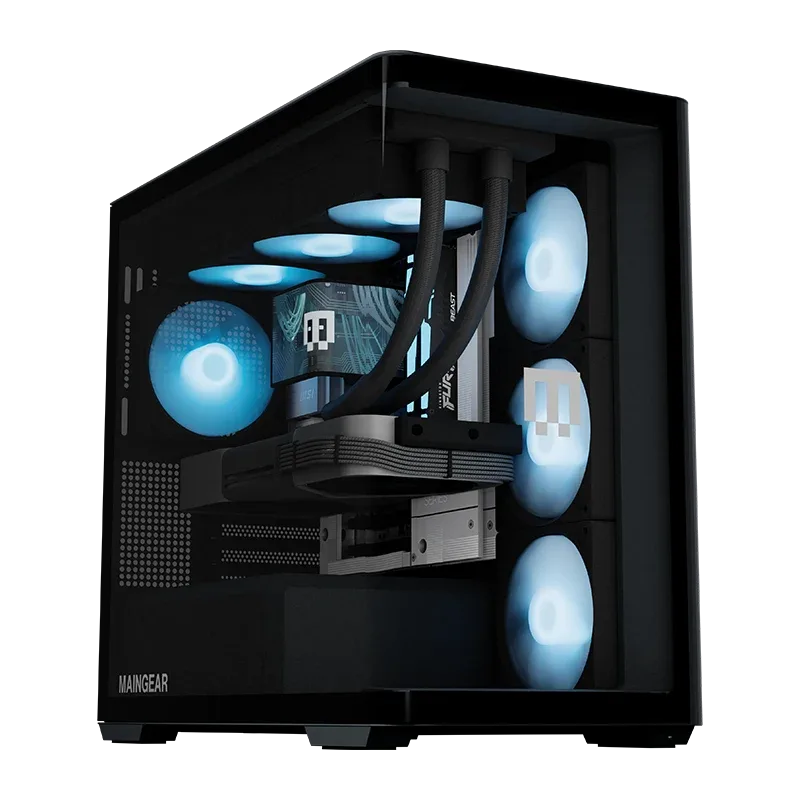
- Custom RUSH | Intel Edition: The MAINGEAR Custom RUSH | Intel Edition is a custom-built desktop PC configured around an Intel processor and positioned in the RUSH line for high-performance desktop use. A custom build like this gives you clear access to the interior, so you can remove side panels and reach dust filters and fans without proprietary tools—making the seasonal checklist practical to follow.
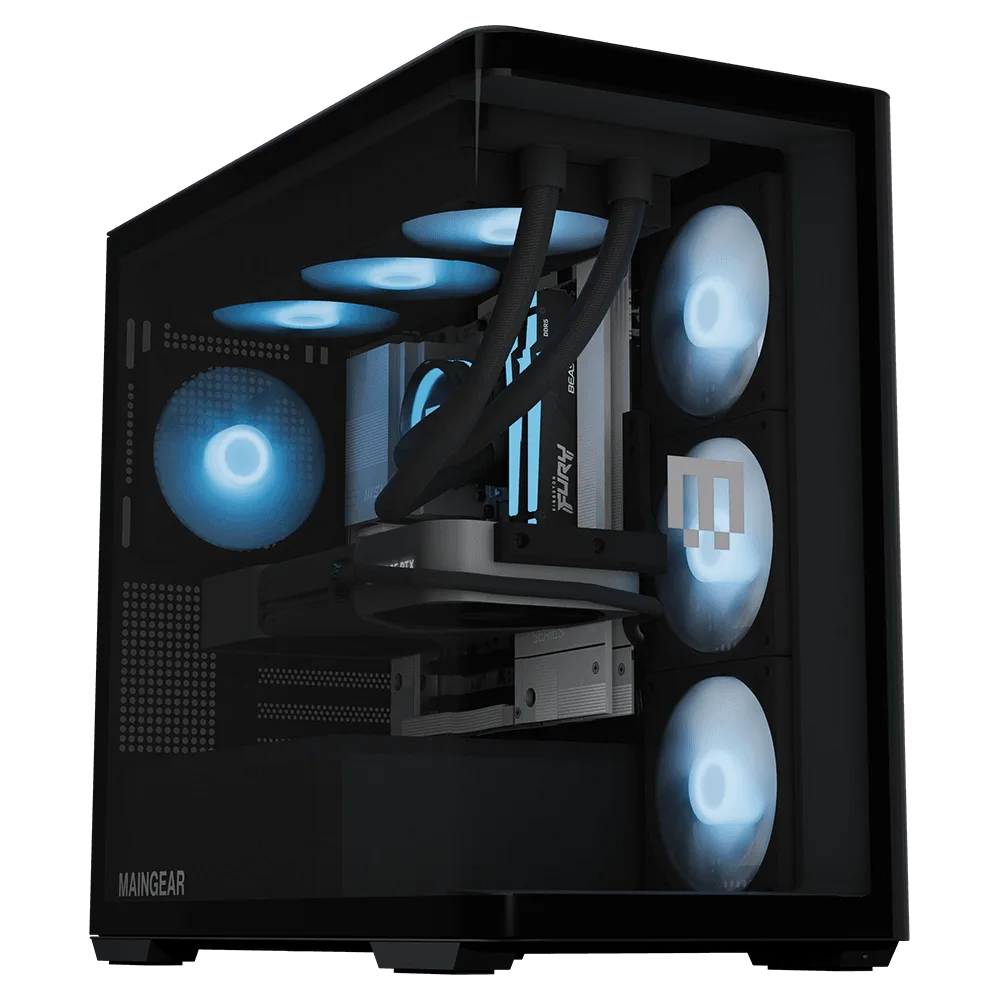
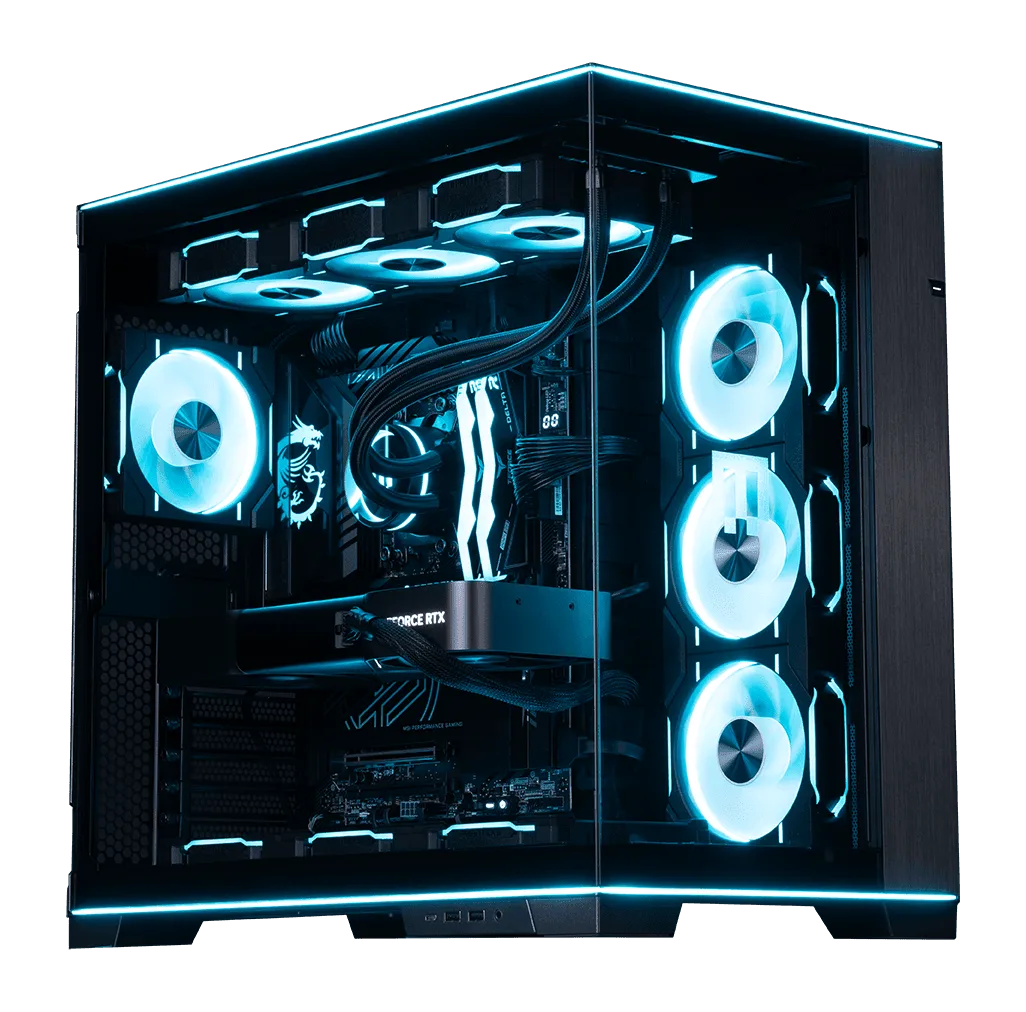
- shroud Edition | AMD: The MAINGEAR shroud Edition | AMD is a custom gaming desktop configured around AMD platform hardware with blue lighting. Lighting and shroud designs can trap dust in visible areas; clean those surfaces gently with a microfiber cloth so the lighting stays bright and airflow paths stay clear.
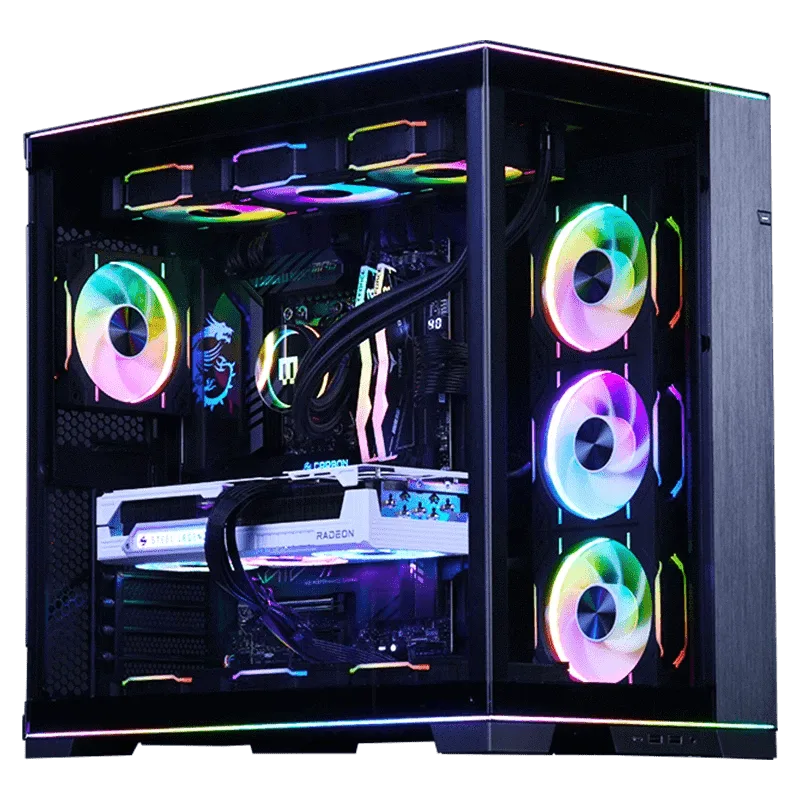
- Classic MG-1 | Ultimate: The MAINGEAR Classic MG-1 | Ultimate is a pre-configured PC with an NVIDIA GeForce RTX 5090 graphics card and an AMD Ryzen 9 9950X3D2 Dual Edition processor, and it pairs well with high-refresh-rate 1440p and 4K monitors. High-end components like these generate more heat under load, so dust filters and GPU fans deserve a closer look every season to protect performance at high refresh rates.