Quick answer
Use a 3.5mm TRS to XLR male cable to connect your phone, laptop, or tablet directly to a mixer, powered speaker, or audio interface with XLR inputs.
Why a 3.5mm to XLR cable works better than an adapter
A dedicated 3.5mm to XLR male cable provides a single, secure connection without extra adapters that can loosen or add noise. The cable's pure copper core and gold-plated connectors help maintain signal integrity over the distance you need.
When to choose a male vs. female XLR end
If your mixer or speaker has a standard XLR input (female), you need a cable with an XLR male plug. The 3.5mm TRS Stereo Male to XLR Male Cable is the most common choice. If you already have an XLR cable, a 3.5mm Female to XLR Male Adapter Cable lets you plug your source into the female end and then connect your existing XLR cable.
Step-by-step: Connecting your device to XLR inputs
- Step 1: Identify your source and destination: Check that your phone, laptop, or tablet has a 3.5mm headphone jack (TRS stereo output). Your mixer or speaker should have a female XLR input. If your source only has USB-C or Lightning, you'll need a separate adapter first. Common mistake: Plugging a TRRS headset plug into a TRS cable may cause the microphone channel to short or produce noise.
- Step 2: Choose the correct cable: Select a 3.5mm TRS stereo male to XLR male cable for a direct connection. If you need to use an existing XLR cable, choose a 3.5mm female to XLR male adapter cable instead. Check the cable length you need – 0.3m works for nearby gear, 1.8m or 3m gives more flexibility.
- Step 3: Connect the 3.5mm end to your device: Insert the 3.5mm plug firmly into your phone, laptop, or tablet's headphone jack. Ensure it's fully seated to avoid intermittent audio. If you hear buzzing or hum, the plug may be loose or the cable may be picking up interference from nearby power cables.
- Step 4: Connect the XLR end to your mixer or speaker: Plug the XLR male connector into the female XLR input on your mixer, powered speaker, or audio interface. Push until you hear a click – the latch locks it in place. Never force the connector; if it doesn't click, check alignment of the pins and the notch.
- Step 5: Set input levels and test: Turn down the channel volume or gain on your mixer before playing audio. Start with your source volume at about 50%, then gradually increase the mixer gain until you get a clean signal without distortion. Common mistake: Cranking the source volume to 100% can overload the XLR input and cause clipping. Keep source volume moderate and adjust gain on the mixer instead.
Cables that make the connection
-
3.5mm TRS Stereo Male to XLR Male Cable – Audio Aux Cord for Mixer, Speaker, Laptop, Phone (0.3m / 1.8m / 3m): This 3.5mm TRS stereo male to XLR male cable uses a pure copper core for stable signal transmission and gold-plated connectors for improved conductivity and corrosion resistance. It gives you a reliable, noise-free connection from your phone or laptop directly to a mixer or powered speaker without extra adapters.
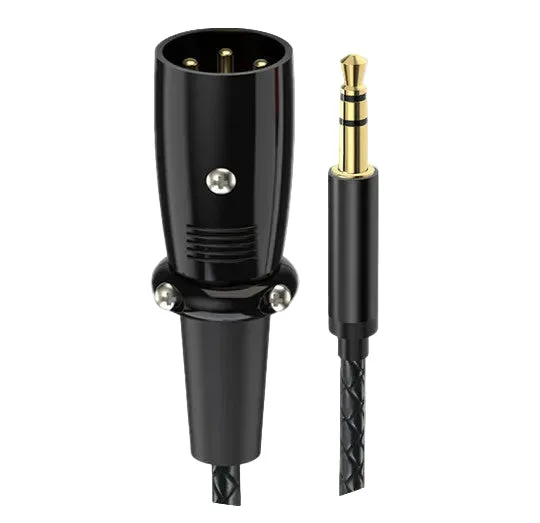
3.5mm TRS Stereo Male to XLR Male Cable – Audio Aux Cord for Mixer, Speaker, Laptop, Phone (0.3m / 1.8m / 3m)
-
3.5mm Female to XLR Male Adapter Cable TRS to 3 Pin XLR Audio Cable for Mixer Recorder Camera: This 3.5mm female to XLR male adapter cable lets you connect consumer audio devices to professional XLR equipment via a standard 3.5mm TRS input. Use it when you already have an XLR cable and need to add a 3.5mm source without replacing the whole cable.
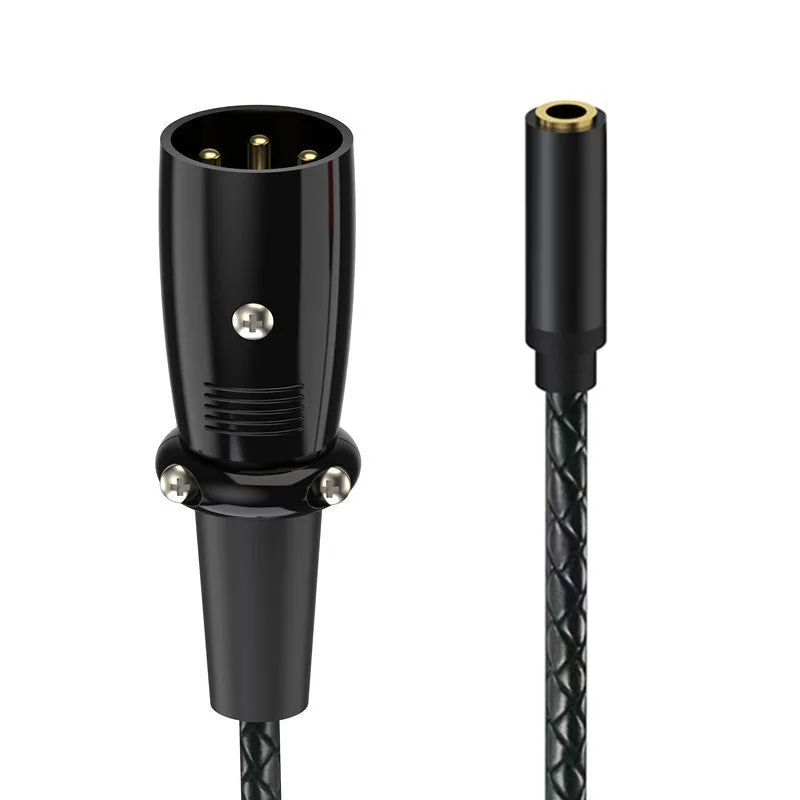
3.5mm Female to XLR Male Adapter Cable TRS to 3 Pin XLR Audio Cable for Mixer Recorder Camera