Quick Answer
To connect dual 4K monitors with the Pro Hub Slim, use the HDMI port for one display and the USB4 pass-through port with a USB-C to HDMI or DisplayPort adapter for the second. Ensure your M2 MacBook Air supports dual external displays.
Why the Pro Hub Slim is ideal for dual 4K
The Pro Hub Slim is designed specifically for M2 MacBook Air models, providing a full-function USB4 pass-through port that supports video output. This is key for dual monitor setups because it allows you to use both the HDMI port and the USB4 port simultaneously, delivering 4K resolution to each display.
Before you begin, confirm that your MacBook Air model supports dual external displays. Most M2 MacBook Air models do, but check Apple's specifications to avoid surprises.
Understanding the ports on the Pro Hub Slim
The Pro Hub Slim includes a 4K HDMI port, a USB4 pass-through port, a USB-C data port, two USB-A ports, and SD/microSD card readers. For dual monitors, the HDMI port handles one display, and the USB4 port can carry video via a USB-C to HDMI or DisplayPort cable or adapter.
Note that the USB-C data port is not video-capable, so it should not be used for monitor connections.
Step-by-Step Dual 4K Monitor Setup
- Check your MacBook's display support: Verify that your M2 MacBook Air supports dual external displays by checking Apple's tech specs for your model. This ensures your hardware can handle the setup. If your model doesn't support dual displays, you'll need to stick with a single monitor.
- Connect the Pro Hub Slim to your MacBook: Plug the Pro Hub Slim into one of your MacBook's Thunderbolt/USB-C ports. Ensure it's firmly connected to avoid intermittent signal drops. Use the port closest to the hinge for the most stable connection.
- Connect the first monitor via HDMI: Use an HDMI cable to connect your first 4K monitor to the Pro Hub Slim's HDMI port. Make sure the monitor is set to the correct input source. If there's no signal, try a different HDMI cable or port on the monitor.
- Connect the second monitor via USB4: Use a USB-C to HDMI or DisplayPort cable (or adapter) to connect your second 4K monitor to the USB4 pass-through port on the hub. Ensure the adapter supports 4K at 60Hz for optimal performance.
- Configure display settings: Open System Settings > Displays on your Mac. Arrange the displays to match your physical setup and adjust resolution or refresh rate if needed. If a monitor isn't detected, disconnect and reconnect the cable, then check the adapter's compatibility.
Product Facts
-
Pro Hub Slim: The Pro Hub Slim features a full-function USB4 pass-through port, 4K HDMI, USB-C data port, two USB-A data ports, and SD/microSD card readers. The USB4 pass-through port enables a second 4K display when paired with a USB-C to HDMI or DisplayPort adapter, making dual monitor setups possible with a single hub.
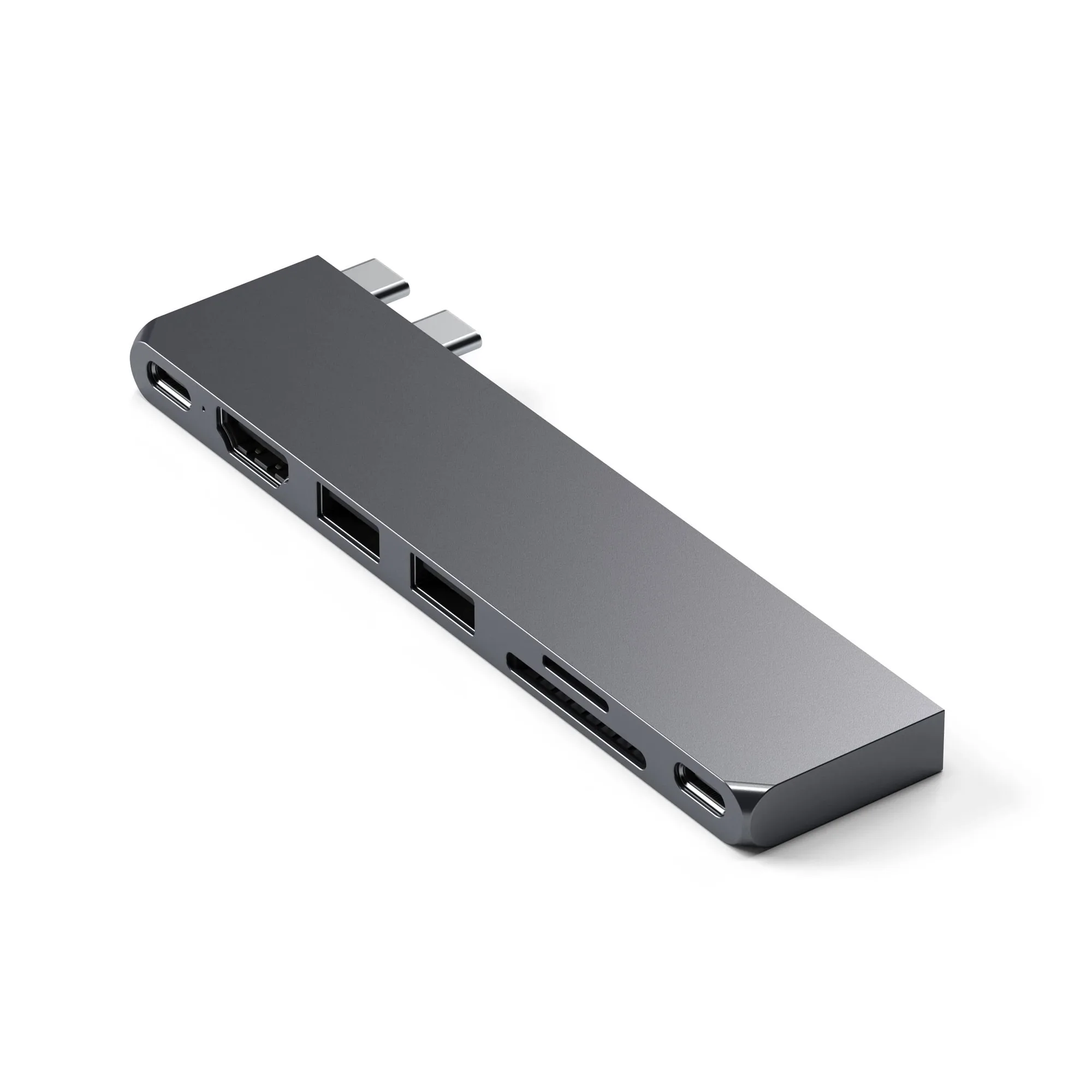
Pro Hub Slim