Quick Answer
To extend Wi-Fi range for your Reolink Argus 4 Pro, start by placing the camera closer to your router, then add a Wi-Fi extender or mesh system if needed. Adjust router settings like channel and bandwidth, and consider a wired backhaul for the extender to ensure stable 4K streaming.
Understand the Argus 4 Pro's Wi-Fi Limitations
The Argus 4 Pro supports Wi-Fi 6, which offers faster speeds and better performance in congested networks, but its range is still limited by physical obstacles and distance. Outdoor walls, metal siding, and even thick foliage can weaken the signal. Knowing these limitations helps you plan the best placement and decide whether you need additional equipment.
Optimize Router Placement and Settings
Position your router centrally and as high as possible to maximize coverage. Avoid placing it near thick walls, large appliances, or metal objects. In the router settings, select a less congested Wi-Fi channel (especially if you're on 2.4 GHz) and enable band steering if available to let the camera choose the best band. For outdoor cameras, 2.4 GHz typically offers better range than 5 GHz, so prioritize that band if your router allows separate SSIDs.
Use a Wi-Fi Extender or Mesh System
If your camera is still out of range, a Wi-Fi extender or mesh system can bridge the gap. Place the extender halfway between your router and the camera, within the router's coverage area. For best results, use a dual-band extender that can dedicate one band to the camera and the other to your router. Mesh systems with a dedicated wireless backhaul often provide more consistent performance than traditional extenders.
Step-by-Step: Extend Wi-Fi Range for Your Argus 4 Pro
- Assess the Current Signal Strength: Open the Reolink app and check the Wi-Fi signal indicator for your Argus 4 Pro. If it shows weak signal, note the distance and obstacles between the camera and router. A weak signal reading is your baseline; you'll want to see improvement after each step.
- Reposition the Camera or Router: Move the camera closer to the router or relocate the router to a more central, elevated spot. Even a few feet can make a big difference. Avoid placing the camera behind metal or concrete walls. Check the signal indicator after repositioning—this is the cheapest fix and often solves the problem.
- Adjust Router Settings for Better Range: Log into your router's admin page and switch to the 2.4 GHz band if you haven't already. Change the channel to 1, 6, or 11 (least congested) and disable any power-saving mode that might reduce transmit power. After saving settings, reboot the router and recheck the camera's signal. A clear channel can reduce interference from neighbors.
- Install a Wi-Fi Extender or Mesh Node: Place the extender halfway between the router and the camera, within the router's coverage area. Connect the extender to your router's 2.4 GHz network and name it the same SSID for seamless roaming. If the extender's signal to the camera is still weak, move it closer to the camera—but keep it within the router's range to avoid a weak uplink.
- Test and Fine-Tune: After each change, view the live feed in the Reolink app and walk around the camera's field of view to see if the video stays smooth. Also test the playback of recorded clips to ensure no dropouts. If you still experience issues, consider a mesh system with a dedicated backhaul or a wired connection for the extender. The goal is consistent 4K streaming without buffering.
Reolink Cameras That Benefit from Better Wi-Fi
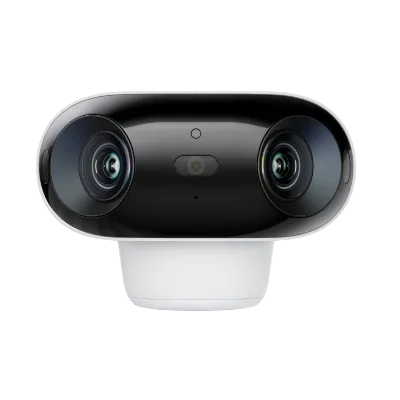
- Argus 4 Pro: The Reolink Argus 4 Pro is a 4K dual-lens security camera that provides a 180° field of view, eliminating blind spots. It supports Wi-Fi 6 for faster and more reliable connectivity. With Wi-Fi 6, the Argus 4 Pro can handle higher data rates, but it still needs a strong signal to stream 4K video without buffering. Improving your Wi-Fi range ensures you get the full benefit of its 180° coverage without dropouts.
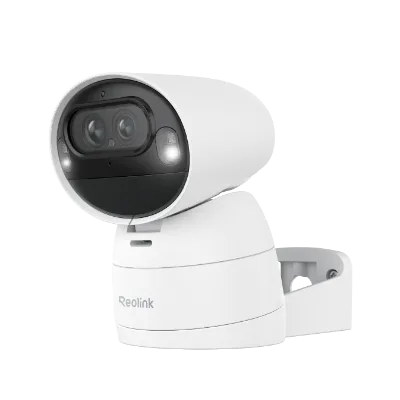
- Argus Track: The Reolink Argus Track is a 4K dual-lens Wi-Fi solar/battery camera designed for versatile outdoor security. It features auto-zoom tracking to follow moving subjects, ensuring you never miss a detail. Auto-zoom tracking requires a stable connection to send video and receive commands. A stronger Wi-Fi signal prevents lag in tracking responses, so the camera can follow motion smoothly even at the edge of your network.
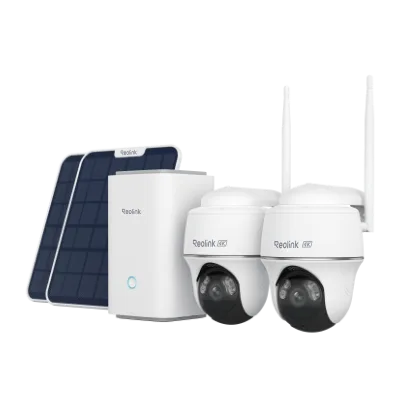
- Home Hub with Argus PT Ultra: The Home Hub with Argus PT Ultra is a 4K Wi-Fi security system that pairs a battery-powered PT camera with a central hub for convenient management. The central hub can act as a Wi-Fi relay, extending the effective range for the camera. If you're considering a system with multiple cameras, a hub-based setup can simplify your network and improve overall connectivity.