Quick Answer
Most Engino motor and robotics problems trace back to one of three things: dead or reversed batteries, a loose or incomplete connection, or a coding step that never actually started the motor. Check power first, then wiring, then software. If a motor still won't spin after those checks, the motor or controller is likely faulty, and replacing the part is the right move instead of rebuilding the whole model.
Few things deflate a build faster than a motor that refuses to spin. Engino motorized sets rely on a simple chain: batteries, a controller, a motor, and the model's own gearing. When one link breaks, the whole build stalls, and the symptom rarely points to the culprit on its own.
This guide walks through the most common Engino motor issues, robotics troubleshooting steps, and motorized building fixes in the order that saves the most time. Work through the diagnosis below before you take anything apart, and stop at the checkpoint where the problem clearly belongs to a part rather than your build.
Start With Power, Not the Model
Before you touch a single connector, verify that the power source is actually delivering current. Fresh batteries in the correct orientation fix a surprising share of engino motor not working complaints. If the set uses a rechargeable pack, confirm it was charged with the intended cable and that the indicator shows a full charge.
Next, test the motor on its own, outside the model. A motor that spins freely when connected directly to the controller is fine, and the fault is downstream in the build. A motor that stays silent with known-good power points to the motor or controller itself. This single test splits every motorized building fix into two very different paths.
- Replace all batteries at once; mixing old and new cells causes weak, intermittent motor behavior.
- Check polarity: a reversed battery or connector can stop a motor without any visible damage.
- Test one motor at a time so you know exactly which unit is failing.
Diagnose Connection and Assembly Faults
If the motor passes the standalone test, the problem is in how the model transmits power and motion. Push every connector fully into its port until it seats; partially inserted plugs are the most common cause of a motor that runs sometimes and dies other times. Then check the drivetrain: a gear that is too tight, a shaft that binds, or an axle pushed in too far can stall a healthy motor.
Rebuild the affected section rather than the whole model. Disconnect the motor from the gear train and run it again in place. If it spins, the binding is mechanical. If it still stalls, the fault is electrical and you should revisit the controller and wiring before rebuilding anything else.
- Seat every connector firmly; a loose plug mimics a dead motor.
- Spin the drivetrain by hand with the motor off; it should turn with light resistance.
- Rebuild only the binding section to avoid losing your progress.
When the Build Is Fine but the Code Isn't
Robotics sets add a software layer that can look like a hardware failure. If your model is assembled correctly and the motor tests fine, the issue may be that the program never sent a start command, the wrong port was addressed, or the controller never paired. Reopen the project, confirm the motor is assigned to the port it is physically plugged into, and run a minimal test program that only turns that motor on.
For Bluetooth or USB connected controllers, disconnect other devices, re-pair, and try a short cable run. If a simple test program drives the motor but your full program does not, the fault is in the code, not the hardware. This is the most common engino produino problems pattern: the build is correct and the logic is the problem.
- Write the smallest possible test program: one motor, one direction, one second.
- Match the port number in software to the port the motor is plugged into.
- Re-pair Bluetooth devices and keep the controller close during testing.
Sensor and Feedback Problems
Robots that use color, infrared, or ultrasound sensors can behave erratically when the sensor is blocked, dirty, or reading a surface it was not designed for. Wipe sensor lenses with a dry, soft cloth and make sure nothing in the model blocks their line of sight. Test the robot on a plain, matte surface before judging whether the sensor works.
If the robot reacts to your hand but not to the intended target, adjust the sensor's position or the program's threshold rather than replacing the part. Sensors are usually reporting accurately; the model or the code is asking them to read the wrong thing.
- Keep sensor lenses clean and unobstructed by surrounding parts.
- Test on a plain surface to rule out reflective or patterned floors.
- Change one variable at a time when tuning sensor thresholds.
Stop Rebuilding and Replace the Part
There is a point where more troubleshooting wastes an afternoon. If a motor fails the standalone test with fresh batteries and a known-good controller, and you have confirmed the connector and port, the motor is the problem. If multiple motors fail on the same port while working on another port, the controller is the problem. Rebuilding the model will not change either outcome.
At that stage, order the specific spare part rather than a whole new set. Engino sells spare parts for exactly this reason, and replacing one motor or controller is faster and cheaper than starting over. Keep the failed part labeled so you can describe it accurately when you order.
- One motor fails alone: replace the motor.
- All motors fail on one port: replace or service the controller.
- Two or more unrelated failures at once: check the power supply before ordering anything.
Diagnosis Checklist: Symptom to Action
- Motor does not spin at all: Replace batteries with fresh cells, confirm polarity, then test the motor directly on the controller outside the model. If it spins outside the model, the fault is mechanical in the build.
- Motor runs intermittently or cuts out: Push every connector fully into its port and check for a battery pack that is loose or low. Intermittent behavior almost always means a connection, not a dead motor.
- Motor hums but the model does not move: Disconnect the motor from the gear train and run it in place; turn the drivetrain by hand to feel for binding. Binding gears or a jammed axle are the cause when the motor itself runs.
- Robot ignores the program: Match the port in software to the physical port, then run a one-motor test program to confirm the controller receives commands. If the test program works, the fault is in your code, not the hardware.
- Sensor-triggered behavior is erratic: Clean the sensor lens, clear obstructions, and test on a plain matte surface before changing thresholds. Adjust position or code before assuming the sensor is faulty.
- Same fault follows the part, not the port: Swap the suspect motor to a different port. If the fault moves with the motor, replace the motor; if it stays with the port, replace or service the controller. Stop rebuilding and order the specific spare part.
Sets That Use These Motors and Controllers
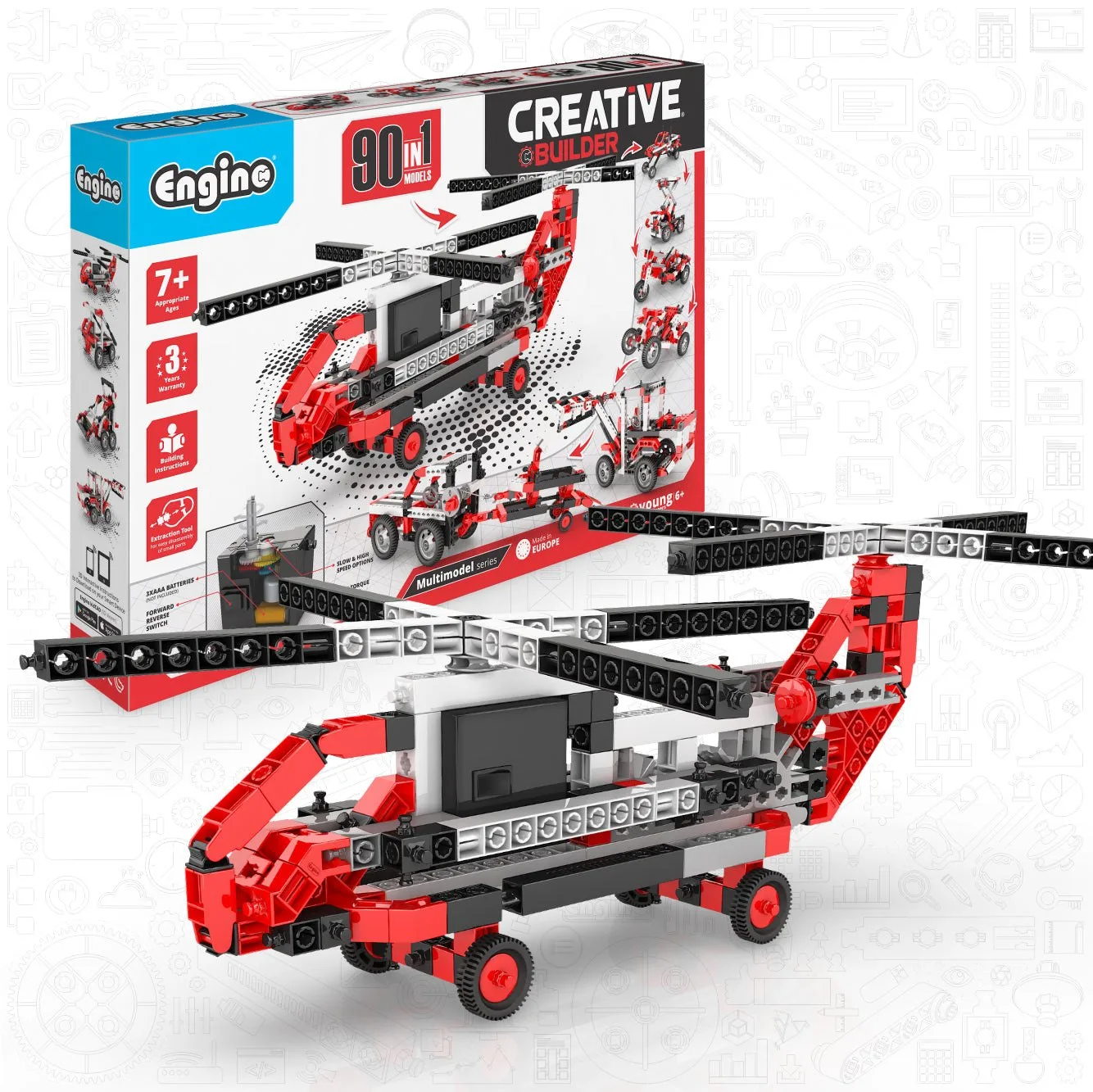
- Engino Creative Builder: 90 Motorized Model Set- STEM Project for Kids Ages 7+ (90 Models to Build): Powered by a 2-speed motor and part of the Creative Builder: Multimodel series, this set builds machines across land and air, including moving excavators and a Chinook helicopter. The 2-speed motor is the component most likely to need the power and connection checks above, and its multiple builds make it easy to test the motor in a second model before assuming it is broken.
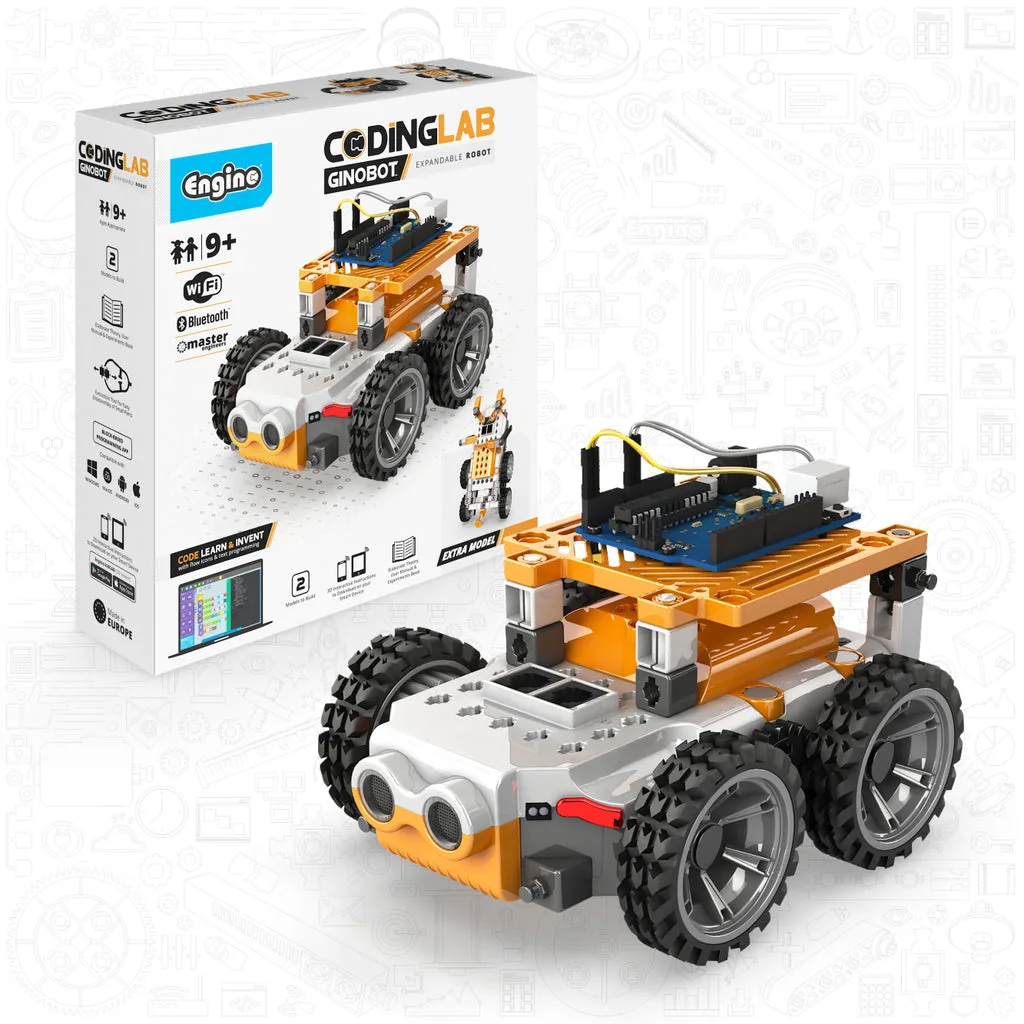
- Engino Coding Lab- GinoBot STEM Robotics Toys for Kids Ages 9+ (2 Robots to Build): GinoBot builds two programmable robotic models and uses color, infrared, and ultrasound sensors, programmable through Engino's KEIRO software. Because it combines sensors, motors, and coding in one kit, GinoBot is where software and sensor faults most often masquerade as motor failures, so run the minimal test program before replacing hardware.
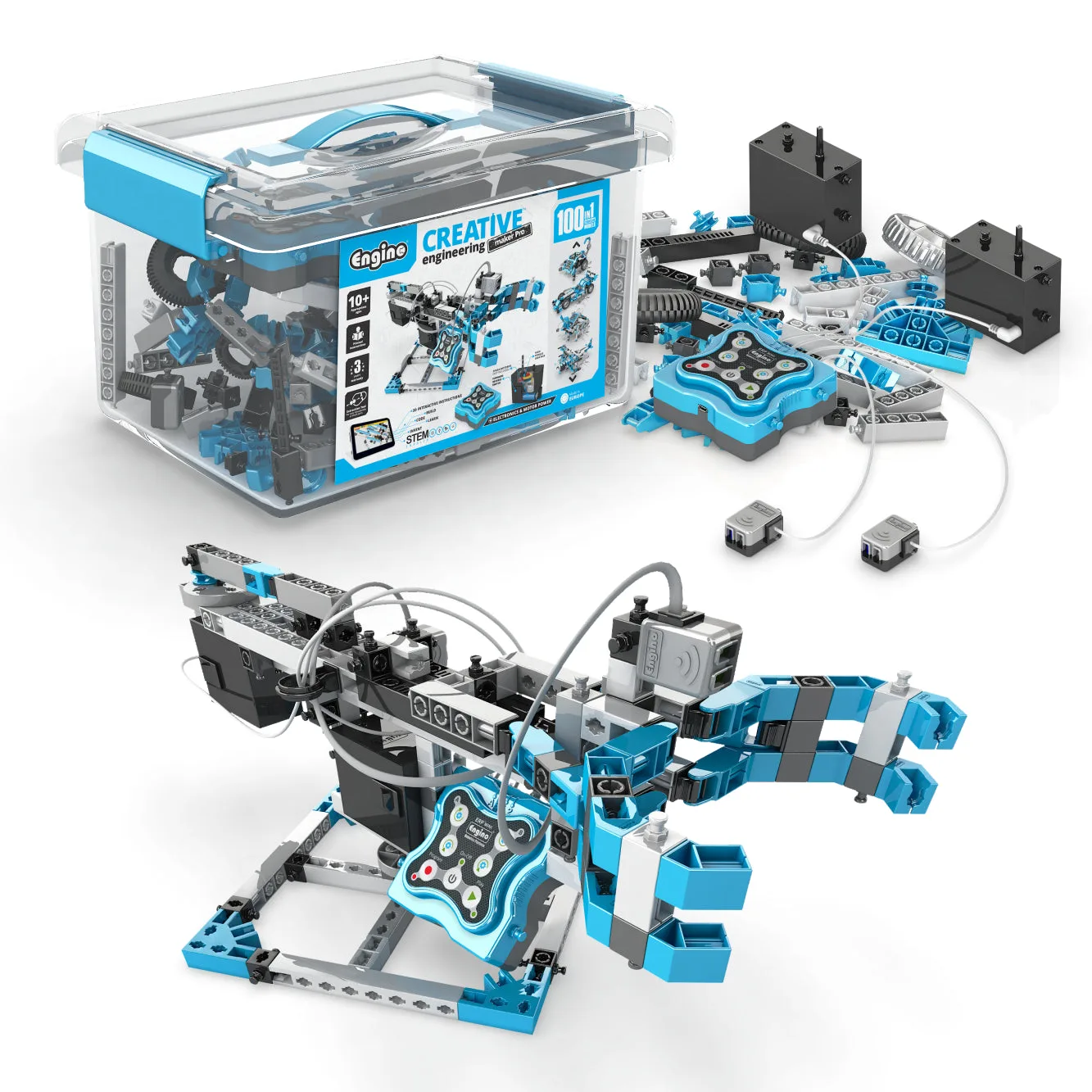
- Creative Engineering 100 in 1- Motorized MAKER PRO: Fun Educational Toys for Kids Ages 10+ (100 Models to Build): This set includes over 290 parts, 2 motors, and an electronic controller with Bluetooth and USB connectivity, paired with KEIRO coding software and the EnginoRobot BT remote app. With two motors and a Bluetooth controller, you can swap motors between ports to isolate whether the fault is the motor or the controller, which is the fastest way to decide whether to repair or replace.
Work the checklist in order: power, connections, code, then parts. Most Engino motor issues resolve before you reach the last step, and when they do not, replacing the single faulty component is faster than rebuilding a model that was never the problem.