Quick Answer
Double-click issues often stem from dirty contacts, worn switches, or incorrect software settings. Start by cleaning the mouse and adjusting your OS double-click speed, then test with a different port or receiver. If the problem persists, it's likely a hardware switch failure, which may require switch replacement or a new mouse.
Few things are more frustrating than clicking once and having your mouse register two clicks. This 'double-click' issue can cause you to select text, close windows, or fire off abilities you didn't intend. It's a common problem among gamers and everyday users alike, but the good news is that it's often fixable without buying a new mouse.
In this guide, we'll walk you through the steps to diagnose and fix double-click issues on your gaming mouse. We'll cover everything from quick software checks to more advanced hardware repairs, so you can get back to precise, single-click control.
Step 1: Check Your Mouse Settings
Before you open up your mouse, start with the simplest potential culprit: your operating system's double-click speed setting. If it's set too low, a single click might be interpreted as a double-click. On Windows, go to Control Panel > Mouse and adjust the double-click speed slider. On macOS, go to System Preferences > Mouse and adjust the tracking and double-click speed.
Also, check if any gaming software or mouse drivers have a 'double-click' or 'debounce' setting. Some mice allow you to adjust the debounce time, which is the delay between registered clicks. If it's set too low, it can cause unintended double-clicks. Reset these settings to default and see if the issue persists.
- Adjust OS double-click speed to a medium setting.
- Update or reinstall your mouse drivers.
- Disable any 'double-click' or 'debounce' features in your mouse software.
Step 2: Clean the Mouse Buttons
Dust and debris can accumulate around the mouse buttons and switches, causing intermittent contact and double-clicking. Unplug your mouse and use compressed air to blow out any particles around the buttons. For stubborn grime, lightly dampen a cotton swab with isopropyl alcohol and gently clean the edges of the buttons.
If your mouse has removable buttons (like some Glorious models), you can take them off and clean the switches underneath. Be careful not to damage the delicate components. After cleaning, let everything dry completely before using the mouse again.
- Use compressed air to blow out debris.
- Clean button edges with isopropyl alcohol.
- Allow time to dry before reconnecting.
Step 3: Test on a Different Port or Computer
Sometimes the issue isn't the mouse itself but the USB port or the computer's USB controller. Try plugging your mouse into a different USB port, preferably a USB 2.0 port if you're using USB 3.0, or vice versa. If you're using a wireless mouse, try a different USB receiver port or reconnect the receiver.
If the problem disappears on another port or computer, the issue might be with your original port or system settings. If it persists across all ports and computers, it's more likely a hardware problem with the mouse.
- Try a different USB port.
- Test on another computer if possible.
- For wireless mice, re-pair the receiver.
Step 4: Consider Switch Replacement
If you've tried software fixes and cleaning, and the double-clicking persists, it's likely that the physical switch under the button is worn out or failing. This is a common issue with gaming mice after heavy use. The switches are rated for a certain number of clicks, and once they wear out, they can cause double-clicks.
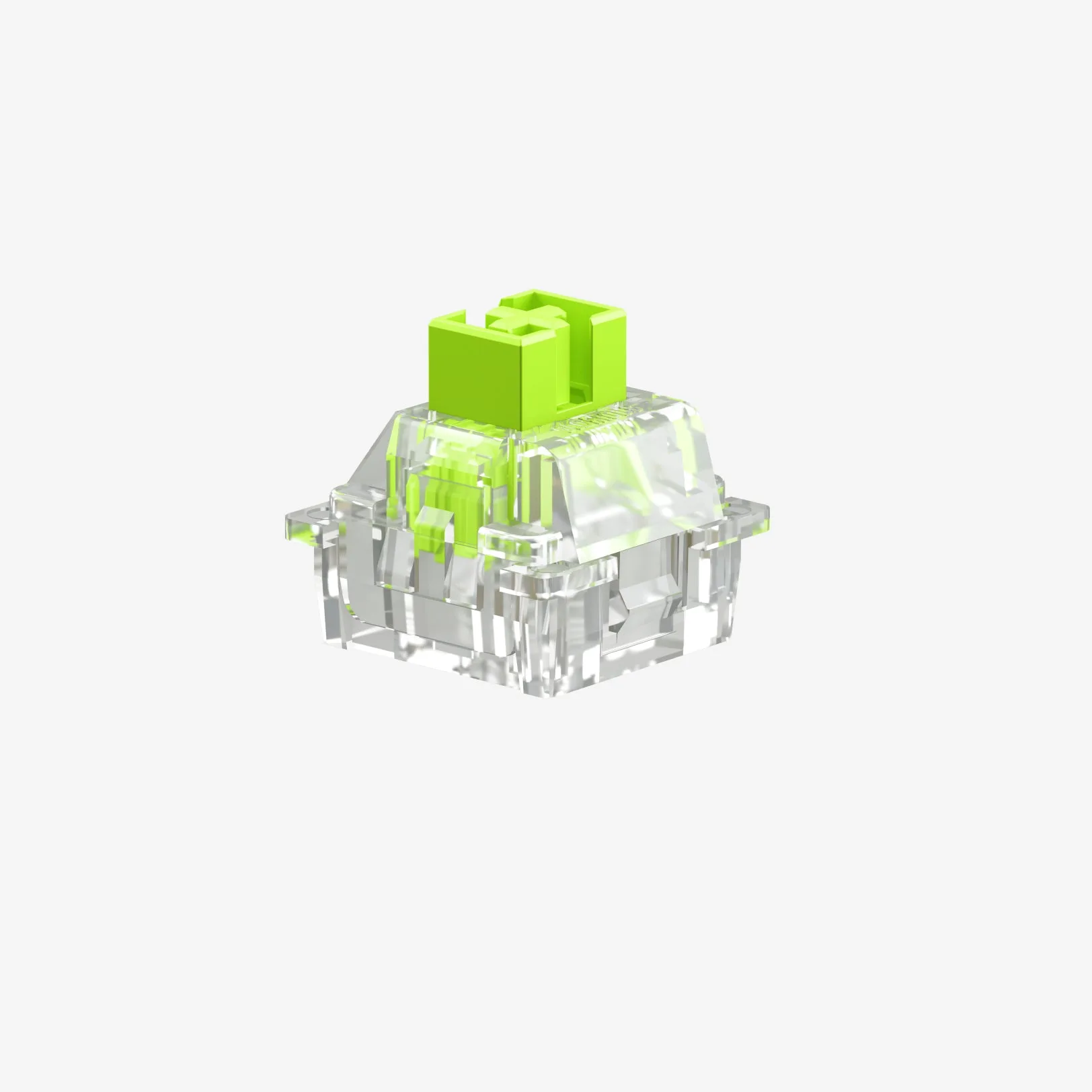
Replacing the switches requires soldering skills and opening the mouse. If you're comfortable with such repairs, you can order replacement switches (like Omron or Kailh) and swap them out. However, this will void your warranty, and if you're not experienced, it's risky. If your mouse is still under warranty, contact the manufacturer for a replacement. Otherwise, you might consider upgrading to a new mouse.
- Switch replacement requires soldering and voids warranty.
- Check if your mouse is still under warranty.
- If not, weigh the cost of repair vs. a new mouse.
Diagnosis: Symptom, Cause, Action, and When to Stop
- Symptom: A single click results in two or more clicks, causing unintended selections or actions. Identify the exact behavior to narrow down the cause.
- Likely cause: Software settings, dirty contacts, or worn-out switches. Start with the least invasive fix first.
- Corrective action: 1) Adjust OS and software settings. 2) Clean the mouse. 3) Test on different ports. 4) If all else fails, consider switch replacement or a new mouse. Follow the steps in order; most issues are resolved by steps 1-3.
- When to stop: If the mouse is under warranty, stop and contact the manufacturer for a replacement. If you're not comfortable with soldering, stop and consider purchasing a new mouse. Don't risk damaging your mouse or voiding the warranty if you're not confident in hardware repair.
Gaming Mice Built to Last
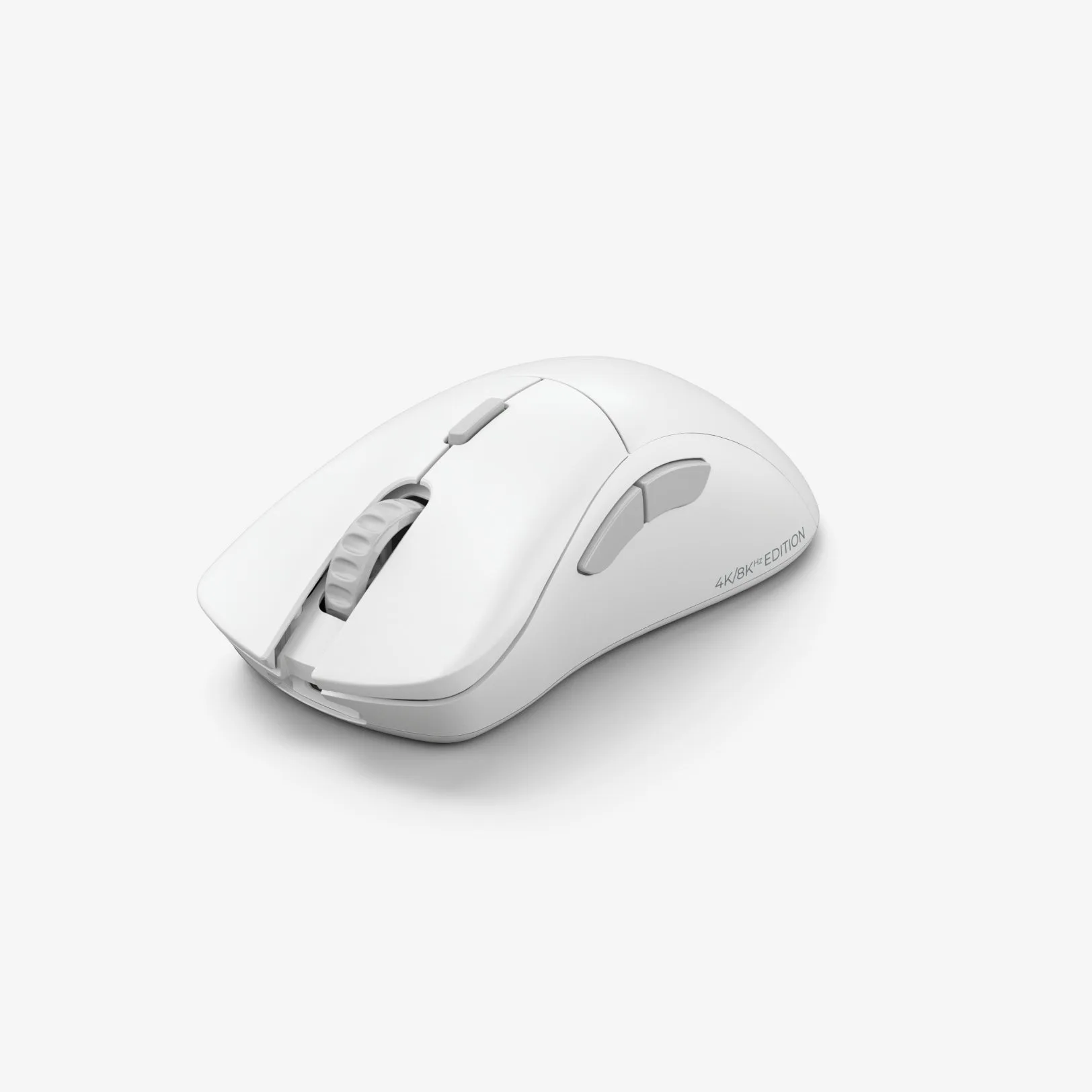
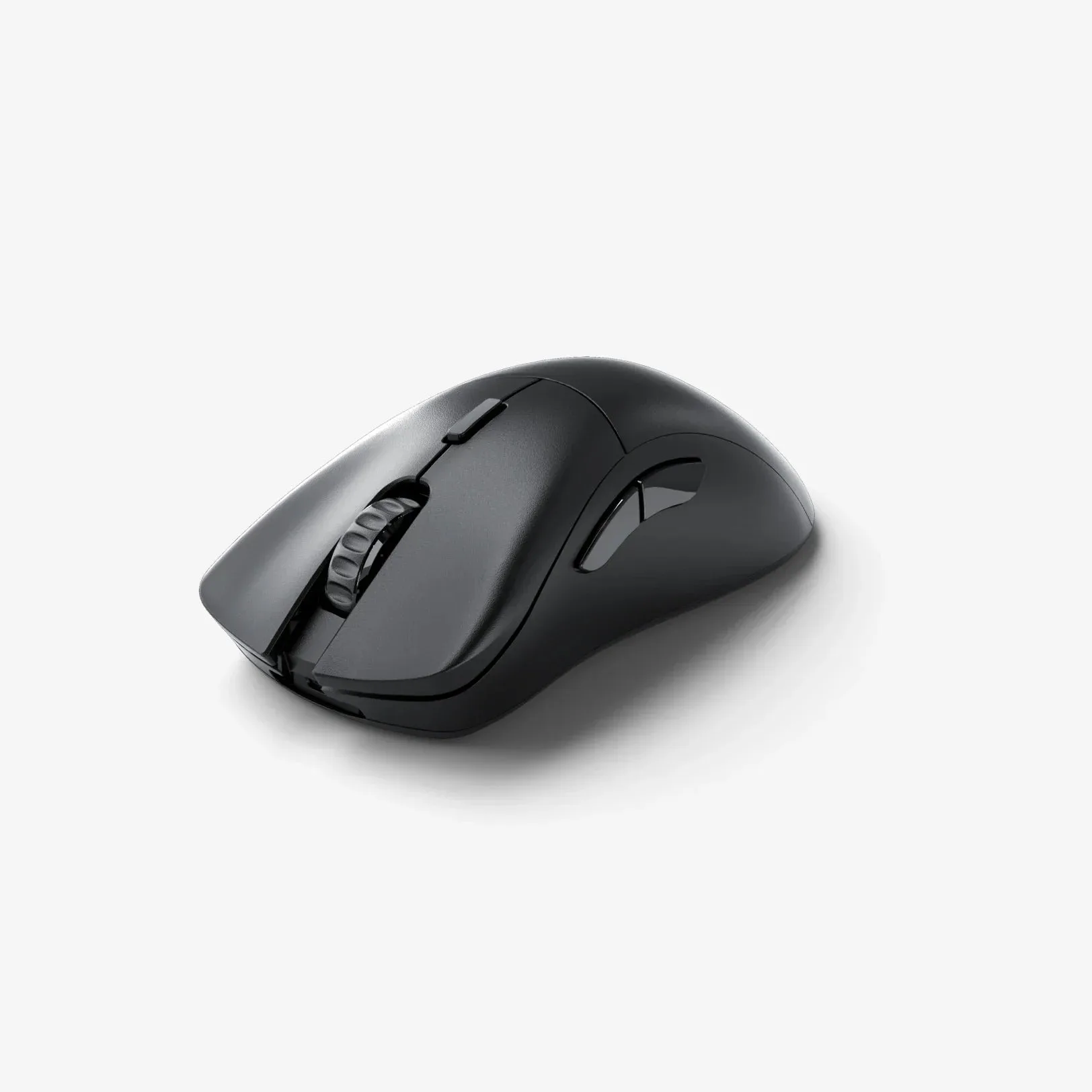
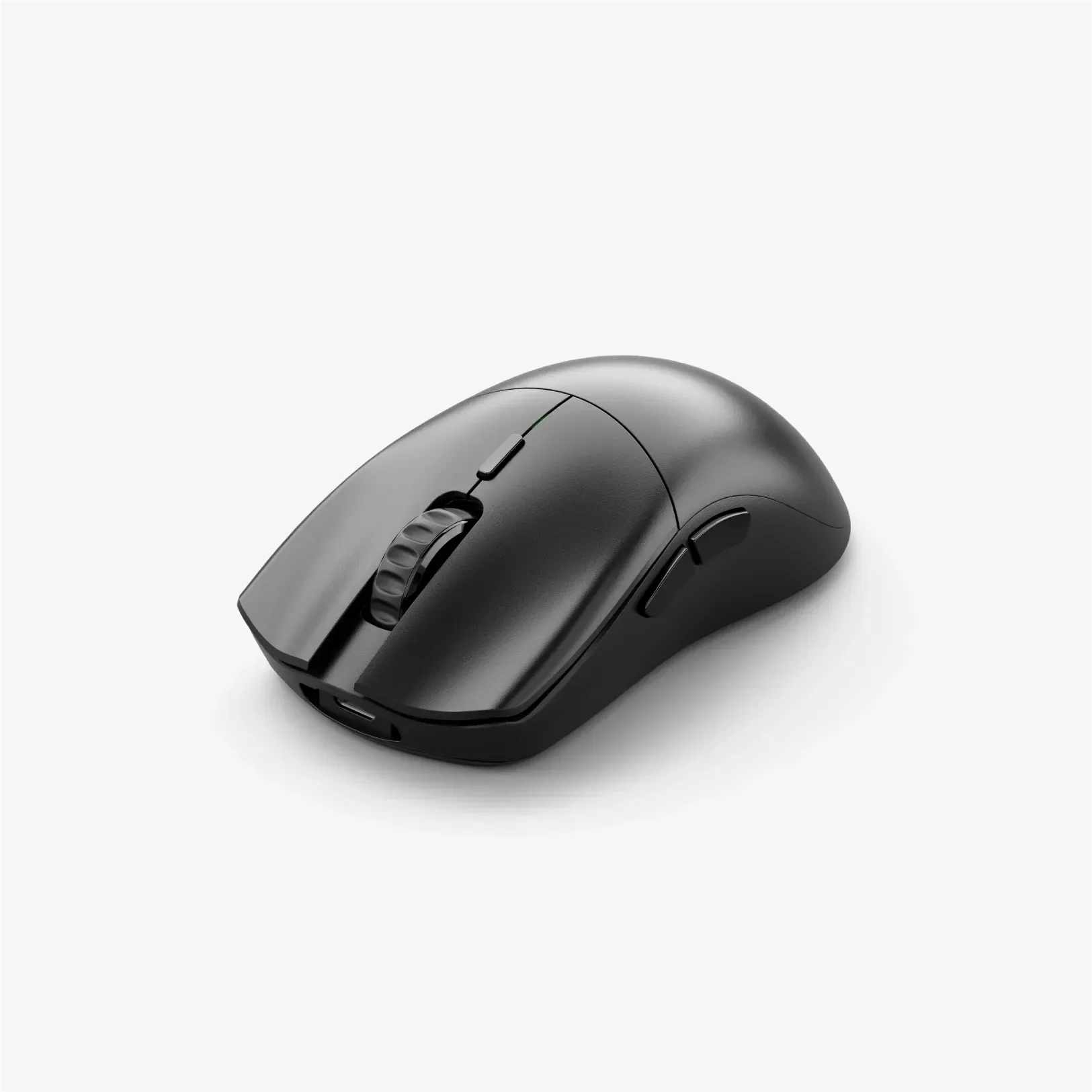
- Glorious Model O 2 Wireless Gaming Mouse: The Glorious Model O 2 Wireless Gaming Mouse delivers vibrant, full-spectrum RGB lighting, allowing you to personalize its look to match your style and setup. Designed for gamers who value both performance and aesthetics, this wireless mouse offers a sleek, modern appearance that stands out in any setup. With a fresh, high-quality mouse, you can avoid the frustration of double-click issues and enjoy reliable performance out of the box.
- Series 2 PRO Wireless Mouse: Snap to targets at unmatched speeds with our lightest mouse ever. Every movement is effortlessly controllable, so you never miss a shot again. If you're looking for a lightweight, responsive mouse that minimizes the risk of double-click problems, this model offers top-tier performance.
Double-click issues can be annoying, but they're often fixable with a few simple steps. If your mouse is beyond repair, consider upgrading to a reliable model like the Glorious Model O 2 Wireless Gaming Mouse or the Series 2 PRO Wireless Mouse. These mice are designed for precision and durability, so you can game with confidence.