Quick answer
Connect the Hyperkin HD Cable to your Dreamcast and HDTV, then set your TV's input to the correct HDMI or component source and adjust the display settings to 4:3 aspect ratio for the best retro gaming experience.
Why upgrade from composite cables
The original Dreamcast composite AV cable outputs a standard-definition 480i signal that often looks blurry or washed out on modern flat-panel displays. The Hyperkin HD Cable bypasses that limitation by delivering up to 480p resolution with cleaner video and separate high-definition audio. The difference is especially noticeable in games with fine text or detailed 3D graphics, where the higher resolution reduces flicker and sharpens edges.
A note about compatibility
The Hyperkin HD Cable is designed specifically for the Sega Dreamcast console. It will not work with other retro consoles without an adapter. Also, while 480p is a significant upgrade over 480i, some Dreamcast games were optimized for interlaced displays and may show minor graphical quirks in progressive mode. This is a trade-off of the cable's design, not a defect.
Step-by-step setup guide
- Connect the cable to your Dreamcast: Insert the Hyperkin HD Cable's AV connector firmly into the Dreamcast's AV out port. Ensure the connector is fully seated to avoid loose connections that can cause flickering or no signal. A loose connection is the most common cause of a blank screen. Push until you feel it click.
- Plug the cable into your HDTV: Connect the other end of the cable to an available HDMI or component input on your TV. Note which input number you use (e.g., HDMI 1). Label the input so you can switch to it quickly later. Many TVs auto-detect, but not all.
- Turn on your Dreamcast and TV: Power on the Dreamcast first, then your TV. Select the correct input source using your TV remote. If you see no picture, double-check the cable connection and input selection. If the screen stays black, try a different HDMI port or component input. Some older TVs require manual input switching.
- Adjust TV picture settings for retro gaming: Open your TV's picture settings menu. Set the aspect ratio to 4:3 (not 16:9) to avoid stretching the image. Reduce sharpness to 0 or low to minimize artificial edge enhancement that can make retro graphics look noisy. Sharpness above 50% often adds unwanted artifacts. Keeping it low preserves the original pixel look.
- Test with a game and fine-tune: Insert a Dreamcast game and play for a few minutes. If the image appears too dark or too bright, adjust your TV's brightness and contrast settings. Aim for visible detail in both shadows and highlights without washing out colors. Use a game with a bright menu or title screen as a reference. Avoid using a calibration disc unless your TV supports it.
Product details
-
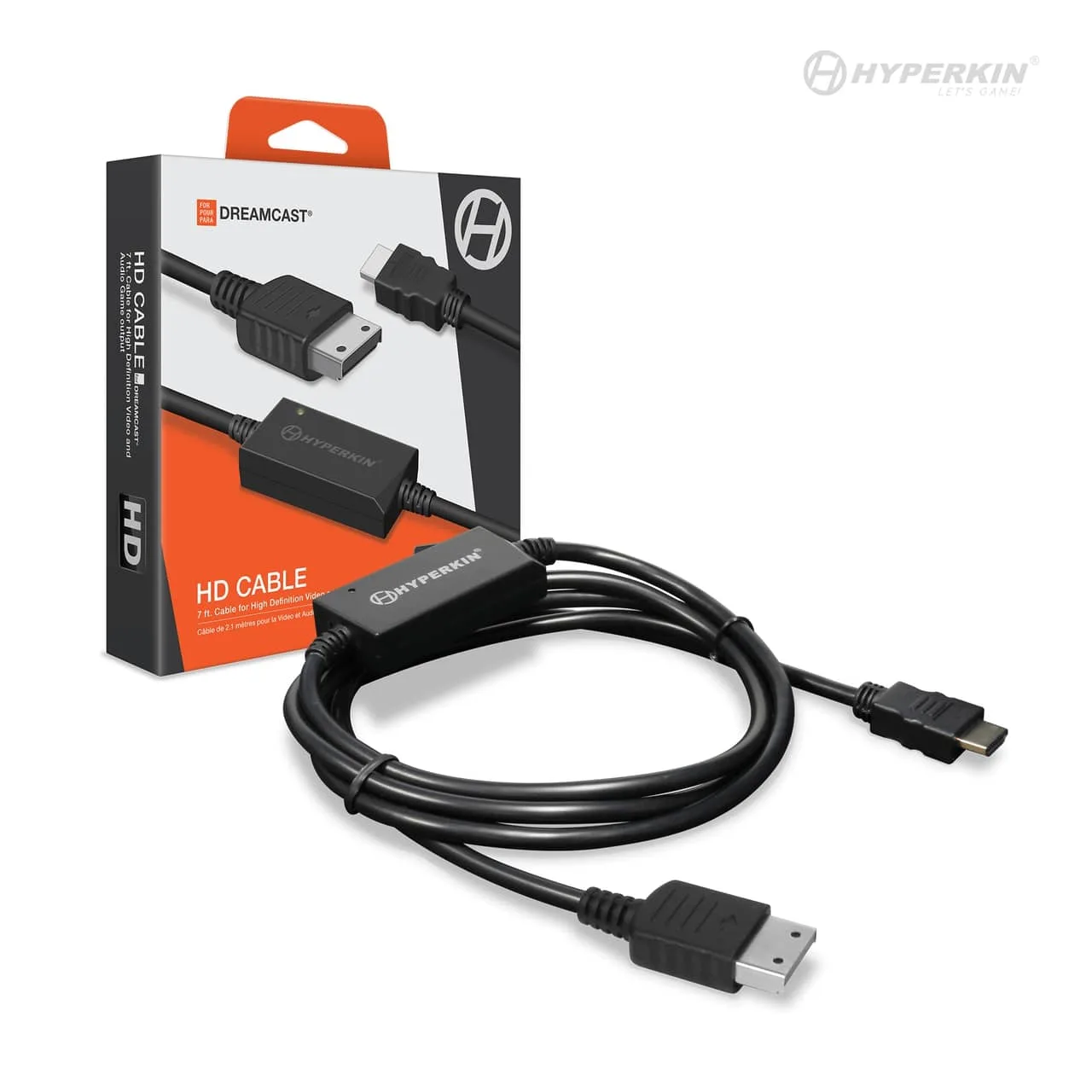
Hyperkin HD Cable: The Hyperkin HD Cable for Dreamcast lets you play Dreamcast titles on your HDTV at up to 480p with crisp HD audio. This means you get a noticeably sharper picture and clearer sound compared to the original composite cable, making classic games look their best on modern screens.
Hyperkin HD Cable