Quick answer
You install the August Wi-Fi Smart Lock on the inside of your door and keep your existing deadbolt and keys. Remove the interior thumb turn, fit the correct adapter plate, mount the lock body, add DoorSense, then calibrate in the August App. Most doors take about 20 minutes with a Phillips screwdriver and no locksmith.
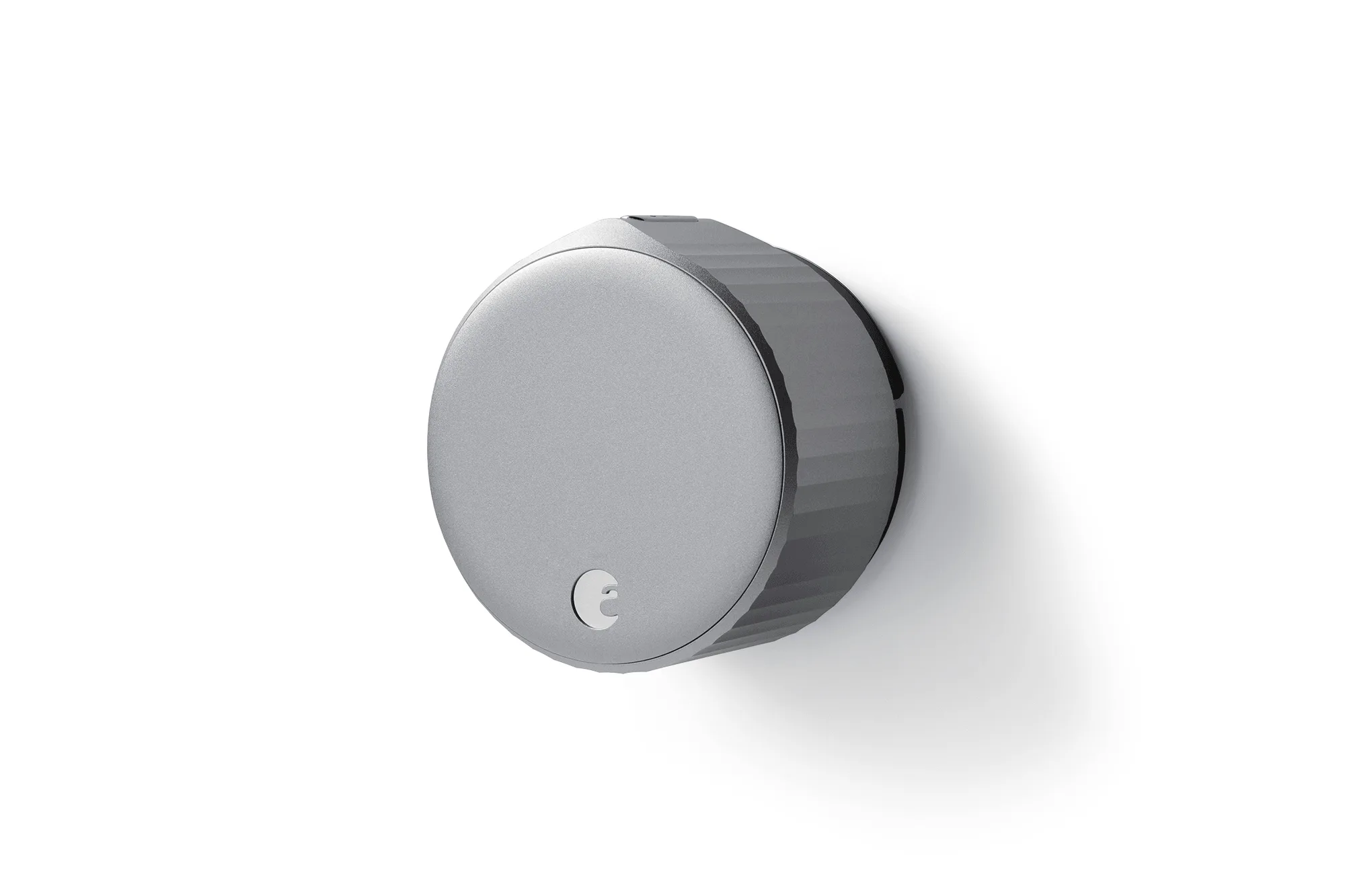
August Wi-Fi Smart Lock
The August Wi-Fi Smart Lock is designed to work with the deadbolt you already have, so you replace only the interior thumb turn, not the whole lock. That keeps your exterior hardware and keys unchanged, which is why this is one of the least invasive smart lock projects you can take on.
The install has five checkpoints that decide whether it works smoothly: the adapter plate, the mounting plate, the lock body, DoorSense, and app calibration. Get those right and keyless entry, auto-lock, and virtual keys all behave. Rush them and you get the classic symptoms: a lock that grinds, a door that won't close, or an app that reports the door as open when it isn't.
Before you start: what to check on your door
Confirm your existing deadbolt is a single-cylinder model with a thumb turn on the inside. August replaces that thumb turn. If your door has a double-cylinder deadbolt (keyed on both sides) or an integrated handle-and-deadbolt combo, this style of install is not the right fit, and you should look at a full replacement like the Yale Approach Lock with Wi-Fi + Keypad Touch instead.
Check that the deadbolt throws and retracts smoothly by hand. If it sticks now, it will stick with a smart lock attached, and no amount of calibration will fix a misaligned strike plate. Also note whether your interior door surface is flat or recessed, since the lock body needs a stable surface to sit against.
- Have a Phillips screwdriver, the August App installed, and your Wi-Fi password ready before you remove anything.
- Take a photo of the existing thumb turn and mounting screws so you can reverse the process if needed.
Step 1: Remove the interior thumb turn
Start inside the house with the door open. Remove the two screws holding the interior thumb turn plate, then pull the plate and thumb turn straight off the door. Set the screws aside; you will not reuse the thumb turn, but keeping the original parts makes it easy to revert to a manual lock later.
The tailpiece, the flat metal bar sticking out of the door, is what the August lock grips and turns. Do not bend it, cut it, or push it into the door. If it is too long and bottoms out inside the lock, August includes instructions for trimming it, but check the fit first before you cut anything.
- Common mistake: forcing the thumb turn off when a hidden screw is still in place. If it won't budge, look for a third screw or a snap-on cover.
Step 2: Fit the adapter plate
The adapter plate is the bridge between your existing deadbolt brand and the August lock body. Match the plate shape to your deadbolt, then seat it over the tailpiece and against the door. This is the step people skip, and it is the number one cause of a lock that spins without throwing the bolt.
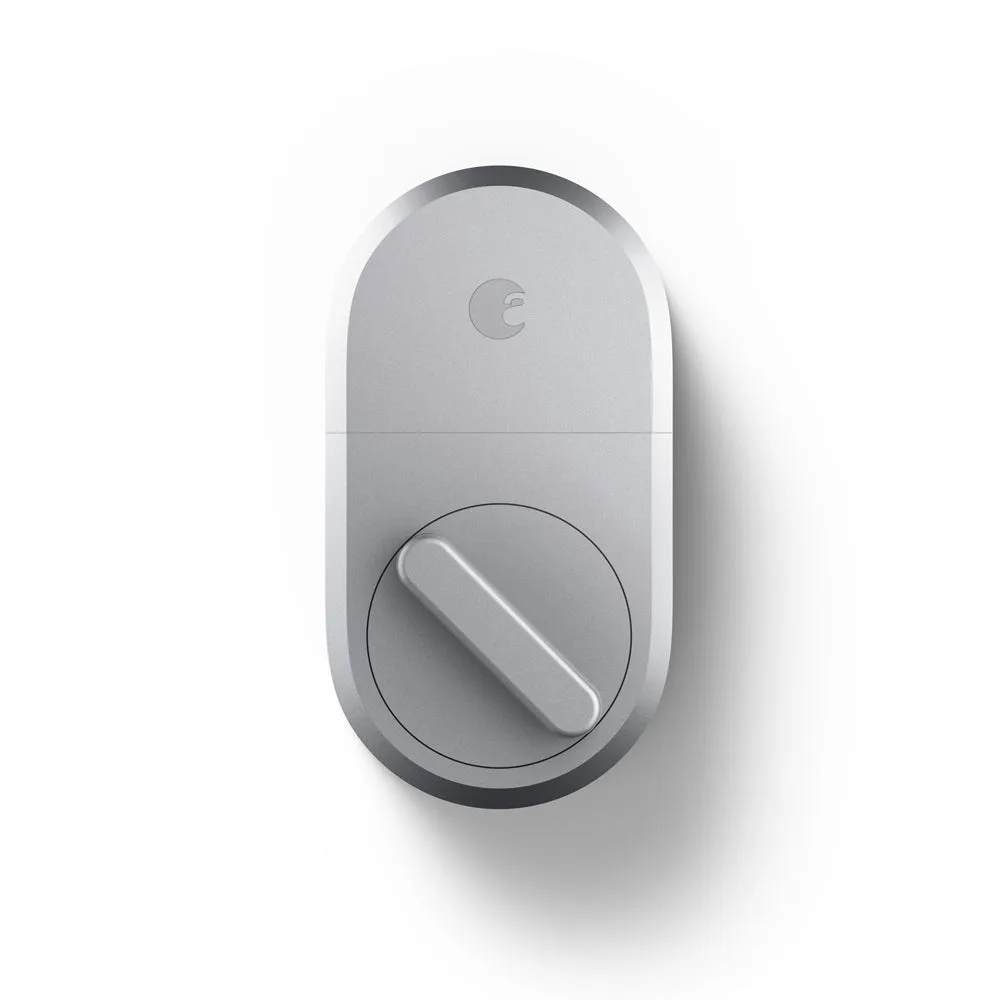
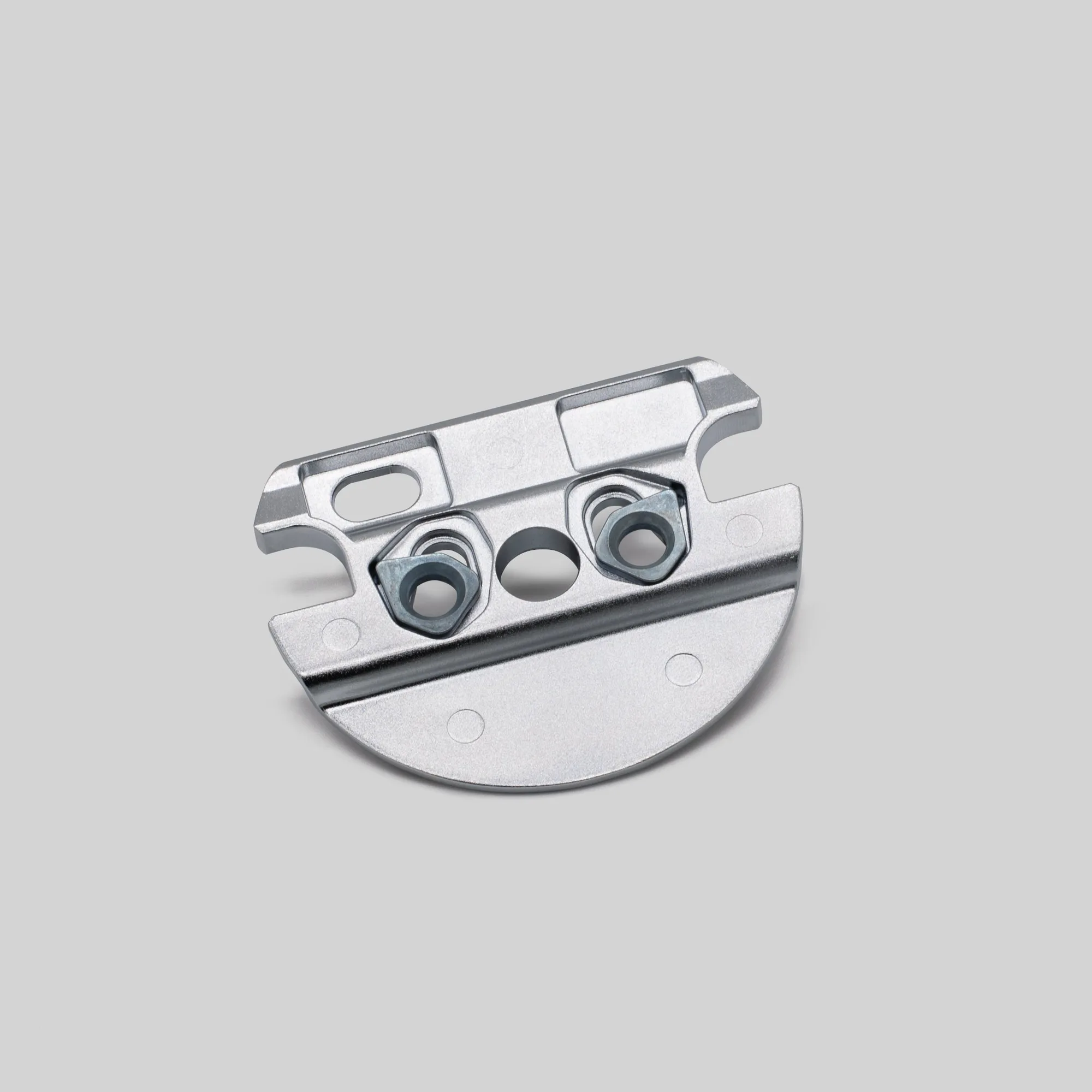
If your deadbolt is a brand August does not list an adapter for, use the closest fit and test the throw by hand before mounting the lock body. If you are replacing a previous August lock or moving the lock to a new door, the Mounting Plate for Smart Lock 1st Gen, 2nd Gen, 3rd Gen Pro is the part that attaches to the inside of your door to hold the August Smart Lock, and it is compatible with the 1st Gen August Smart Lock, 2nd Gen August Smart Lock Pro, and 3rd Gen.
- Checkpoint: with the adapter plate seated, manually turn the tailpiece and confirm the deadbolt fully extends and retracts.
Step 3: Mount the lock body
Press the August Wi-Fi Smart Lock onto the mounting plate and tailpiece, then secure it with the supplied screws. Tighten evenly, alternating sides, so the body sits flat rather than cocked against the door. A body that is not flush will bind when it turns.
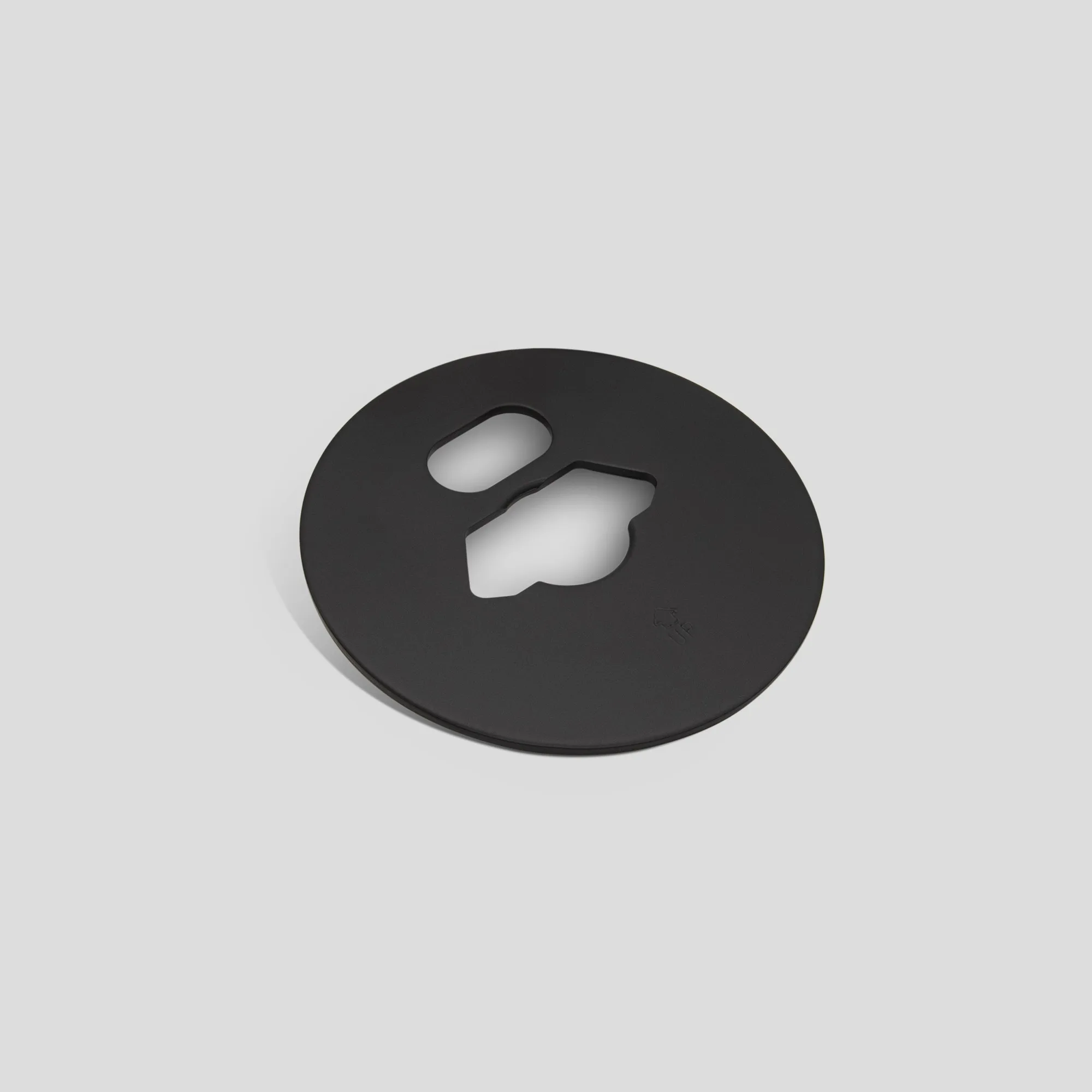
Once mounted, turn the lock's manual thumb turn through a full cycle. You should feel smooth resistance from the deadbolt, not grinding or a hard stop. If the lock body does not sit flat because of a recessed door surface, a Cover Plate for August Wi-Fi Smart Lock can give you a clean, stable mounting surface and hide the old screw holes.
- Common mistake: over-tightening one screw first. That tilts the body and makes the gear train work harder than it should.
Step 4: Install DoorSense
DoorSense is the small sensor that tells the app whether your door is open or closed, which is what makes auto-lock reliable. Mount it on the door frame or the door jamb according to the August instructions, keeping the magnet and sensor within the gap distance the app specifies. Do not guess the placement; the app will walk you through the exact position during setup.
If you skip DoorSense, the lock still works, but auto-lock and open-door status become unreliable. That matters most for rentals and guest access, where you want confirmation that the door actually closed behind someone.
- Checkpoint: after mounting, open and close the door slowly and watch the app status change from closed to open and back.
Step 5: Pair and calibrate in the August App
Open the August App, add a new lock, and follow the pairing prompts. The app will ask you to run calibration, which teaches the lock where fully locked and fully unlocked are. Let the lock run the full cycle without touching the door or the thumb turn. If calibration fails, the usual causes are a binding tailpiece, a misaligned adapter plate, or a deadbolt that needs lubrication.
After calibration, test three things: lock and unlock from the app, lock and unlock by hand, and confirm the DoorSense status is accurate. Then set up auto-lock and any virtual keys you need. For a second door or a different form factor, the Yale | August Wi-Fi Smart Lock with Keypad uses the same app-based setup and adds a keypad for code entry, which is handy for kids and one-time visitors.
- If calibration keeps failing, remove the lock body and re-check the adapter plate and tailpiece alignment before trying again.
Installation checkpoints at a glance
- Confirm deadbolt compatibility: Single-cylinder deadbolt with an interior thumb turn, and a bolt that moves freely by hand. If the bolt sticks now, fix the strike alignment before installing the smart lock.
- Remove the thumb turn and check the tailpiece: Two screws, straight pull, and leave the tailpiece straight and untrimmed until you test the fit. A bent or over-trimmed tailpiece is the most common cause of a lock that will not calibrate.
- Seat the adapter plate and test by hand: Match the plate to your deadbolt brand, then turn the tailpiece manually through a full lock and unlock cycle. Do not mount the lock body until the bolt throws smoothly by hand.
- Mount the lock body flush: Alternate screw tightening so the body sits flat against the door or cover plate. A tilted body grinds and drains batteries faster.
- Install DoorSense and calibrate in the app: Follow the app's placement guidance, then run calibration without touching the door. Test app lock, manual lock, and door status before you rely on auto-lock.
Parts and bundles that help with this install
- Mounting Plate for Smart Lock 1st Gen, 2nd Gen, 3rd Gen Pro: The mounting plate attaches to the inside of your door to hold the August Smart Lock, and it is compatible with the 1st Gen August Smart Lock, 2nd Gen August Smart Lock Pro, and 3rd Gen. If you are moving an older August lock to a new door or replacing a lost plate, this is the specific part that keeps the lock body seated and aligned.
- Cover Plate for August Wi-Fi Smart Lock: A cover plate sized for the August Wi-Fi Smart Lock. Useful when the old thumb turn left marks or a recess on the door, so the new lock has a flat surface to mount against.
- Yale | August Wi-Fi Smart Lock with Keypad: This Wi-Fi Smart Lock simplifies everyday life with keyless entry, virtual keys, auto-lock and unlock, remote monitoring and control with August App, and it is bundled with the Yale Keypad for convenient code entry great for small kids and one-time visitors. A good next step if you want the same app-based setup plus code entry for people who do not have the app.
Installing the August Wi-Fi Smart Lock on an existing deadbolt comes down to alignment and calibration, not force. Take the five checkpoints in order, test the bolt by hand before you mount anything, and let the August App finish the job. If your door hardware is not a match, a full replacement bundle is the cleaner path rather than fighting an adapter that was never meant for it.