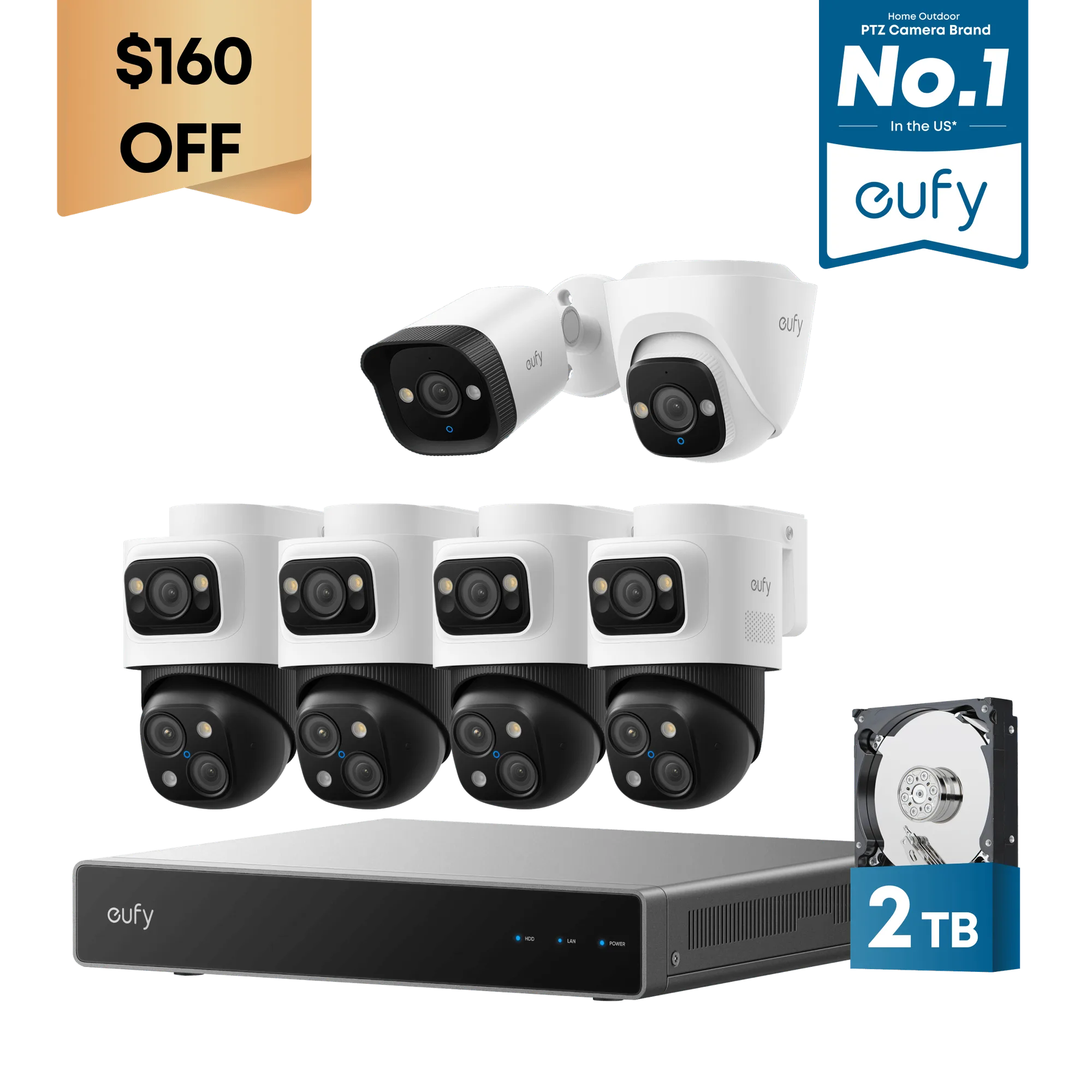
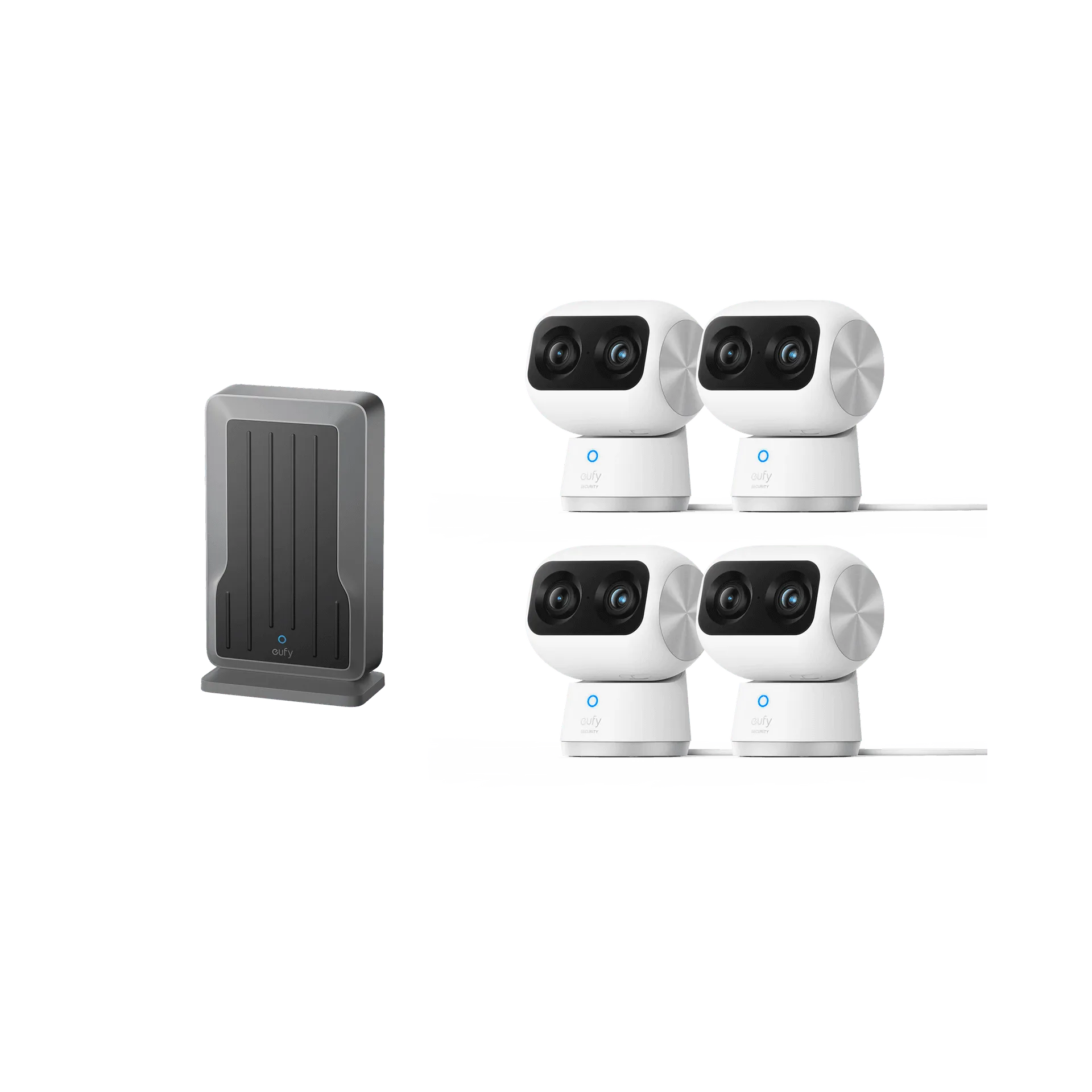
What You Get in the eufy PoE NVR S4 Max Kit
The eufy PoE NVR Security System S4 Max + 2 Turret Cameras is a wired, expandable security system designed for whole-home coverage. The kit includes an 8‑port NVR with a pre‑installed 2 TB HDD (upgradeable to 16 TB), two 4K turret cameras, and four bullet-PTZ cameras plus one 2K PTZ camera for 360° monitoring. All cameras connect via Power over Ethernet (PoE), which means a single Ethernet cable carries both power and data, simplifying installation.
This guide covers the physical setup, NVR connection, and initial configuration so you can start using the system's smart features like Auto-Framing and Group Tracking.
Step 1: Plan Camera Placement and Run Ethernet Cables
Before mounting anything, decide where each camera will go. The turret cameras are ideal for key areas like entryways and driveways, while the bullet-PTZ cameras handle wider views with auto-tracking. The 2K PTZ camera offers 8× zoom and 360° coverage.
Run a dedicated Cat5e or Cat6 Ethernet cable from each camera location back to the NVR. The NVR's PoE ports supply power, so no separate outlet is needed at the camera. Follow the supplied product instructions for maximum cable length to ensure reliable PoE performance.
- Choose camera positions: Mount turret cameras at corners or under eaves for a wide 4K view. Place bullet-PTZ cameras where they can track movement across larger areas.
- Run Ethernet cables: Use outdoor-rated Cat6 cable for exterior runs. Leave slack at both ends for adjustments.
- Connect cables to NVR: Plug each cable into one of the 8 PoE ports on the back of the NVR. The system supports up to 8 bullet-PTZ cameras (each uses 2 channels) or up to 16 bullet/turret cameras.
Step 2: Mount the Cameras and NVR
The turret and bullet-PTZ cameras are rated IP67 for outdoor use, meaning they withstand rain, dust, and extreme temperatures. Mount them securely using the included brackets, aiming each camera at the area you want to monitor.
Place the NVR in a dry, ventilated indoor location near your router. Connect the NVR to your network via the Ethernet WAN port, then plug it into power.
- Mount turret cameras: Use the mounting template to drill pilot holes, then screw the bracket into a wall or ceiling. Attach the camera and adjust the angle.
- Mount bullet-PTZ cameras: These cameras also use a bracket. Ensure the PTZ mechanism has clearance to rotate 360° without obstruction.
- Position the NVR: Place it near your router and switch. The NVR has a 2 TB HDD pre-installed, upgradeable to 16 TB for extended 24/7 recording.
Step 3: Power On and Connect the System
Once all cameras are mounted and cables are connected, power on the NVR. The cameras will receive power over the Ethernet cables and should appear in the NVR's interface within a minute.
Use the included mouse and monitor (connected via HDMI or VGA) to navigate the NVR's menu. Follow the on-screen setup wizard to configure your network, date/time, and recording schedule.
- Power on the NVR: Press the power button on the front panel. Wait for the system to boot—this takes a short time as indicated in the product instructions.
- Check camera feeds: All connected cameras should display live video. If a camera shows no signal, check the Ethernet connection and cable length.
- Configure recording: Set continuous or motion-triggered recording. The 2 TB HDD provides ample storage; you can upgrade to 16 TB later.
Step 4: Enable Smart Tracking and AI Features
The eufy S4 Max system uses a Local AI Agent with 6T/8-Core processing power for real-time analysis. This enables Auto-Framing and Group Tracking: when a bullet camera detects a subject, the PTZ locks on and auto-tracks them in sharp, centered close-ups from up to 164 ft away.
To enable these features, go to the NVR's AI settings menu and turn on Auto-Tracking and Cross-Cam Tracking. You can also customize no-go zones and alerts so the AI only responds to real threats, reducing false alarms.
Step 5: Set Up Smart Video Search and No-Go Zones
One of the most useful features is Smart Video Search with no subscription fee. Instead of scrolling through hours of footage, you can search by keywords (e.g., "person," "vehicle") to instantly find relevant clips.
You can also define no-go zones—areas where the system should ignore motion or trigger specific alerts. This is especially helpful for homes with pets or trees that move in the wind. The AI learns to distinguish genuine threats from harmless activity.
Key Specifications at a Glance
-
eufy PoE NVR Security System S4 Max + 2 Turret Cameras: Auto-Framing and Group Tracking: When the bullet camera detects a subject, the PTZ locks on and auto-tracks them in sharp, centered close-ups from up to 164 ft away. This means you get active, intelligent monitoring without manually adjusting camera angles.
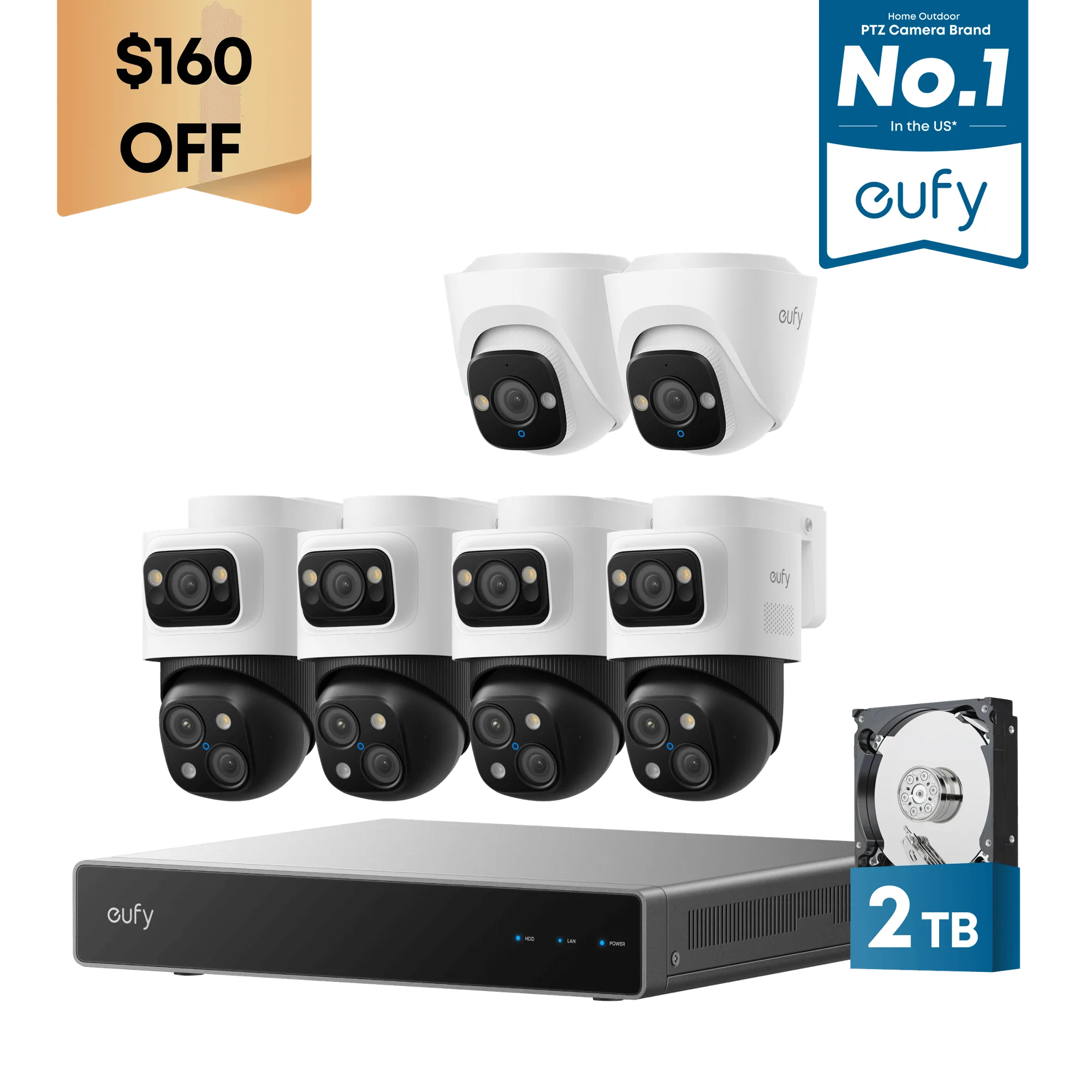
eufy PoE NVR Security System S4 Max + 2 Turret Cameras
-
eufy PoE NVR Security System S4 Max + 2 Turret Cameras: Includes a pre‑installed 2 TB HDD (Upgradeable to 16 TB) for 24/7 recording. You can store weeks of footage locally without cloud subscriptions or monthly fees.
-
eufy PoE NVR Security System S4 Max + 2 Turret Cameras: IP67 and Two-Way Talk: Withstands any weather with robust IP67 waterproofing for reliable monitoring. Cameras are built to endure rain, snow, and dust, making them suitable for year-round outdoor use.
Expanding the System Later
The 8‑port NVR can be expanded to 16 channels by adding a PoE switch (not included). This allows you to add more bullet or turret cameras as your security needs grow. The system supports up to 8 bullet-PTZ cameras (each uses 2 channels) or up to 16 bullet/turret cameras.
If you upgrade the HDD to 16 TB, you can store even more 24/7 footage from all cameras. The NVR's interface makes it easy to manage recordings and playback.
What the Supplied Information Does Not Cover
This guide covers physical installation and basic configuration. For detailed operating instructions—such as adjusting PTZ presets, setting up email alerts, or configuring advanced recording schedules—refer to the product manual included with your system or the eufy support website.
The system comes with a 3-year after-sales support, so if you encounter issues during setup, eufy's support team is available 24/7 to help.