Quick Answer
To install the KeySmart Air FKM, start by removing the key ring from your existing keychain, then slide the FKM onto the ring along with your keys, and finally attach the ring back to the KeySmart. Ensure the AirTag is properly seated inside the FKM before securing it. This guide walks you through each step with tips to avoid common mistakes.
The KeySmart Air FKM is a compact holder designed to keep your Apple AirTag attached to your keychain without adding bulk. Whether you're upgrading from a standard key organizer or adding tracking to a new one, installation is straightforward if you follow the right sequence.
This guide covers everything from preparing your KeySmart to securing the AirTag, with common pitfalls to avoid along the way. By the end, you'll have a reliable setup that keeps your keys trackable and tangle-free.
What You Need Before You Start
Before you begin, gather your KeySmart Air FKM, an Apple AirTag, and the key ring that came with your KeySmart (or a compatible split ring). You'll also want a small flathead screwdriver or a coin to help open the KeySmart if you need to adjust the internal key arrangement.
Make sure you have a clean, flat surface to work on to avoid losing small parts. If your KeySmart is currently loaded with keys, you may want to remove them temporarily to make the installation easier, but it's not strictly necessary.
- Check that your AirTag is fully charged and functioning before installation.
- Have a spare key ring on hand in case you need to replace the original.
Preparing the KeySmart Air FKM
The KeySmart Air FKM comes with a dedicated slot for the AirTag. Open the FKM by gently prying it apart at the seam—no tools are required, but a thin coin can help if it's snug. Insert the AirTag into the recess, ensuring the flat side faces outward for proper tracking.
Once the AirTag is seated, snap the FKM back together. You should hear a click, indicating it's secure. Give it a gentle shake to confirm the AirTag doesn't rattle or shift.
- If the FKM feels loose, double-check that the AirTag is fully seated before snapping shut.
Attaching the FKM to Your KeySmart
Now, attach the FKM to your KeySmart. The FKM is designed to slide onto the key ring along with your keys. If your KeySmart has a built-in key ring, simply open it using the provided tool or your fingernail, thread the FKM onto the ring, and close it securely.
If you're using a separate split ring, slide the FKM onto the ring first, then add your keys. This order prevents the FKM from getting lost in the key stack and ensures it sits on the outside for easy access.
- Position the FKM so the AirTag faces outward, away from your keys, to avoid scratching the AirTag surface.
Securing the Setup
Once the FKM is on the ring, ensure that the ring is fully closed to prevent accidental detachment. If you're using a KeySmart with screws, tighten the screws to secure the ring in place. For models with a quick-release mechanism, push it until it locks.
Test the setup by gently pulling on the FKM to ensure it's firmly attached. Then, use the Find My app on your iPhone to verify that the AirTag is recognized and tracking correctly.
- If the AirTag doesn't appear in Find My, remove and reinsert it, then try again.
Step-by-Step Installation Checklist
- Insert the AirTag: Open the FKM and place the AirTag inside, ensuring it's flush and the logo faces outward. Checkpoint: The AirTag should sit snugly without movement.
- Close the FKM: Snap the two halves together until you hear a click, confirming a secure fit. Mistake to avoid: Don't force it—if it doesn't close easily, the AirTag may be misaligned.
- Attach to KeyRing: Thread the FKM onto your KeySmart's key ring or a split ring, positioning it on the outside of your key stack. Checkpoint: Ensure the ring is fully closed to prevent loss.
- Verify Tracking: Open the Find My app and confirm your AirTag appears and updates its location. If it doesn't show, re-seat the AirTag and repeat the process.
KeySmart Products That Complement Your Setup
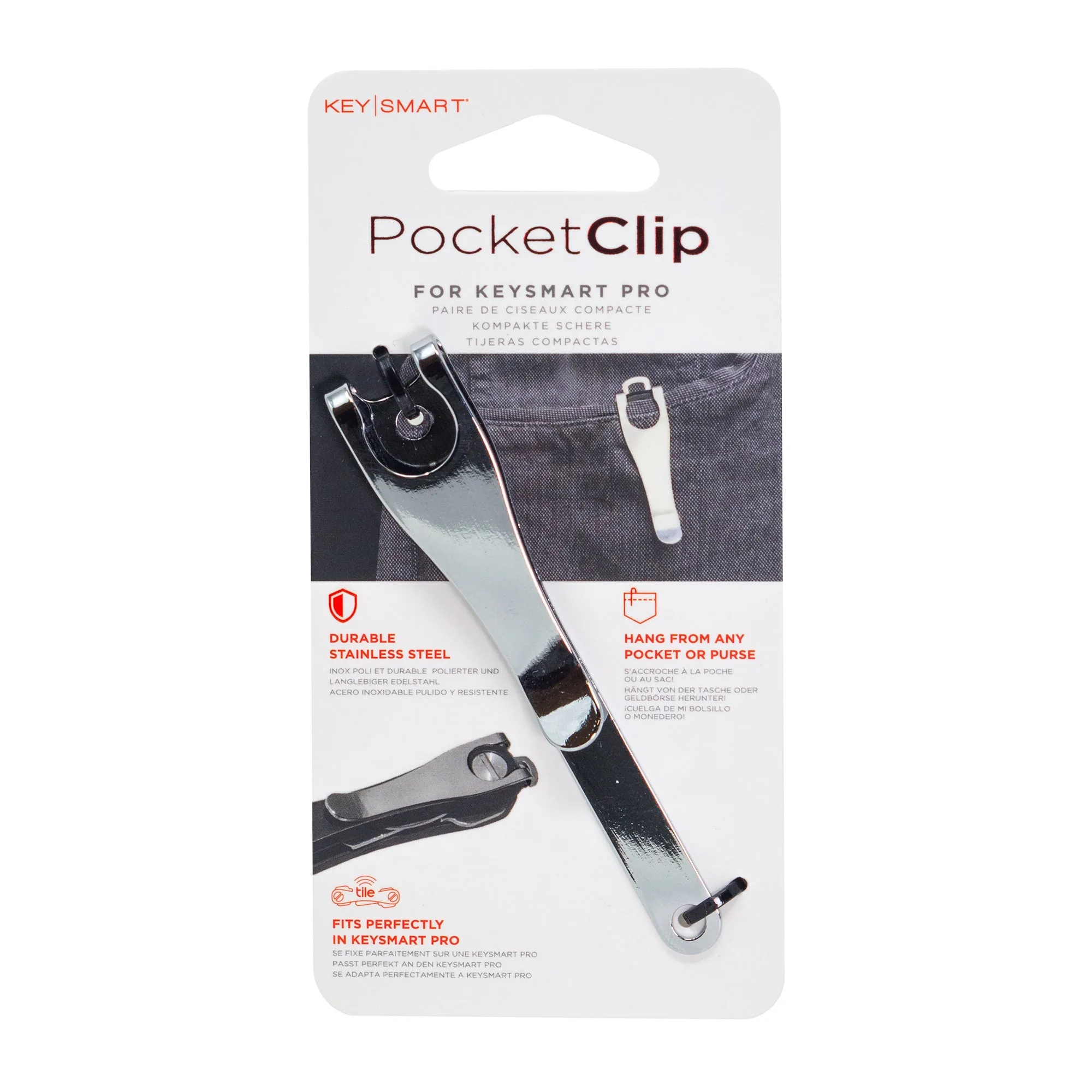
- Deep Carry Pocket Clip | Keep Your KeySmart in Place | Stainless Steel: Comfortable to Carry: Make your KeySmart comfortable to carry & easy to access. Keep Your KeySmart in Place so you always know where to find it. No more digging in your purse or pocket! Extra Security: Secures to your pocket, purse, or belt so you can trust that your keys will stay put. Easy to Add in 3 simple steps. Made with Durable Stainless Steel for a sturdiness you can rely on. Compatible with All KeySmarts. Adding the Deep Carry Pocket Clip ensures your KeySmart Air FKM stays securely in your pocket, reducing the chance of dropping or misplacing your keys.
- USB 3.0 - Super Fast | USB Flash Drive | Add To Any KeySmart® Key Organizer: Transfer data 10x faster with USB 3.0s. Adding big gigabytes to your pocket in the most compact way. This 16, 32, 64, or 128 GB USB 3.0 drive can be added easily to any KeySmart®. The drive has a full aluminum housing that is very sleek and smooth. More importantly, it protects the drive from harsh environments and falls. Takes up 2 slots in any KeySmart®. Once your FKM is installed, adding a USB flash drive to your KeySmart gives you portable storage without extra bulk, making your keychain a true EDC tool.
With your KeySmart Air FKM properly installed, you can enjoy the peace of mind that comes with knowing your keys are always trackable. The process takes less than five minutes, and the result is a sleek, functional addition to your everyday carry. If you're looking to further enhance your setup, consider pairing the FKM with a Deep Carry Pocket Clip for extra security or a USB flash drive for on-the-go storage.